Volunteers: the pool and qualifications
Two separate statements are made about every volunteer:
- They are in the pool — they volunteer for this ministry. Every ministry has a pool Group, created with it, and the pool is simply that Group's membership.
- They are qualified for a position — they can be assigned to it, sign up for it, or stand in for someone on it. A tick in the qualification grid says so.
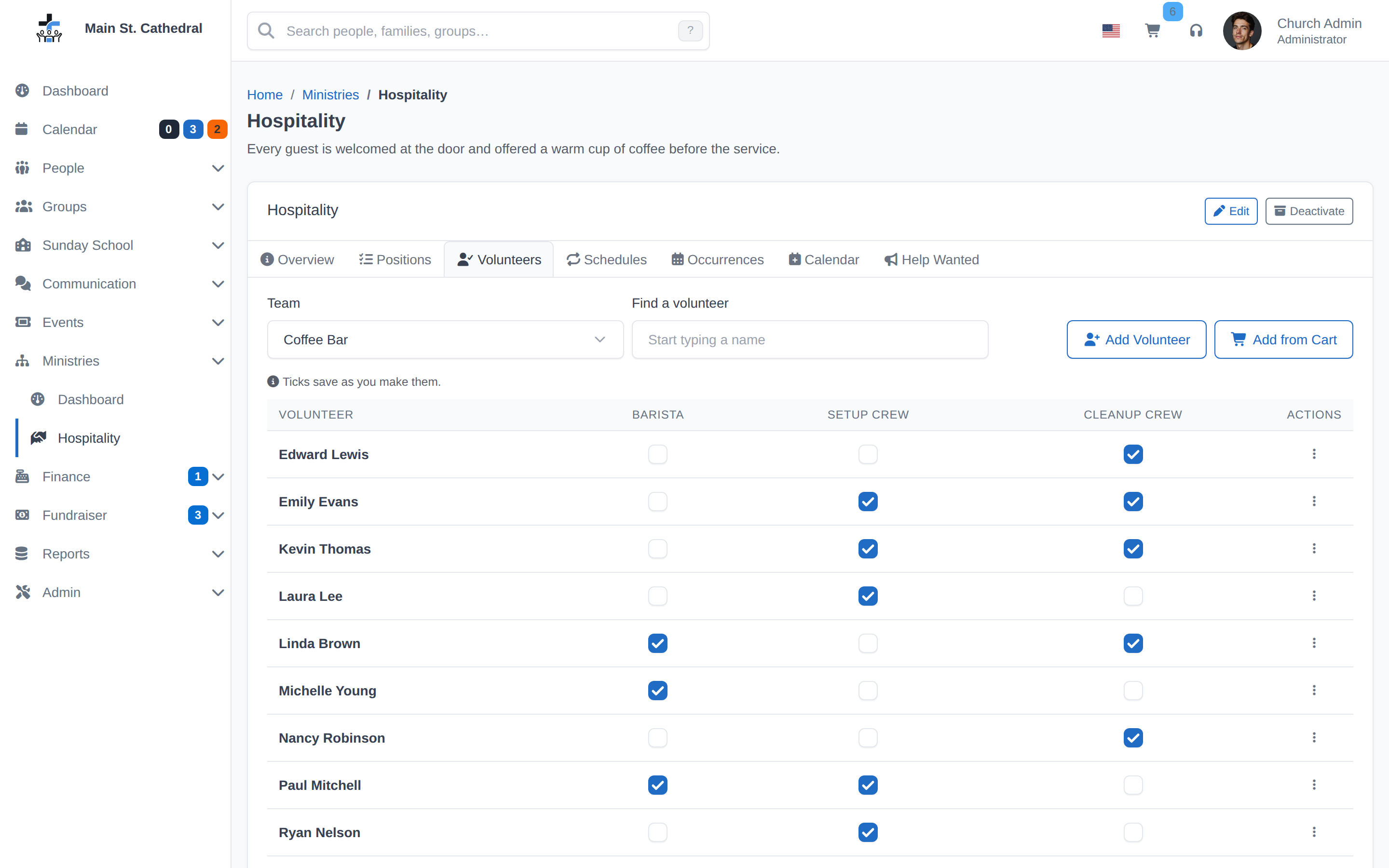
Being in the pool is candidacy; a tick is eligibility. The Volunteers tab of the ministry page is where both are managed.
The pool Group
The Group is a real Group, listed under Groups by the ministry's name, and its membership can be edited there like any other group. Its identity, though, belongs to the ministry: the group page says so and its Edit and Delete buttons are disabled, because the ministry owns it. Deleting the ministry deletes the Group.
People arrive in the pool in several ways:
- Add Volunteer on the Volunteers tab — the standard person search, then Add.
- Add from Cart — everyone in the Cart joins in one step ("Everyone in the cart joins this ministry's volunteers. Tick their positions afterwards.").
- Being qualified for one of the ministry's positions: a tick in the grid also adds the person to the pool, and so does bringing in a class's teachers when a team is linked to a Sunday School class.
- Being made a coordinator of the ministry or a leader of one of its teams.
- Offering to help from the Member Portal's Open Opportunities page.
- Being added to the Group under Groups.
Neither dialog grants a qualification; the new person appears in the grid with no ticks, which is the prompt for the second step.
The qualification grid
The grid shows people down the side and the selected team's positions across the top, with a checkbox in each cell. Choose the Team to see its positions; the grid starts on the first team. When the list has more than five names a Find a volunteer box appears; type part of a name to filter.
- Ticks save as you make them. There is no Save button: each tick is its own write and confirms itself in the standard notification ("Barista: Constance Hart qualified"). If a save fails the box rolls back.
- Untick to take a qualification away. The history of what that person served is kept.
- Only active positions have a column. Deactivating a position hides its column; reactivating it brings the ticks back.
The rows are the pool plus anyone still qualified for a position in view who has since been taken out of the pool Group, for example under Groups. Those rows carry a Not in the pool hint. They can still be assigned, and the staffing picker lists them under "Not in the pool".
For a team linked to a Sunday School class, a tick also makes the person a Teacher of the class, and taking away their last tick in that team removes the Teacher role.
Before creating a schedule, make sure every position it needs has at least one tick. The staffing picker and the Default volunteers lists only ever offer qualified people, and the Generate occurrences dialog says "Nobody is qualified for this position yet, so it stays open."
Removing a volunteer
The Actions menu at the end of a row offers Remove Volunteer (ministry coordinators and above). It takes away every qualification the person holds in this ministry, cancels their assignments on upcoming occurrences, clears them as a default volunteer on every schedule of the ministry (a position's other default volunteers stay), and removes them from the pool Group. Past service history stays. The notification reports what was removed, for example "Removed. 2 qualifications, 3 upcoming assignments, 2 schedule defaults."
Taking away a single qualification is different: the person stays one of the schedule's default volunteers, and their place is left open on new occurrences until they are qualified again.
Where else qualifications show up
- A person's record has a Volunteer tab listing what they are Qualified for and when they are Serving next — see Persons.
- The row menu of a position has Add Volunteers to Cart, which puts everyone qualified for it into the Cart.
Related pages
- Ministries, teams and positions
- Staffing an occurrence — where the qualifications are used
- Groups
Can't find what you need? Ask in Discord, or open an issue on the ChurchCRM repository.