Volunteer Management (v2)
Volunteer Management v2 organises volunteering the way a church runs it. A ministry (Coffee Bar, Worship, Children's Ministry) has teams; every team has positions (Barista, Song Leader, Teacher); people are qualified for positions and belong to the ministry's volunteer pool. The events volunteers serve at are ordinary events on the church calendar: services, class meetings, or the ministry's own events created on its Calendar tab. A schedule follows those events and gives each one an occurrence with staffing needs; a coordinator assigns people, who accept, decline or propose a substitute; and reminders and alerts go out by email.
Members see their own side of it in the Member Portal — their schedule, the open dates they can sign up for, and the ministries asking for help. Those pages are described in the Member Portal guide; this section covers the coordinator's and administrator's side.
Volunteer Management v2 ships in ChurchCRM 7.8.0. It is off by default: an upgraded installation keeps the legacy Volunteer Opportunities feature until an administrator turns v2 on (see below).
Read this first: turning it on
The Volunteer Management v2 pages and workflows described in this section are not available until an administrator turns them on. Go to Admin → Ministry Settings and set Volunteer experience to one of:
| Choice | What it means |
|---|---|
| V1 — Volunteer Opportunities (legacy) | The default. Today's feature, unchanged: a list of opportunities under People → Admin, and a Volunteer tab on each person record. |
| V2 — Ministries | The new experience described in this section. The legacy Volunteer Opportunities pages are hidden (nothing is deleted). |
| Both (transition) | Both experiences at once. A person record shows a Volunteer (Legacy) tab beside the Volunteer tab. Use it while you move from V1 to V2. |
The same page holds the reminder lead time, the scheduling horizon (how many weeks ahead schedules make their occurrences, 8 by default) and the default event type for ministry events. Its Background jobs and delivery card shows failed and queued messages, when background jobs last ran, when schedules were last topped up and what that made, and the cron line to install, with a Run background jobs now button. See Volunteer email and reminders and the Ministry Settings reference.
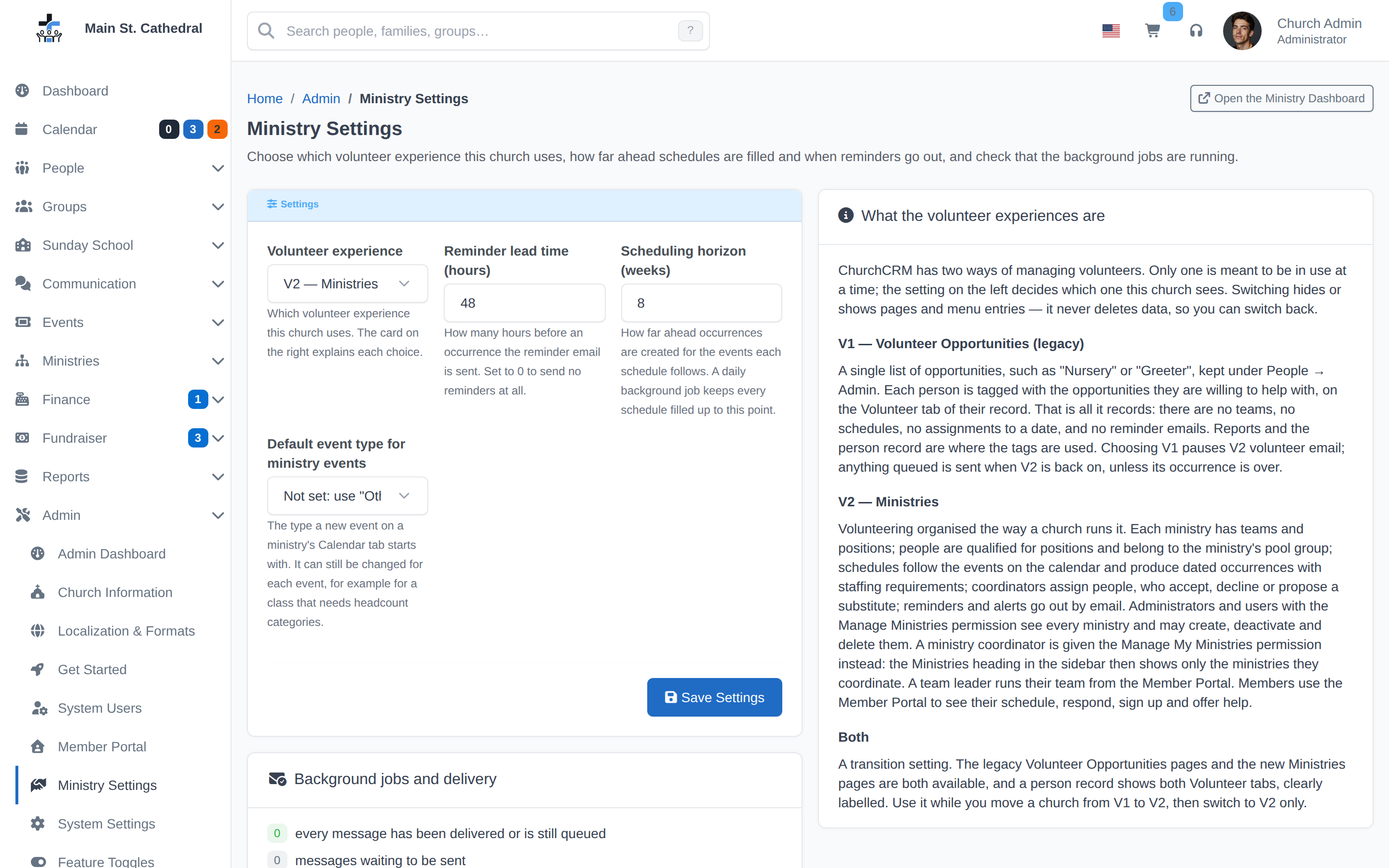
Switching hides or shows pages and menu entries — it never deletes data, so you can switch back. The setting is system-wide, not per user.
Before you switch it on
- Back up the database (Backup and restore). The 7.8.0 upgrade already created the Volunteer Management tables, and switching changes no data, but start from a backup.
- Install the cron line shown in the Background jobs and delivery card on Ministry Settings (Background jobs). Reminders, staffing top-ups and volunteer email are sent by the background jobs. Without cron, they run only when someone happens to load a page.
- Set up email (Email setup). Assignments, reminders and alerts are sent by email. Without a mail server they are recorded as skipped and never sent.
- Give people their permissions (Who can do what): Manage Ministries for the staff who set up ministries, and Manage My Ministries plus a coordinator grant for each ministry's coordinators.
- If you use Volunteer Opportunities today, choose Both first. Set up your ministries alongside the opportunities, then switch to V2 when you're ready.
Switching on adds an Other event type, used for ministry events that don't fit an existing type. Switching back to V1 hides the ministry pages and pauses volunteer email and reminders. Nothing is deleted, and switching to V2 or Both again picks up where you left off.
Where it lives
Once V2 or Both is chosen, a Ministries heading appears in the sidebar for anyone who may manage a ministry, and for a team leader whose login has Manage My Ministries (see Who can do what). It holds:
- Dashboard — the Ministry Dashboard, "what needs your attention this week".
- One entry per ministry the viewer manages, opening the ministry page.
- Deactivated Ministries, nested under it, whenever any exist.
The pages in this section, in the order a coordinator meets them:
- Ministries, teams and positions — create a ministry, name its teams and the positions people serve in, and link a team to a Sunday School class.
- Volunteers: the pool and qualifications — who serves in the ministry, and what each person can do.
- Events and the calendar — the ministry's Calendar tab, its one-time and recurring events, and staffing a single event.
- Schedules and occurrences — which events a team staffs, how many people they need, and the occurrences that follow.
- Staffing an occurrence — fill the positions for one date, and record who said yes.
- Substitutions — when a volunteer cannot make it and finds someone who can.
- The Ministry Dashboard — gaps, unanswered assignments and substitution requests, in one place.
- Volunteer email and reminders — the messages volunteers and coordinators receive, and what makes them go out.
- Who can do what — administrators, ministry managers, coordinators, team leaders and volunteers.
The shortest walk-through
If you have twenty minutes:
- Ministries → Dashboard → New ministry. Name it. It is created with its own calendar, volunteer pool and first team.
- On the ministry page, Positions → Add position for each role (say, Barista and Host).
- Volunteers → Add Volunteer a few people, then tick the positions each one can serve in.
- Make sure the events exist. A team that serves at Sunday worship can follow the services already on the church calendar. For the ministry's own events, open the Calendar tab, click New recurring event, and answer Staff them when the page asks "… Staff them now?"
- Schedules → Add schedule (already filled in if you came from step 4): choose the events it follows, set how many of each position are needed and, if you like, who fills them by default (as many people as the position's Max), and click Save. The occurrences up to the scheduling horizon (8 weeks unless an administrator changed it) are made at once, and a daily background job keeps adding them.
- Back on the Dashboard, the dates that are still short appear under Needs filling. Click Fill, assign someone, and the gap is gone.
Everything else — responses, reminders, substitutions, the member's own pages — follows from those six steps.
The legacy Volunteer Opportunities feature keeps working in V1 and Both. Its data is never touched by v2, and there is no automatic migration from opportunities to ministries yet; retiring V1 is tracked separately in ChurchCRM issue #9702.
Can't find what you need? Ask in Discord, or open an issue on the ChurchCRM repository.