The Ministry Dashboard
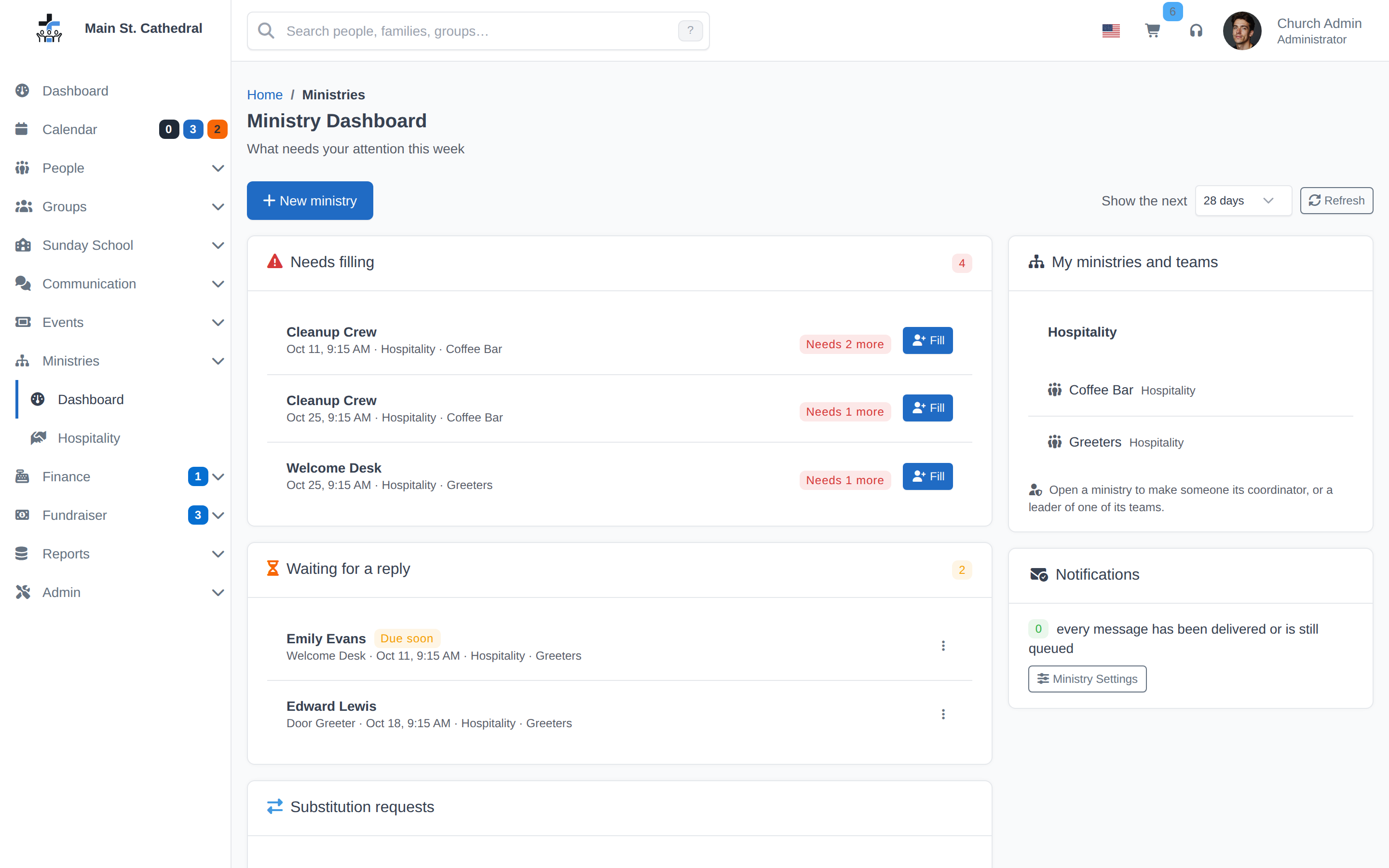
Ministries → Dashboard (/ministries/dashboard) is the coordinator's daily screen: "what needs your attention this week". Everything on it is one click from the action that fixes it.
What it shows
In the order that matters (on a wide screen the last two cards sit in a column on the right):
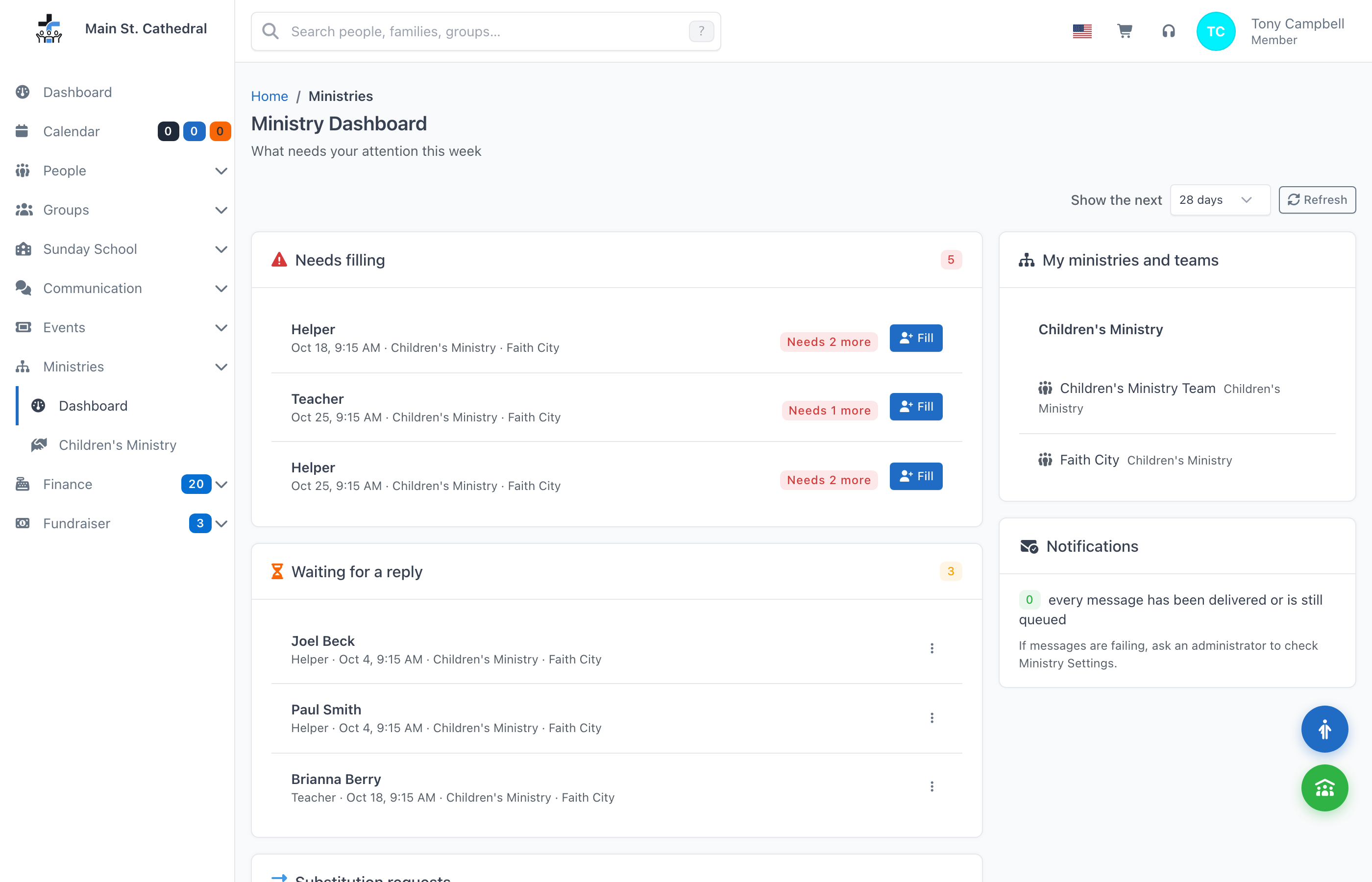
- Needs filling — every position still short in the window, with the date, ministry and team, a red badge such as "Needs 2 more" (its tooltip gives the numbers, for example "0 of 2–3") and a Fill button that opens the staffing view on that date. The red count in the card header is the total number of people still needed. When nothing is short the card says "Nothing is short — every position in this window has the people it needs."
- Waiting for a reply — assignments still Pending, each with the person, position, date, ministry and team. A yellow Due soon badge marks those inside the reminder lead time. The row menu offers Open the occurrence, where you can record their answer, send the message again or cancel the assignment, and View person.
- Substitution requests — one card per proposal ("Lena Black asks Jean Hart to take their place") with Approve and Reject. See Substitutions.
- Upcoming — a table of the occurrences in the window: When (the volunteers' start time), Ministry and team, Schedule, Staffed (for example Needs 2 more, Covered · 1 more welcome or Full), Status and an action menu with Staff this occurrence, Open the ministry (only for a ministry you manage) and, unless its event was deleted, View the event. The Staffed badge is red when a position is short, yellow when every position has its people but someone has not answered, green when every position has its people and everyone has answered, and grey for a date that requires nobody and has nobody yet (Optional) or has No staffing needs set. Its tooltip gives the numbers, for example "3 assigned, 3 needed, room for 1 more · 2 not yet confirmed". See How staffing reads.
- My ministries and teams — the ministries and teams the viewer manages. A team leader on a staff login with Manage My Ministries sees their team, with the ministry above it marked View only: they lead the team, not the ministry. They staff their dates from Fill and the Upcoming table. A team leader without Manage My Ministries cannot open the dashboard; they run their team from the Member Portal's My Teams.
- Notifications — how many volunteer emails for the dates in the window could not be delivered after five attempts ("every message has been delivered or is still queued" when there are none). An administrator gets a Ministry Settings button, where every failure is listed; anyone else is asked to tell an administrator. See Volunteer email and reminders.
Show the next 7 / 14 / 28 / 90 days sets the window (28 by default); Refresh re-reads everything. A very long list is capped, with a note to narrow the window.
Scoped to what you manage
The dashboard shows only the ministries and teams the viewer may manage: an administrator or Manage Ministries user sees the whole church; a coordinator sees their ministries; a team leader sees their team's schedules. Deactivated ministries contribute nothing. See Who can do what.
New ministry
Administrators and Manage Ministries users also have the New ministry button here — see Ministries, teams and positions. When nothing is set up yet the My ministries and teams card says so and offers the same button.
Related pages
Can't find what you need? Ask in Discord, or open an issue on the ChurchCRM repository.