Staffing an occurrence
The staffing view answers who is needed, who is on, and what is still short for a single date. Reach it from the Fill button on the Ministry Dashboard, from the date link on the ministry's Occurrences tab, from a staffing badge on its Calendar tab, from the Manage staffing link on an event, or by URL at /ministries/occurrences/{id}.
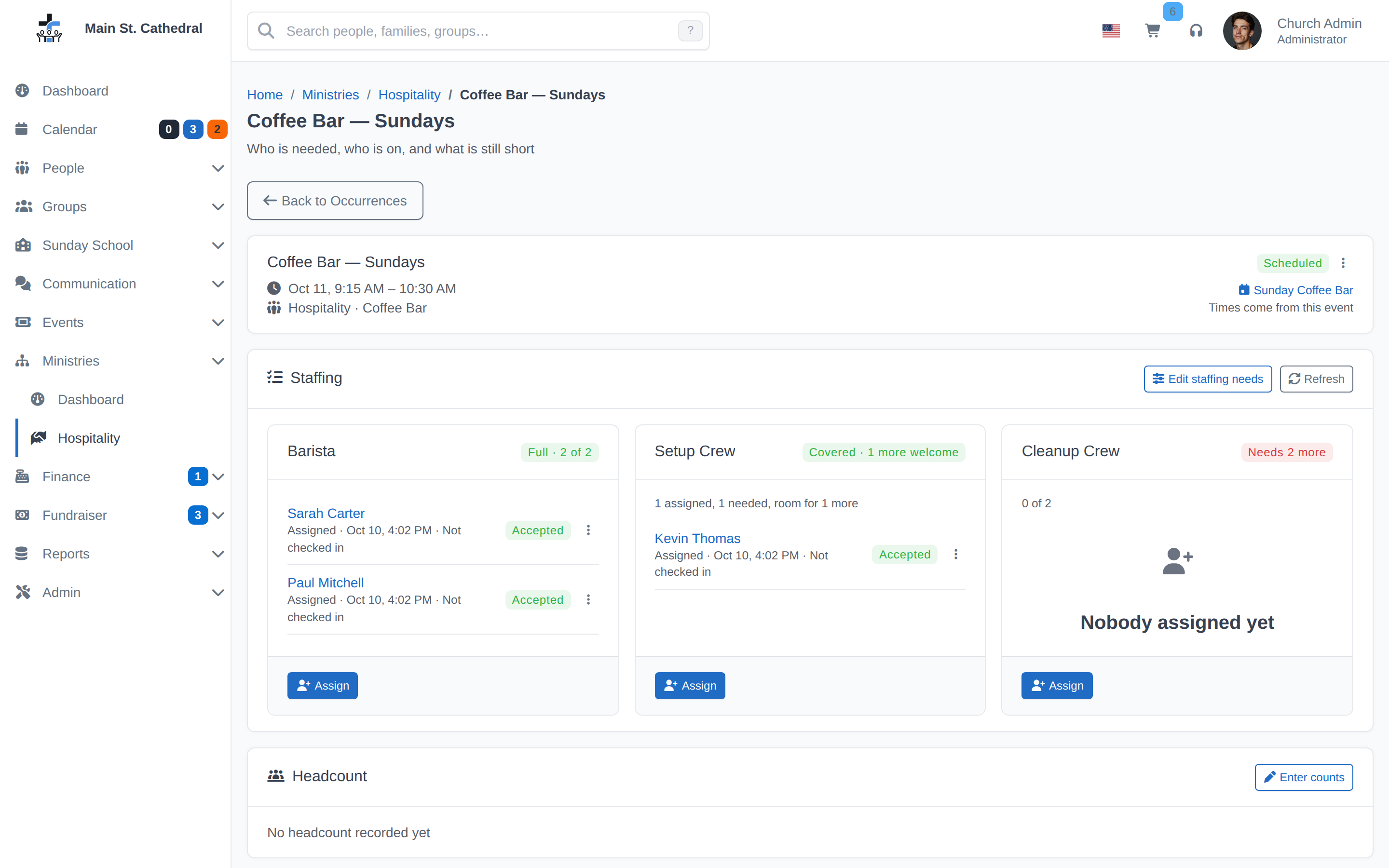
Back to Occurrences at the top returns to the ministry's Occurrences tab with the team, event and date filters you came from.
The header
The schedule name, when the volunteers serve (for example "Oct 4, 9:15 AM – 10:15 AM"), the ministry and team, and a Scheduled or Cancelled badge. On the right, the header links to the calendar event the occurrence follows, says "Times come from this event", and gives the event's location when it has one. When the schedule moves the volunteers' times away from the event's, a sentence says how, for example "Volunteers start 15 minutes before the event starts." Change the event's time in the calendar and the occurrence follows.
Dates and times on this page, and everywhere in Volunteer Management, follow ChurchCRM's language setting (Localization & Formats, or the user's own language), for example "Oct 4, 9:15 AM" in English. They are always the church's local time, and the year is shown only for a date in another year.
One card per position
Each card says in its header how the position stands, for example Needs 2 more or Covered · 1 more welcome, with the numbers on the line below ("2 assigned, 2 needed, room for 1 more"). Then come the people assigned, each with a status badge and a row menu. A position nobody has been assigned to shows Nobody assigned yet.
| Status | Meaning |
|---|---|
| Pending | Assigned and asked to respond. Counts as filled. |
| Accepted | They said yes. |
| Declined | They said no; the slot is open again. |
| Cancelled | The coordinator took them off. The row stays, because it has history. |
| Substituted | Someone else took their place — see Substitutions. |
| Completed | The occurrence has passed. |
How staffing reads
A count is always a status word first and the numbers second. Min decides the colour and Max decides how much room is left.
| Label | When | Colour |
|---|---|---|
| Needs 2 more | Fewer people than Min. The numbers read "0 of 2–3" (nobody yet, 2 to 3 wanted) or "0 of 1" when Min and Max are the same. | Red |
| Covered · 1 more welcome | Min is met and Max leaves room for more, for example "2 assigned, 2 needed, room for 1 more". | Green, or yellow while someone has not answered ("· 2 not yet confirmed") |
| Optional · up to 2 welcome | Min is 0 and nobody is on it yet. | Grey |
| Optional · 1 of up to 2 | Min is 0 and someone is on it. | Green, or yellow while someone has not answered |
| Full · 3 of 3 | Max is reached. | Green, or yellow while someone has not answered |
| Not needed this time | Max is 0 and nobody is on it, for example when this occurrence's own needs set the position to Min 0 and Max 0. | Grey |
A whole date (every position of the occurrence together, or one team on an event) reads the same way, added up: Needs N more with the total shortfall when any position is short, otherwise Full when no position has room, Optional when nothing is required, and Covered · N more welcome in every other case. The same words are used everywhere Volunteer Management shows a count: the Ministry Dashboard, the tooltips on the Occurrences tab, the badges on the Calendar tab, the Volunteers card on an event and the member portal's volunteer pages.
Assign a volunteer
Click Assign on a card. The Assign a volunteer dialog lists only people qualified for that position, "Whoever served least recently is listed first." That ordering is the rotation, with nothing to configure. People already on that position for this date are left out; someone who Declined or was Cancelled is offered again. People In the volunteer pool come first; anyone qualified but Not in the pool is listed under its own heading, with a note that assigning them adds them to this occurrence only.
Each name says when the person last served in this ministry, in any position ("Paul Smith — last served Sep 27"), or "has not served yet". The date is never in the future: a date someone is booked for but has not served yet is not shown, though it still counts for the order, so a person already booked a few weeks ahead moves down the list.
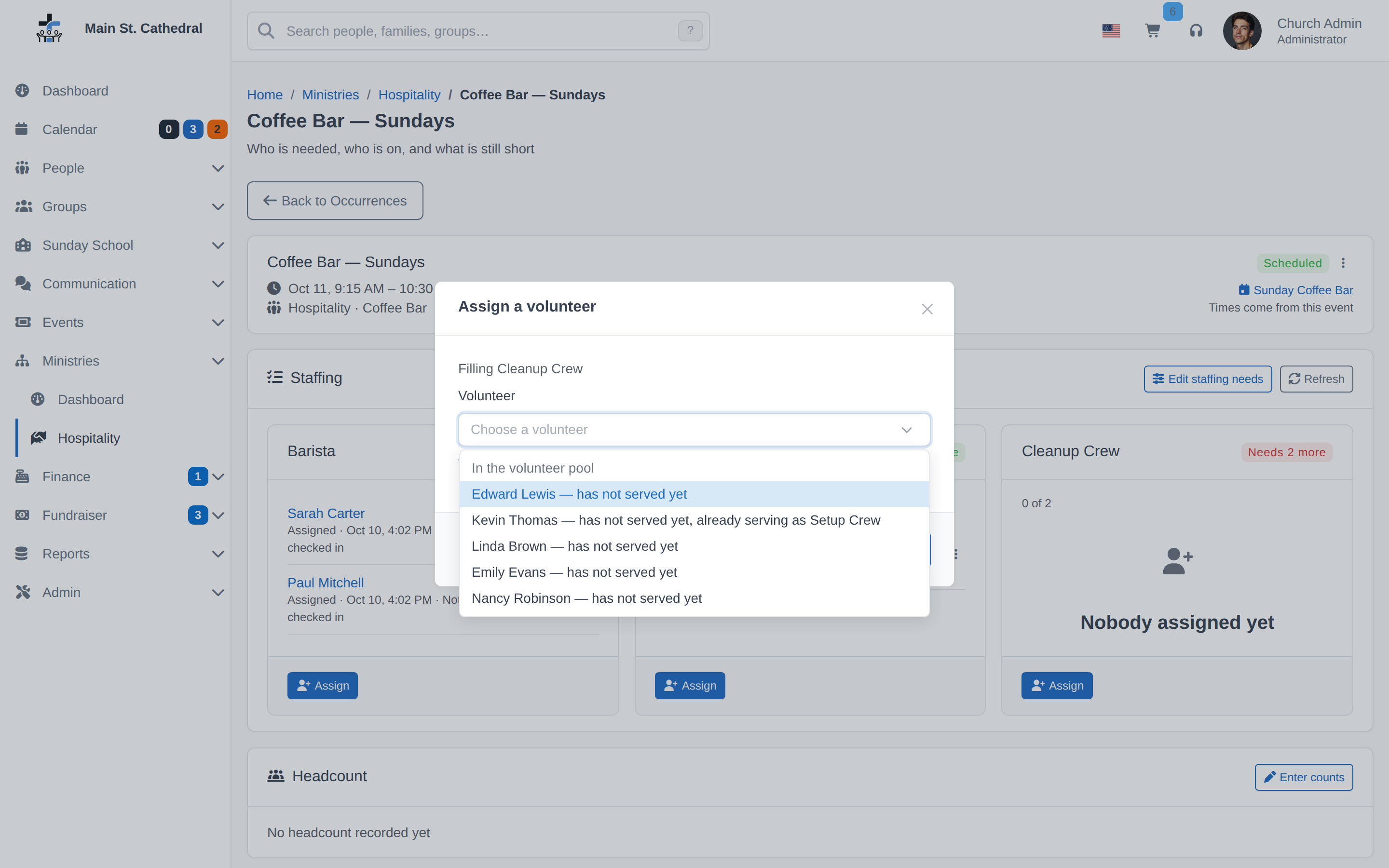
Choosing someone who already holds another position on this occurrence shows a caution — "… is already serving as Barista on this occurrence. You can still assign them." — and nothing more: two positions in one service is a supported arrangement, and the warning exists so it is never an accident.
Click Assign. The card updates, the person is emailed (once background jobs run — see Volunteer email and reminders), and their row shows Pending until they answer.
Row menu
- View person — opens their record. Always offered.
The other items are offered while the person is Pending or Accepted:
- Record: they accepted / Record: they declined — for a reply that came by phone or in the corridor. The confirmation says the response is saved as coming from you, and that is how it is kept in the history.
- Send the assignment message again — re-queues the assignment email.
- Cancel assignment — takes the person off and reopens the slot. The row stays visible as Cancelled. As the confirmation says, no email is sent; the date shows "No longer needed" on the volunteer's own schedule in the Member Portal.
Edit staffing needs
Edit staffing needs, in the header of the Staffing card, changes how many of each position this occurrence needs — "this week we need four". The dialog shows the same Min/Max rows as the schedule with the note "These needs come from the schedule. Saving here changes this occurrence only." Once saved, the occurrence "has its own staffing needs, set apart from its schedule"; Use the schedule's needs drops them and the occurrence follows its schedule again.
An occurrence whose schedule has no staffing needs shows No staffing needs set with a Set staffing needs button instead of position cards.
Headcount
Below the staffing, the Headcount card shows the event's attendance counts: each count category of the event's type with its number, and the Total, or "No headcount recorded yet". Counts are entered in the church event editor, which Enter counts opens for anyone who may edit the event. When the event has a Linked Group (for a class meeting, the class), the card also says how many of the group have checked in, for example "Checked in: 6 of 8 on the class roster". The card is read-only: Volunteer Management never records counts or check-ins itself.
Assigned outside the current plan
If a position is removed from the staffing plan after people were assigned to it, they are listed in a separate Assigned outside the current plan card so they are not lost. Cancel them or add the position back.
Substitution requests
The Substitution requests card at the bottom lists proposals from volunteers on this occurrence, with Approve and Reject in the row menu. How that works is on Substitutions.
When a date will not happen
When the date itself is off, call off the event: delete it on the ministry's Calendar tab, or deactivate or delete it in the event editor (see Deleting an event). Delete on the ministry's Occurrences tab removes only the staffing (the occurrence with its assignments, responses and queued reminders); while the event is still active, the schedule makes the occurrence again at the next Generate or daily top-up.
An occurrence whose status is Cancelled keeps its history and its Assign buttons are disabled.
Related pages
Can't find what you need? Ask in Discord, or open an issue on the ChurchCRM repository.