Finances
ChurchCRM includes comprehensive financial tracking for tithes, pledges, and gifts.
Note: Only users with Finance permissions can access financial features. See Users for permission details.
Fiscal years
Finance views use the church's fiscal year, which may not match the calendar year. Set it under Admin → System Settings → Financial Settings. The setting is iFYMonth: the month that starts your organization's fiscal year.
The same year shows up in a few places:
- Finance → Dashboard scopes Recent Deposits with a Fiscal Year list that includes All Time.
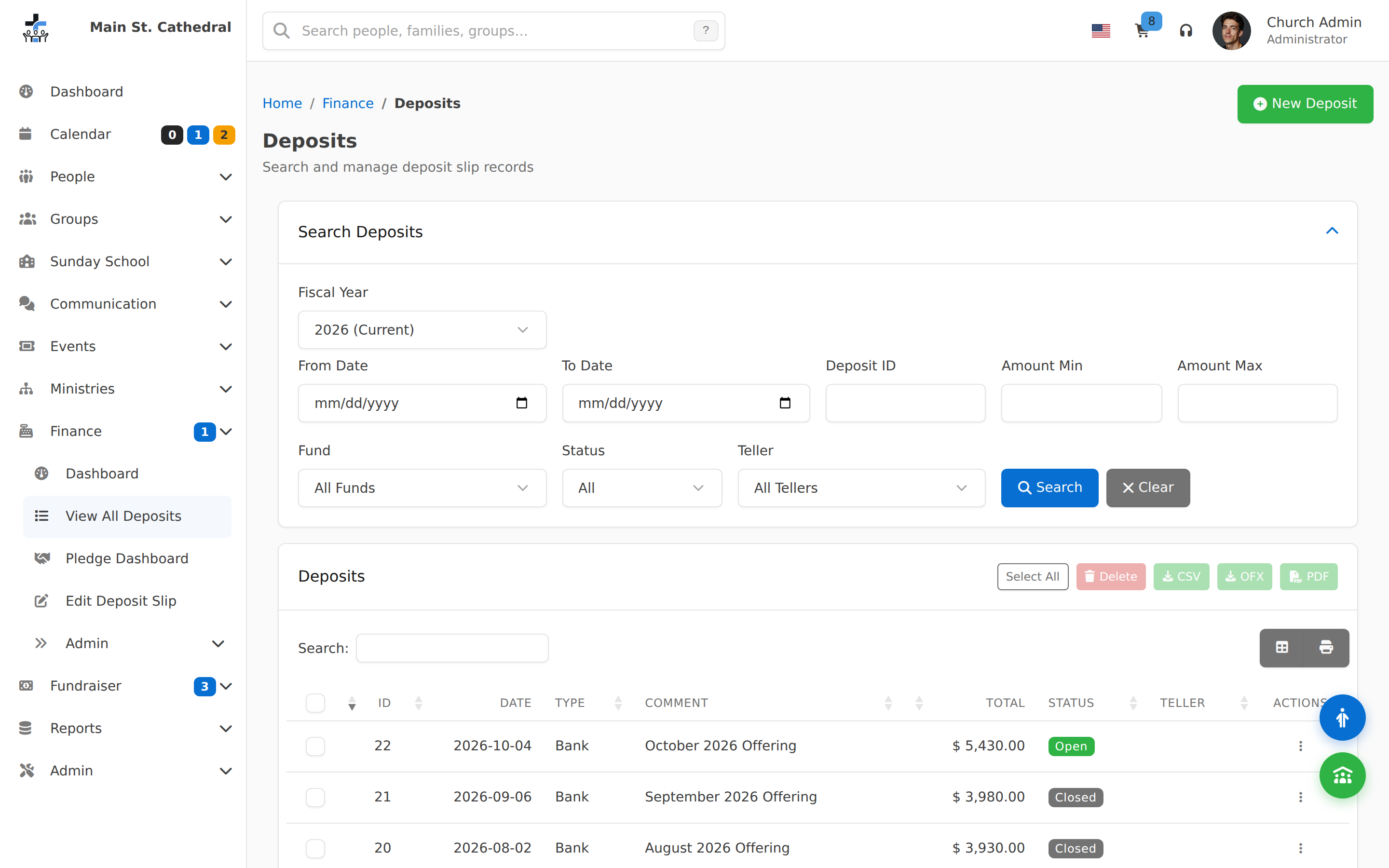
- The Deposits listing has a fiscal-year filter with its other search filters.
- A family profile's pledges and payments default to the current fiscal year, and you can pick another year or All Time.
- Fundraiser totals labeled This Fiscal Year follow that start month.
- The Pledge Dashboard and fund-contributor pages can switch years, including All Time.
Step-by-step: Managing Donations
Recording a Donation (Cash/Check)
- Open the Family record for the donor.
- On the family toolbar, open Finance and choose Add Payment.
- Enter the date, amount, fund, and method (Cash, Check, Credit Card, or Bank Draft), and the family if it is not already filled in. A check payment also needs a Check # unless the check-number requirement has been turned off.
- Click Save. Use Save and Add Another when you have more payments to enter. On a new payment, Ctrl+Enter (⌘+Enter on Mac) does the same as Save and Add Another.
Creating a Deposit Slip
- Go to Finance → View All Deposits, then click New Deposit (top-right of the results card).
- Fill in the deposit Comment, Type (Bank, Credit Card, or Bank Draft), and Date in the modal, then click Add New Deposit.
- The page redirects to the Deposit Slip Editor (breadcrumb: Finance → Deposits → Edit Deposit).
- Click Add Payment to add each donation — the new payment form opens pre-linked to this deposit. Fill in Method, Fund, Amount, and a Family record, then save. Repeat for every payment in the batch.
- The payments table lists Family, Check Number, Fund, Amount, and Method.
- Click Generate Report to download a PDF bank deposit form.
- When the deposit is ready to be finalised, toggle Closed and click Save.
See Key Concepts below for pledge, payment, and deposit terms.
Key Concepts
| Term | Description |
|---|---|
| Pledge | A promise of support - a planned donation of a specific total amount |
| Payment | An actual donation by cash, check, credit card, or bank draft |
| Deposit Slip | A batch of donations printed on a standard bank deposit form |
| Reminder Statement | Letters reminding families of their pledge and payment progress |
| Tax Statement | Year-end letters acknowledging donations for tax purposes |
How do I enter a pledge?
There are two ways in which pledges can be added:
From the Family View
- When viewing a family, open Finance on the toolbar and choose Add Pledge.
- Enter the pledge.
- Click Save.
Batch Entry
- Click Save and Add Another instead of Save. The editor clears for the next pledge. It does not keep a fiscal-year id in the address.
- Select the next family and fill in the pledge.
- Keep clicking Save and Add Another until the batch is done.
How do I deposit donations?
When a batch of cash and check donations is received, create a deposit slip in ChurchCRM so the donating families receive credit against their pledges and for tax purposes.
Cash / Check deposits (Bank type)
- Create the deposit slip: Go to Finance → View All Deposits, then click New Deposit (top-right of the results card). Choose type Bank, enter a comment and date, then click Add New Deposit.
- Add payments: On the Deposit Slip Editor, click Add Payment for each donation. Fill in the payment method (Cash, Check, etc.), fund, amount, and donor family, then save. Repeat until all donations are recorded.
- Review the payments: Each row shows Family, Check Number, Fund, Amount, and Method.
- Print the deposit form: Click Generate Report to download a PDF that can be printed on a standard bank deposit form.
- Finalise the deposit: Toggle Closed and click Save once the batch is packaged for the bank.
Tip: See Deposits for searching deposits and for the CSV and OFX buttons on the search page.
How do I enter a payment?
Payments use the same editor as pledges.
- From the family: Open Finance on the family toolbar and choose Add Payment. Enter the payment and click Save.
- Batch entry: Click Save and Add Another to save this payment and clear the form for the next family.
Keyboard shortcut on the payment and pledge editor
On a new payment or pledge, Ctrl+Enter (⌘+Enter on Mac) runs Save and Add Another. When you are editing an existing record, the same keys run Save. Pressing Enter by itself does not save.
After each save the Family field is focused, so a deposit can be entered from the keyboard. A short hint sits next to the buttons on a computer with a mouse or trackpad. Phones and tablets do not show that hint. The buttons stay disabled while a save is in progress, so holding the keys does not post the same payment twice.
Check numbers
A check payment requires a check number by default. Turning the requirement off also turns off duplicate check-number detection, so the same check can be entered more than once.
How do I edit the QuickBooks Deposit Ticket Layout?
The layout for most QuickBooks deposit tickets should be nearly identical; however, differences in printers and deposit ticket providers may require you to adjust the position of various elements of the report.
- Go to Admin → System Settings.
- Open Report Settings.
- Edit QuickBooks Deposit Ticket Settings (
sQBDTSettings). - Adjust the values for your deposit ticket and printer.
Finding and managing deposits
The Deposits page (/finance/deposit/search) lets you search, filter, and manage all deposit slip records in one place. It replaces the legacy FindDepositSlip.php URL — existing bookmarks redirect automatically.
Key capabilities:
- Filter deposits by fiscal year, date range, amount, fund, status, teller, or deposit ID
- Select multiple deposits and export: bulk CSV (single file), or per-deposit OFX/PDF
- Delete selected deposits in bulk
- Add a new deposit directly from the page
See Deposits for full details.
Finance Dashboard
Finance → Dashboard is the finance home page.
Current Deposit shows the open deposit you are working in: deposit number, date, type, Total Amount, and Edit Deposit. If nothing is open, the card is No Active Deposit and offers Create Deposit.
Recent Deposits lists deposits for the Fiscal Year you pick (or All Time). Columns are ID, Date, Type, Comment, Total, and Status (Open or Closed). View All opens the deposits search.
Deposit Statistics shows Total Deposits, Open Deposits, and Closed Deposits for that same year.
Deposit Reports
Finance → Deposit Reports (/finance/reports) is the report list. There is no Finance → Pledges menu item. The Pledges button on the finance dashboard is only a shortcut to the pledge dashboard.
The page groups these links:
- Tax & Giving Reports — Giving Report (Tax Statements) and Zero Givers
- Pledge Reports — Pledge Summary (opens
/finance/pledge/dashboard), Pledge Family Summary, and Pledge Reminders - Deposit Reports — Individual Deposit Report and Advanced Deposit Report
- Membership Reports — Voting Members
Pledge Dashboard
Open pledges at Finance → Pledge Dashboard. Pledge Summary under Deposit Reports opens the same page.
The year list includes All Time. Add New Pledge goes to /finance/pledge/new?type=Pledge and does not put a fiscal-year id on that address.
See Pledge Dashboard for the tables and status colours.
How do I add a new Donation Fund?
- Go to Finance → Admin → Donation Funds.
- Use the on-screen editor to add, rename, or remove donation funds.
Related pages
- Deposits — search, filter, and bulk-export deposit slips
- Pledge Dashboard — pledge and payment tracking by fund and fiscal year
- Envelope Manager — family envelope numbers
- Fundraiser — managing fundraisers
- Reports & Queries — other financial reports
Can't find what you need? Ask in Discord, or open an issue on the ChurchCRM repository.