Member Portal
The Member Portal is the part of ChurchCRM written for a church member rather than for the office. When you sign in with a member account you land in the portal, and everything you can do for yourself and your family lives there: your contact details, your household, the church calendar, and — if your church uses it — your volunteering.
This page is written for members. If you administer ChurchCRM, see Member Portal administration for the settings behind it and Church themes for making it look like your church.
Your church decides which sections appear. A section your church has not switched on is simply not there; nothing on this page is a promise that every portal has every card.
Signing in
Sign in at the same address your church always gave you, with the same username and password. A member account — one that can only edit its own details — lands on the portal home page and stays in the portal: any address that belongs to the office side of ChurchCRM sends you back to the portal home.
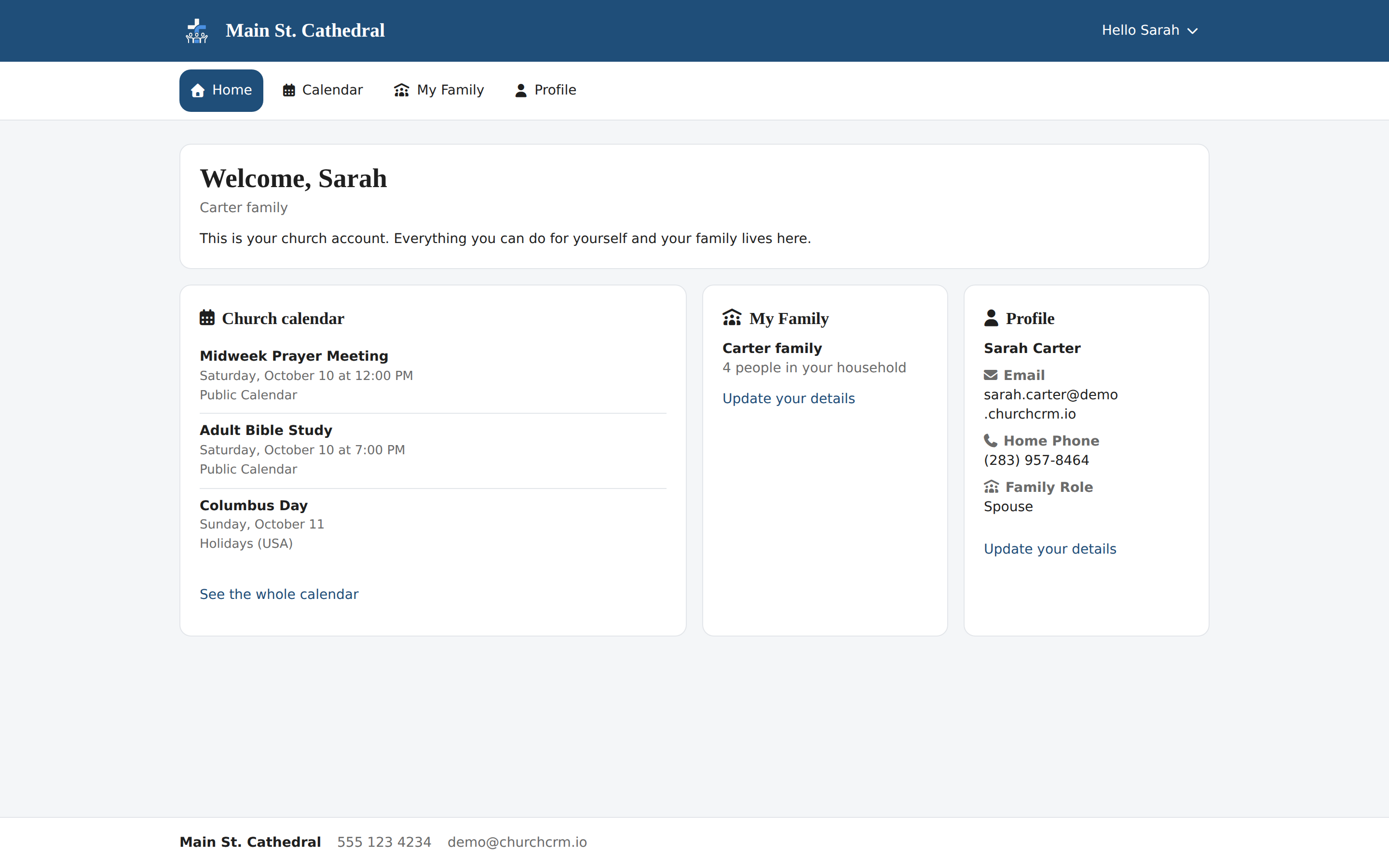
The navigation across the top is, in order: Home · Calendar · Volunteering · My Teams · My Family · Profile. Only the entries your church has switched on and that apply to you are shown; a member who does not lead a volunteer team, for example, has no My Teams entry.
On a phone the navigation folds behind the menu button in the header; every page fits a phone screen without sideways scrolling.
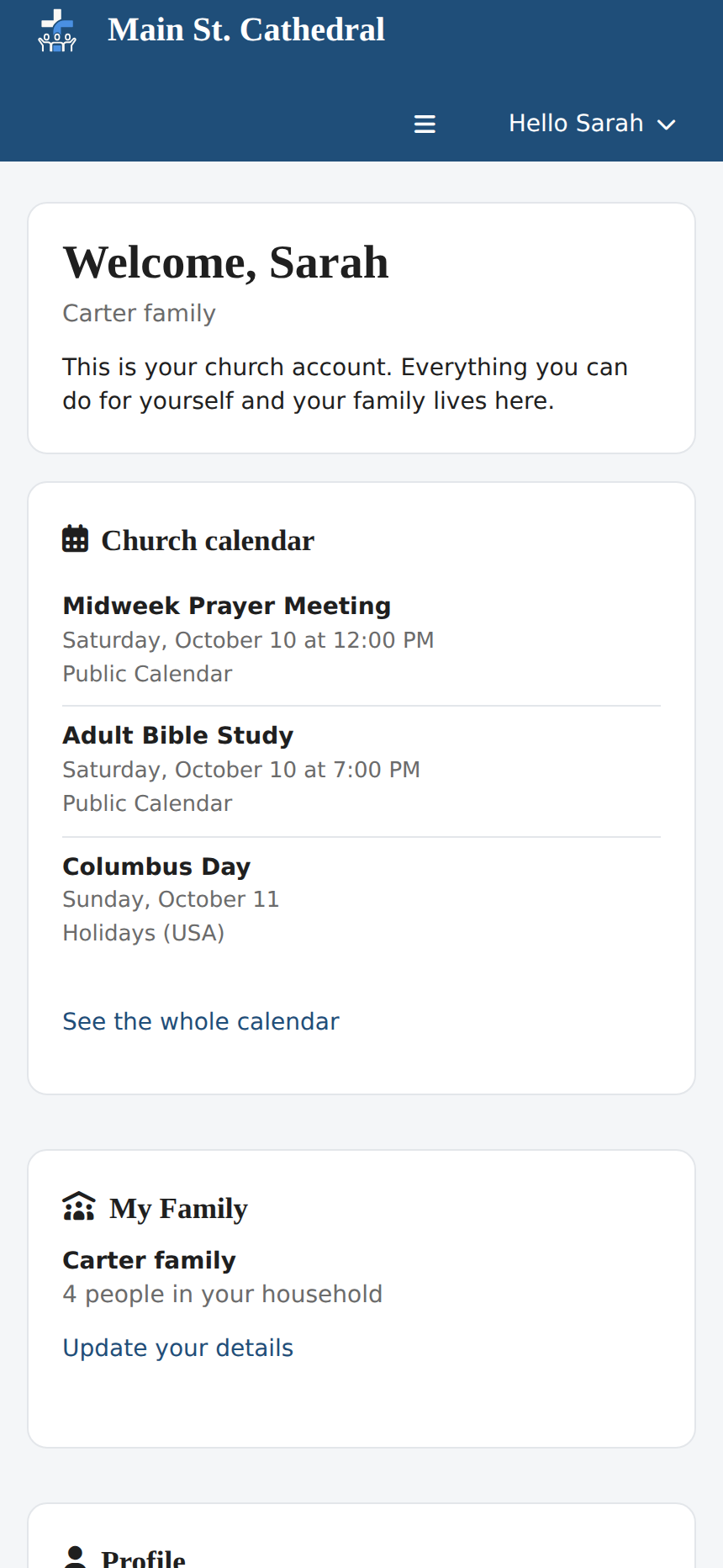
The Hello <your name> menu in the header holds Email History (what the church has emailed you), Change Password and Sign out. Staff who also have an office login see Admin Console there as their way back.
The footer at the bottom of every page shows the church's name and how to reach it — phone, email and a link to the church website — and links to the church's social media, as far as the church office has filled them in.
Home
The home page opens with a welcome card — your first name, your family's name, and the line "This is your church account. Everything you can do for yourself and your family lives here." — followed by one card for each section your church has switched on:
| Card | What it shows |
|---|---|
| Church calendar | The next three events from the calendars the church shares with members — each with its day, date and time and the calendar it is on — and See the whole calendar. With nothing coming up it says "Nothing is on the calendar just now."; if the church has not shared any calendar yet it says so instead. |
| My volunteering | The next thing you are on for, as date · ministry — team — position, and how many of your assignments are still waiting for your answer. With nothing booked: "Nothing on your list yet. Have a look at what needs filling." |
| My Family | Your household's name, how many people are in it, and Update your details. A member with no family record sees "You are not currently associated with a family" and a link explaining how to correct this. |
| Profile | Your name, your email, mobile and home phone as the church has them, your role in the family, and Update your details. Your birthday is shown too when your church lets members edit it. |
Profile
Profile shows your photo — or your initials while there is none — your family and your role in it, and Your details: first, middle and last name, title, suffix, email, work email, and mobile, home and work phone.
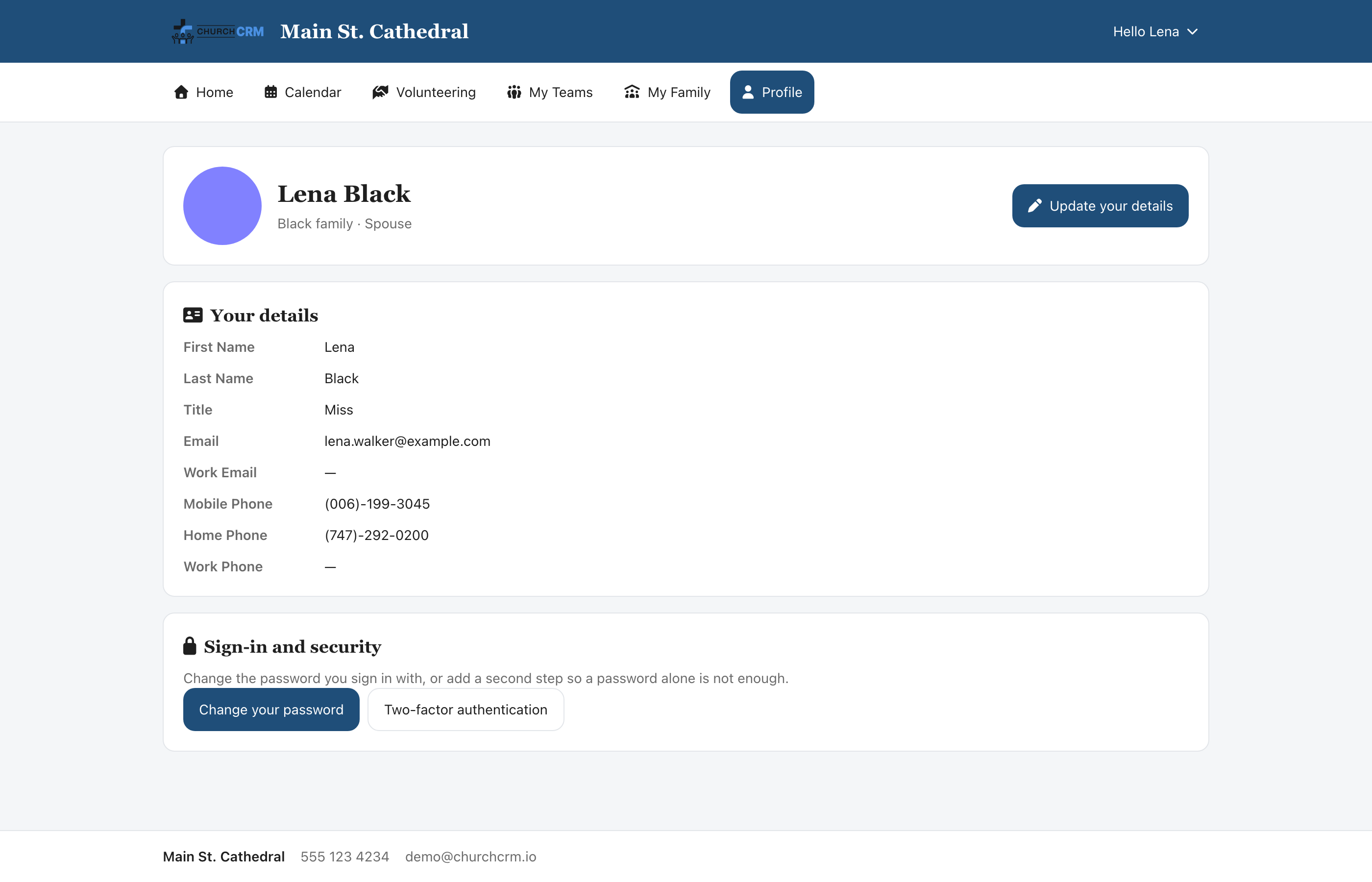
- Update your details opens an edit form. Press Save changes; the page confirms with "Your details have been saved." Your first and last name cannot be left blank.
- Choose a new photo on the edit form uploads a new picture straight away. A square picture of your face works best.
- Birthday appears only when your church allows members to change it. Otherwise it is neither shown nor editable here — ask the church office.
- Your household's address, home phone and email belong to the family, so they are changed under My Family, not here.
Under Sign-in and security you will find Change your password and Two-factor authentication. Both open inside the portal, so you never leave it to look after your account.
My Family
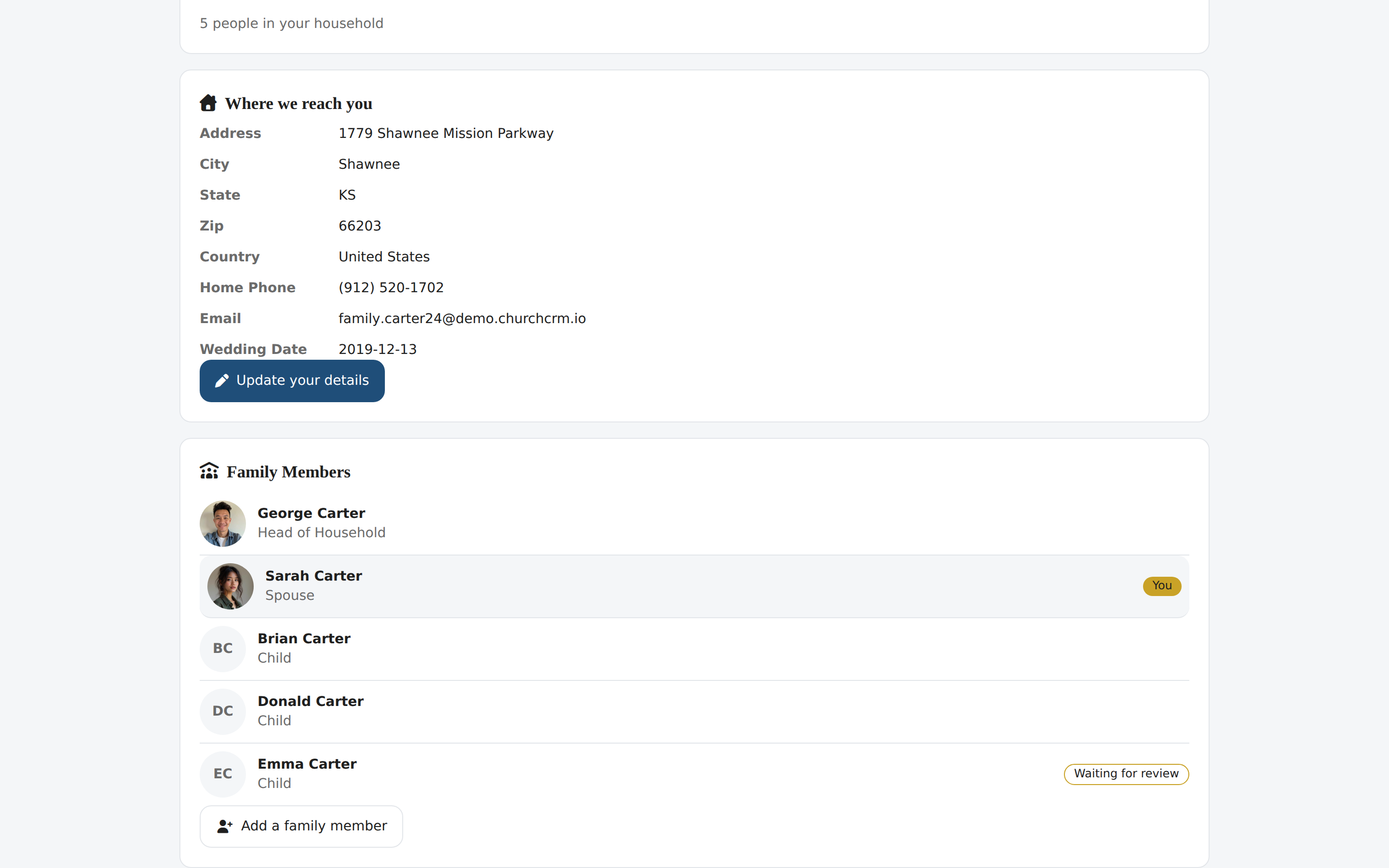
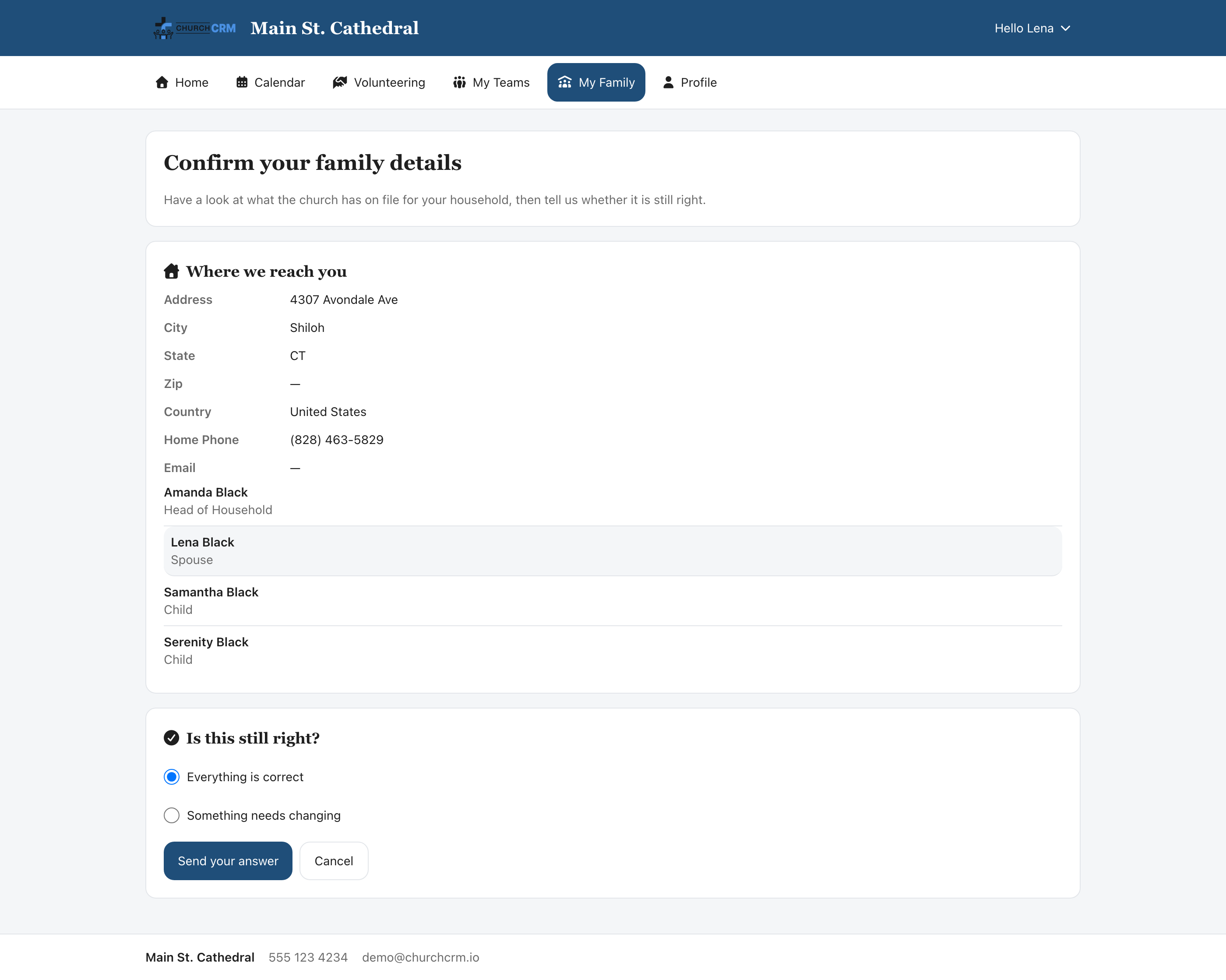
My Family shows your household as the church has it: Where we reach you (address, city, state, zip, country, home phone, email and wedding date) and Family Members, with your own row marked You.
Update your details
An adult of the household (head or spouse) can press Update your details to change the address, home phone, email and wedding date — "This is where the church sends post and who it calls about your household." Press Save changes to save them. Other family members see "Only an adult of your family can change these details. Please contact the church office."
Confirm your family details
Churches periodically ask households to check what is on file. Confirm your family details shows the household and asks "Is this still right?" with two answers:
- Everything is correct
- Something needs changing — a box appears asking "What needs changing?"
Send your answer delivers your reply to the church office; nothing on your record changes until someone there acts on it.
Add a family member
An adult of the household can also press Add a family member. It opens a short form — first name, last name, role and an optional birthday — and sends it to the church office with Send to the church office. As the dialog says, "This goes to the church office for review. Until a member of staff approves it, the new family member shows here as waiting for review." The new person appears under Family Members — and on Confirm your family details — with a Waiting for review badge. The church office sees the request among the registrations waiting for review and approves it there; from then on the badge is gone.
Calendar
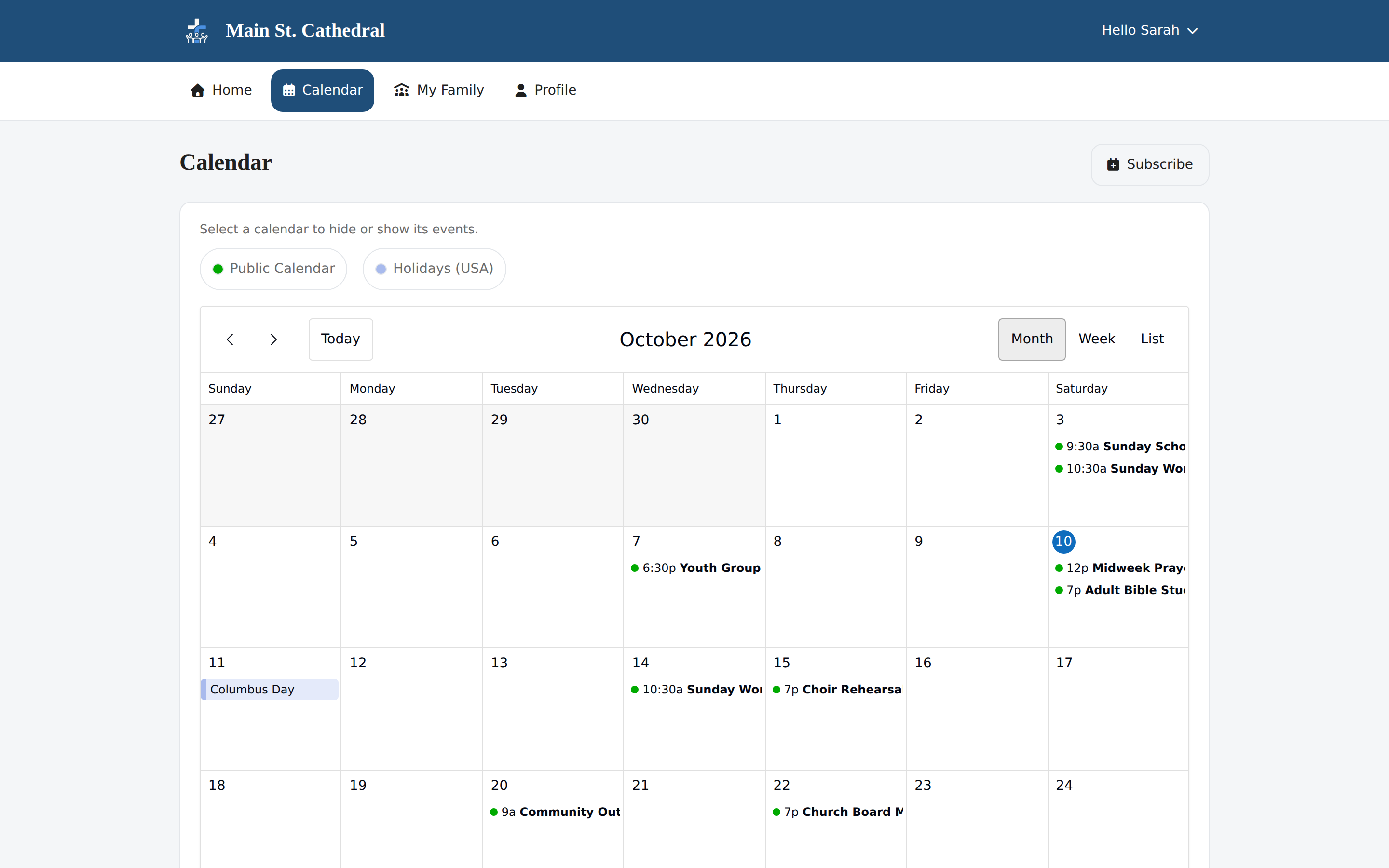
Calendar shows the church calendars an administrator has chosen to share with members. The calendars are listed above the grid with their colours; Month, Week and List views are available, and on a phone the calendar opens in list view. Click an event to see When, Where, Calendar and Details below the grid. The calendar is read-only: nothing here can change an event.
If your church shares its birthday or anniversary calendar, entries show a first name and last initial ("Albert C.") and never an age or a full surname.
The ministry calendar of a team you lead is marked You lead this.
Show or hide a calendar
Each calendar in the legend above the grid is a switch — "Select a calendar to hide or show its events."
- Select a calendar to hide its events. Its name is struck through and its colour dot turns hollow.
- Select it again to show its events.
- Your browser remembers which calendars you switched off, so the calendar opens the same way next time on that device. Another browser or device starts with every calendar shown.
This helps when the church shares several calendars — for example a calendar of Bible classes next to the main church calendar — and you only want to see some of them. The switches change only what this page shows: they do not change what the church shares or what your calendar subscription contains.
Subscribe in your own calendar app
Subscribe lets you follow the church calendar from your phone's or computer's own calendar app, so it updates on its own when the church calendar changes.
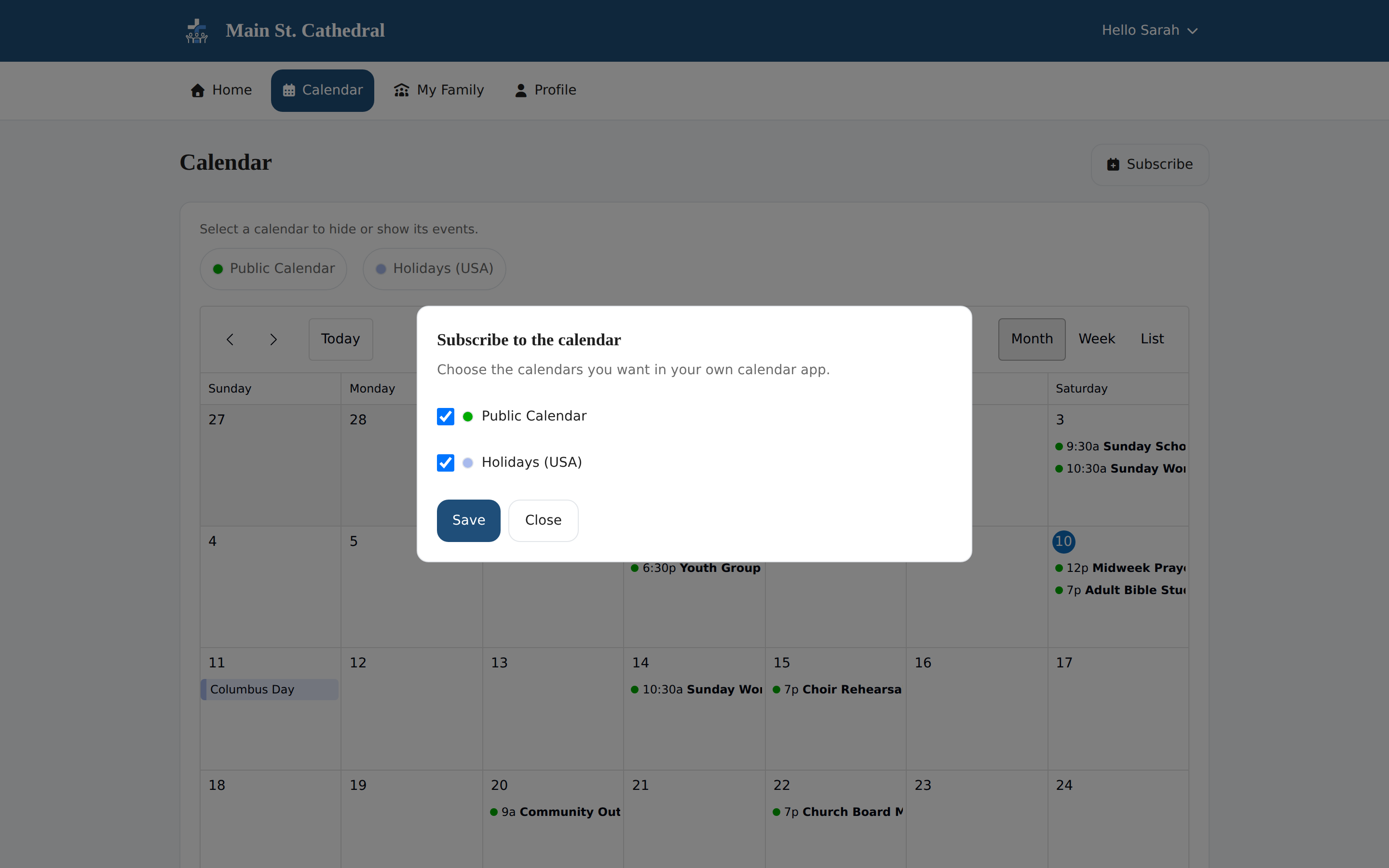
- Press Subscribe and tick the calendars you want.
- Press Save. The portal gives you one Calendar address covering everything you ticked.
- Copy the address and add it to your calendar app as a new calendar subscription. When your church's ChurchCRM runs over
https, you can also press Open in calendar app to hand it straight to the app.
The subscription address is a secret that identifies you. Do not share it. If you have given it out by mistake, press Reset link: the old address stops working straight away and you get a new one.
Volunteering
If your church runs its volunteer teams through ChurchCRM, Volunteering has two tabs.
My schedule
Everything you have been asked to do, soonest first. Each card names the date, ministry, team and position, and carries a status badge:
| Badge | Meaning |
|---|---|
| Needs an answer | Somebody has put you on this date and is waiting to hear back. |
| Going | You have said yes. |
| Declined | You have said you cannot make it. |
| Substitute asked | You have asked someone to cover for you (the badge names them), and your coordinator has not confirmed it yet. |
| Someone else is covering | Your coordinator confirmed the swap: somebody else takes your place. |
| No longer needed | Your coordinator took you off this date, or the date was cancelled. |
| Thank you | A date you have served. |
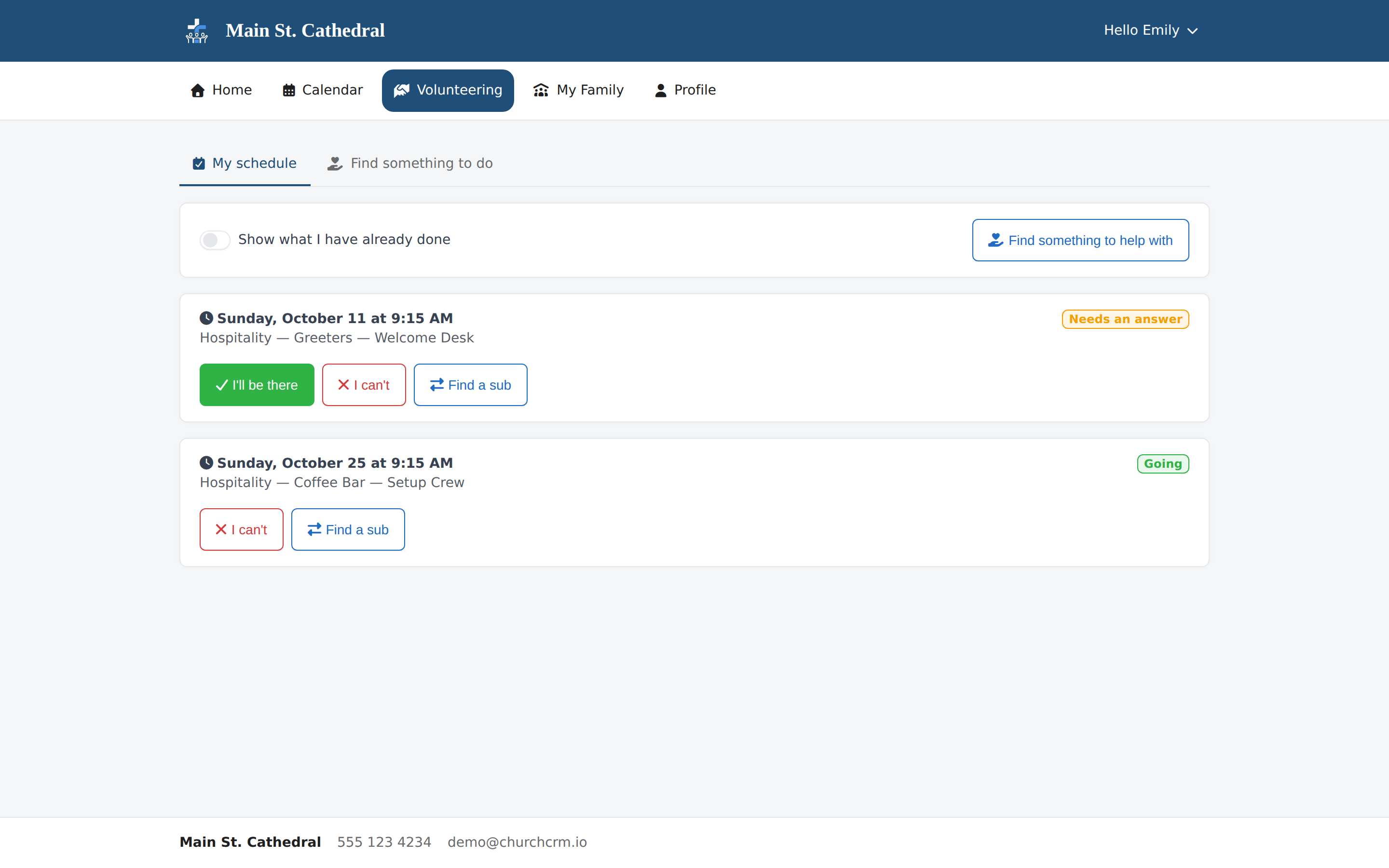
- I'll be there accepts; the badge changes to Going.
- I can't declines. You can add a note for your coordinator — "Let them know why (optional)".
- Find a sub opens Ask someone to cover for you: pick someone who has already agreed to take your place, add anything your coordinator should know, and press Ask them. Your coordinator confirms the swap. Until they do, the card says "Waiting for your coordinator to confirm." and Take that back withdraws the request.
- Show what I have already done includes past dates in the list.
With nothing on your list the page says "Nothing on your list yet" and points you to See what needs filling.
Find something to do
Places you are trained for that still need someone, plus ministries that are looking for people.
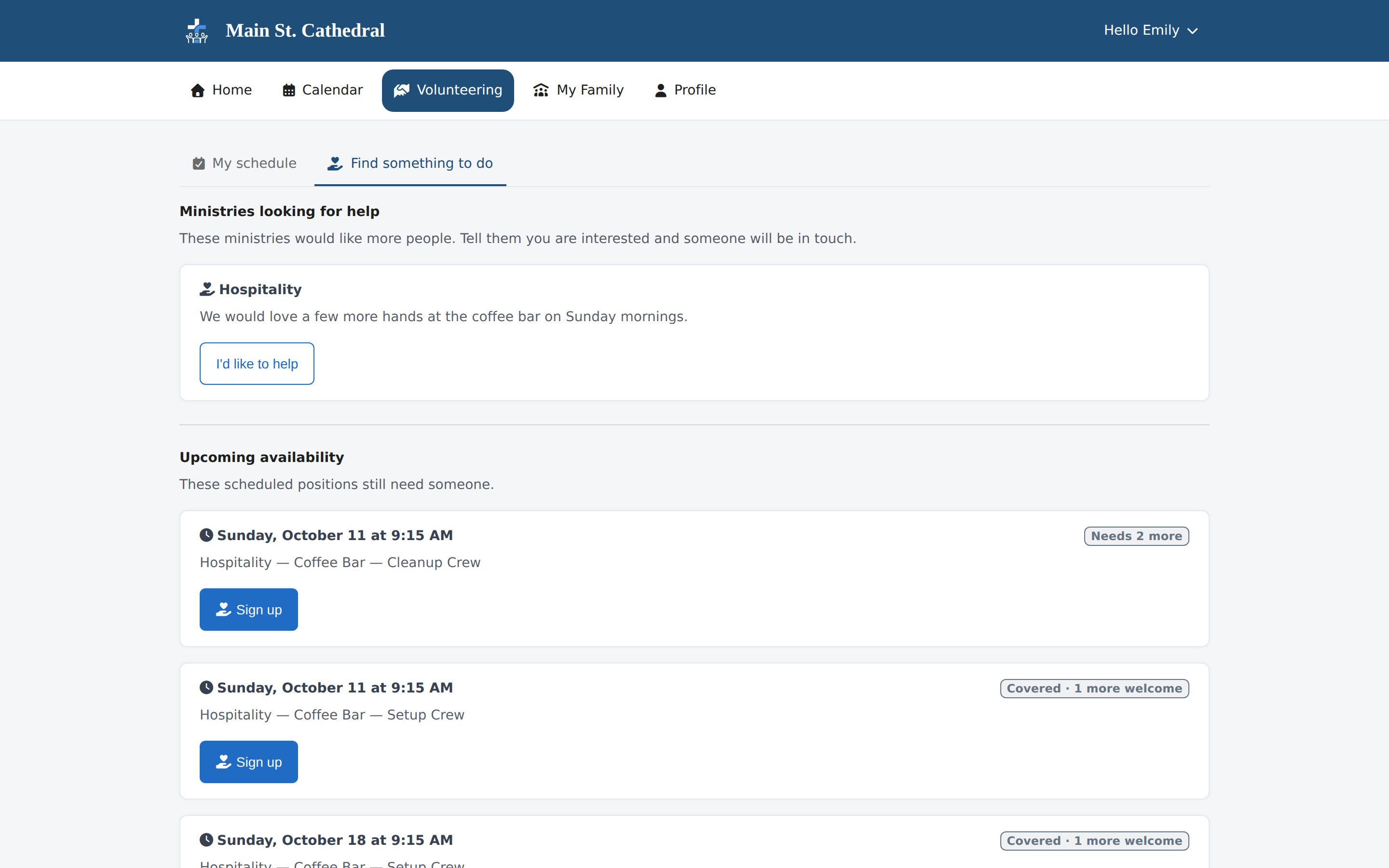
- Ministries looking for help lists ministries that have said they would like more people, with the positions they are recruiting for under "New volunteers needed for the following positions". Press I'd like to help and the coordinator is told; the page confirms with "Thanks — the coordinator has been told you'd like to help."
- Upcoming availability lists scheduled positions you are trained for that still have room. Each card says how the place stands: "Needs 1 more" while the position is short of the people it needs, "Covered · 1 more welcome" when it has enough but would welcome another, or "Optional · up to 2 welcome" when nobody is required. Sign up puts you on the list — "You are on the list — thank you." — and the date appears on My schedule. If you are already helping that day in another position, the card says so before you sign up.
With nothing open the page says "Nothing open right now" and "We will email you when something needs filling."
My Teams
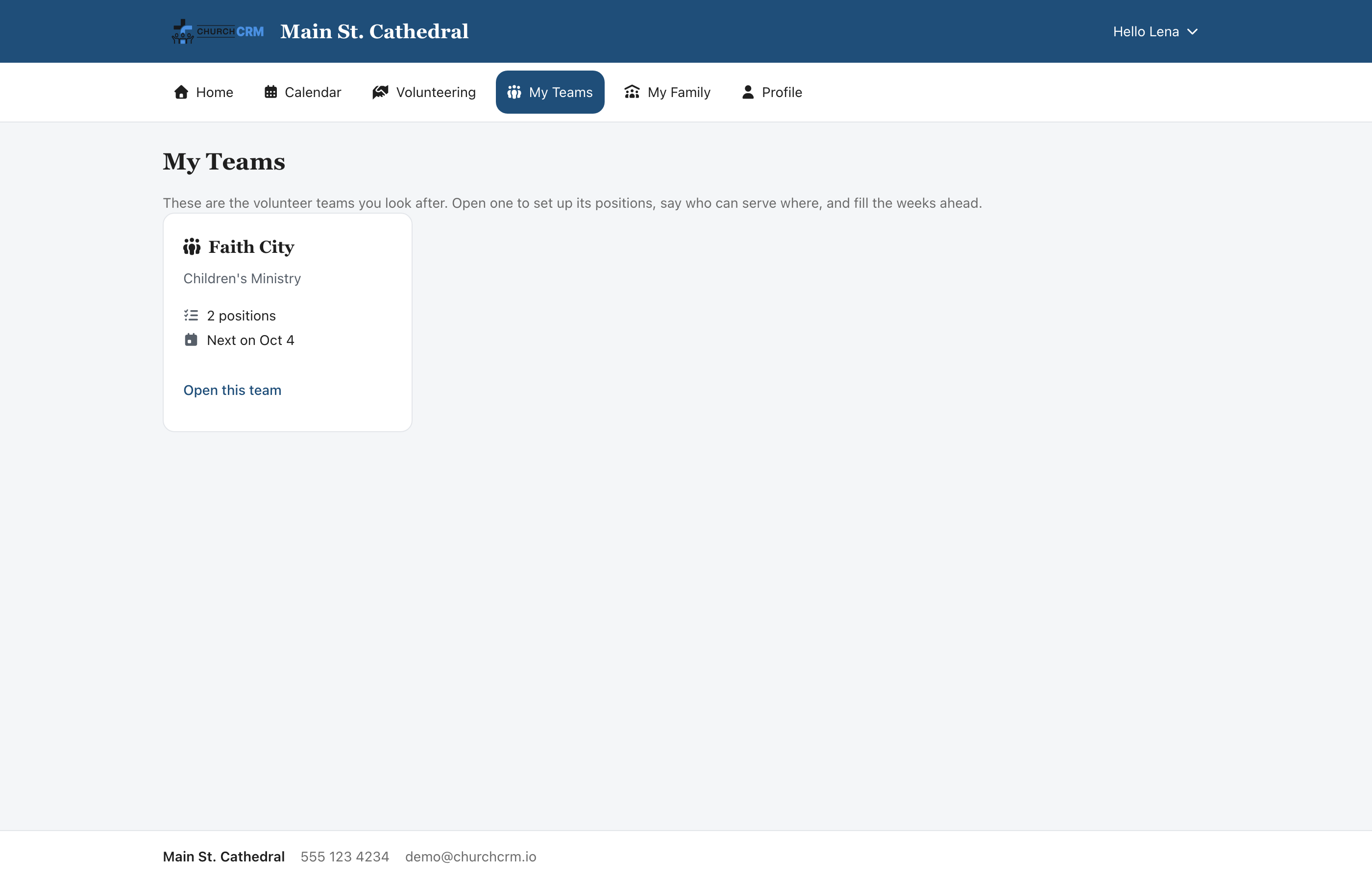
My Teams appears only for a member who leads a volunteer team. It lists the teams you look after — "Open one to set up its positions, say who can serve where, and fill the weeks ahead." — with each team's ministry, its number of positions and its next date ("Next on Oct 4"). Dates on the portal's volunteer pages are shown in the language and date format your church has set for ChurchCRM.
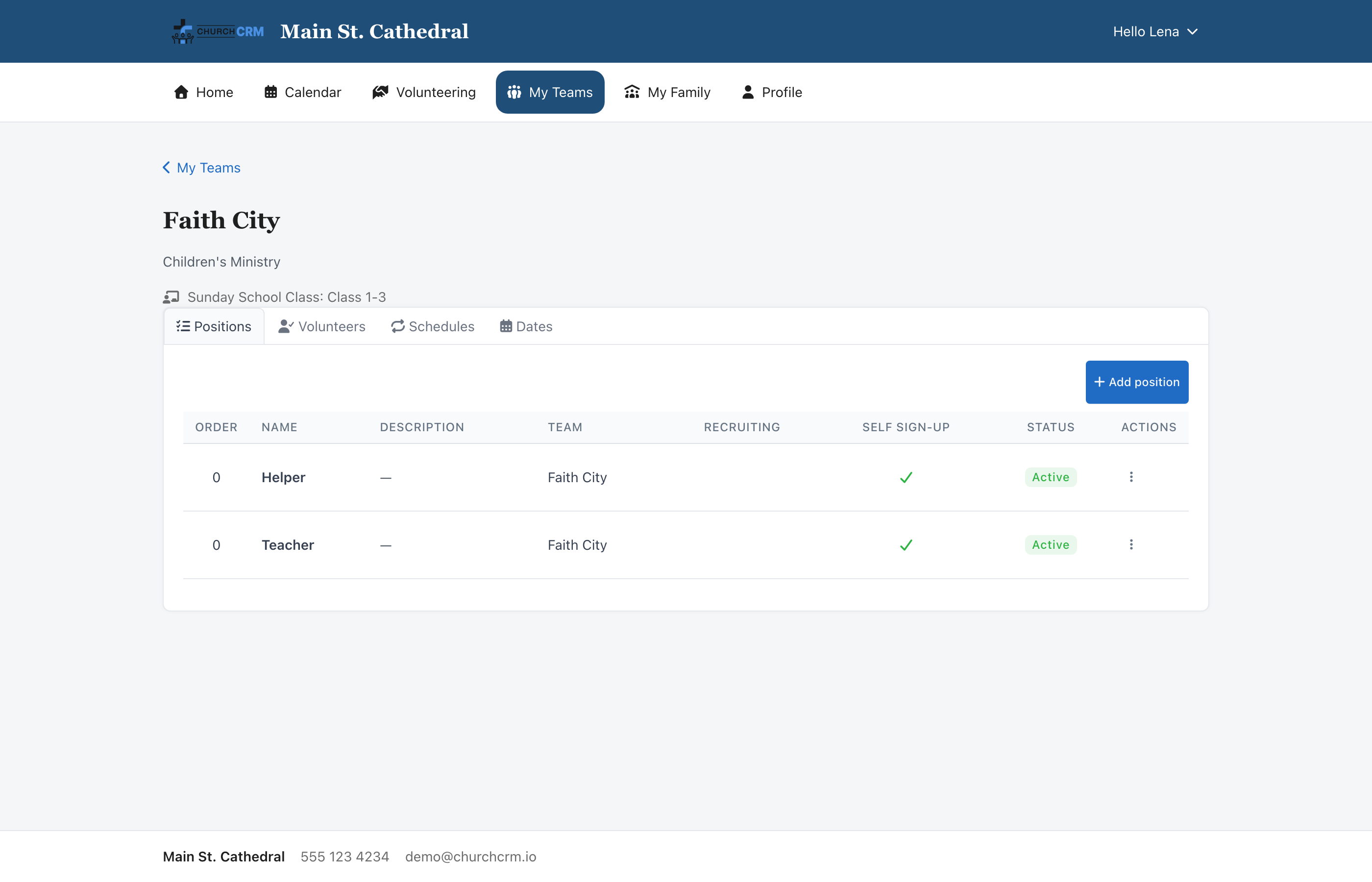
Open this team shows the team's ministry, the Sunday School class it is linked to (if any), and four tabs for that team and nothing else:
| Tab | What you can do |
|---|---|
| Positions | Add position — a job someone does on this team, such as Espresso or Song Leader — with a name, description, order, whether it is active, Recruit Volunteers, which advertises it on the page where members look for something to help with, and Self-assignable, which lets qualified volunteers sign themselves up for its open dates. Switch Self-assignable off for a position only you or a coordinator should assign. |
| Volunteers | A grid of your team's people against its positions. Tick who can serve where; "Ticks save as you make them." On a team linked to a Sunday School class, a tick also makes that person a teacher of the class. |
| Schedules | Add schedule — which calendar events the team serves, at what times, and how many people each position needs. See Add a schedule below. |
| Dates | Every date your team serves, soonest first, with an icon for how well each is filled; point at it to read it in words, for example "Needs 2 more" or "Covered · 1 more welcome". Filter by Event, From and To. Open a date to see each position's staffing in the same words ("Needs 1 more", "Full · 2 of 2"), Assign a volunteer (whoever served least recently is listed first) and answer any requests to swap. Staff an event staffs a single upcoming calendar event; to staff a whole series, add a schedule instead. |
Add a schedule
A schedule follows events that are already on the church calendar. It never makes dates of its own: each date your team serves is a calendar event, and the event's date and time are the schedule's. If the event moves, your team's date moves with it.
-
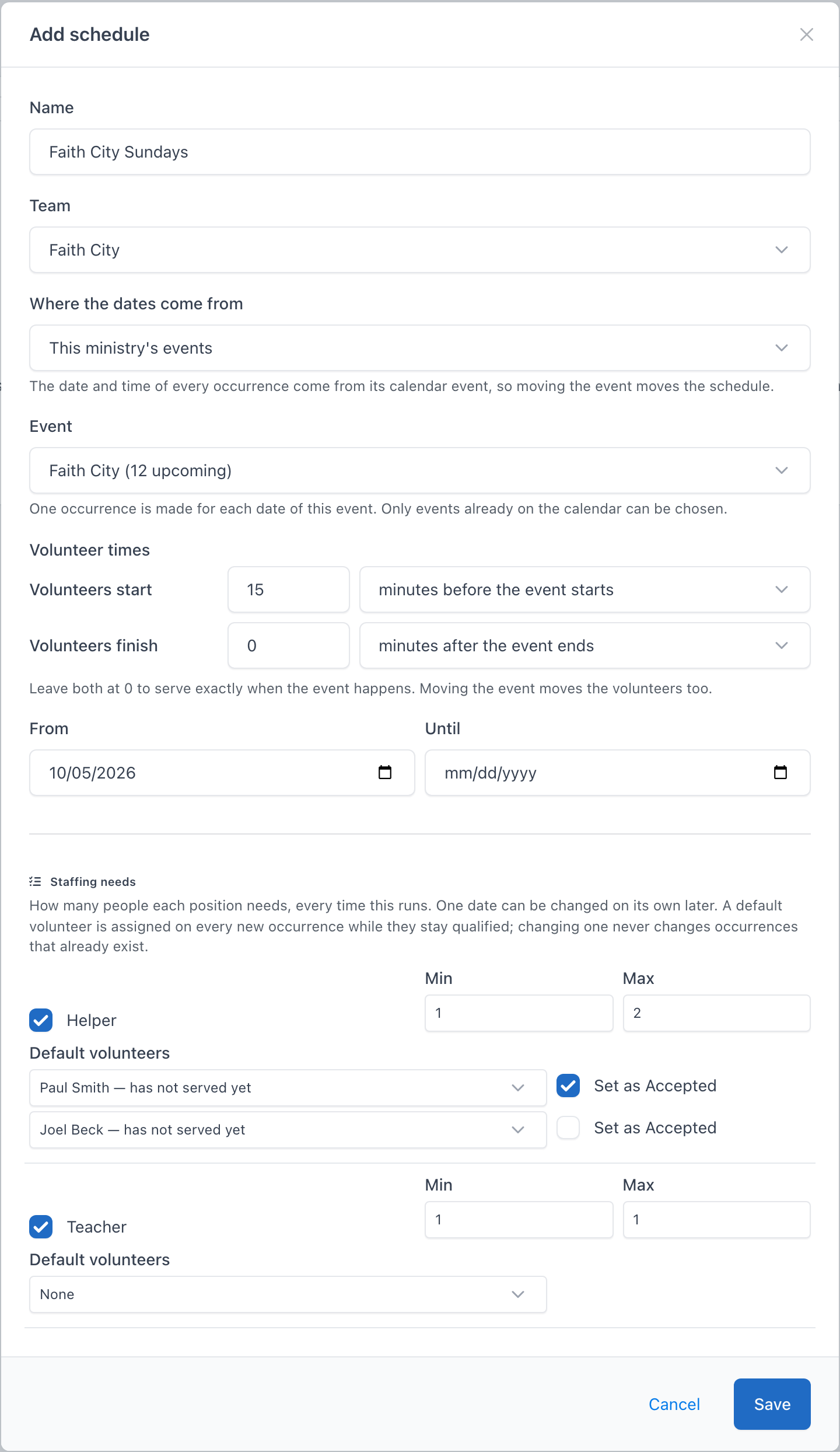
On the Schedules tab, press Add schedule and give the schedule a Name.
-
Under Where the dates come from, choose one:
- Church events of a type — choose the Event type, then the Event (for example Worship Hour). The schedule follows every date of that event.
- A class's meetings — choose the Class. The schedule follows every calendar event whose Linked Group is that class. This is the default for a team linked to a Sunday School class, and it is only offered when the ministry provides Sunday School teachers.
- This ministry's events — choose the Event from the ministry's own events, such as a workday.
Only events already on the calendar can be chosen; each choice shows how many dates are coming up. A class with no meetings on the calendar cannot be chosen yet. A team leader cannot add events: ask the ministry's coordinator to add them on the ministry's Calendar tab.
-
Under Volunteer times, set when your volunteers start and finish, in minutes before or after the event's start and end — for example, start 15 minutes before the event starts. Leave both at 0 to serve exactly when the event happens.
-
Optionally limit the schedule with From and Until dates.
-
Under Staffing needs, tick the positions each date needs, with Min and Max people for each. Optionally choose Default volunteers for a position: there is one list per place, so a position with Max 2 has two, and someone chosen in one list is not offered in the others. Everyone chosen is put on every new date while they stay qualified for it. Tick Set as Accepted beside a person who has already agreed, so they are not asked. If you lower Max below the number of people chosen, Save stops and the staffing needs show a message such as "Helper: Max is 1 but 2 default volunteers are chosen. Remove one or raise Max."
-
Press Save.
Save creates the schedule and its dates straight away, up to your church's scheduling horizon (eight weeks ahead unless your church has changed it). The Dates tab opens with the new dates and a message saying how many were made and how many default volunteers were assigned. ChurchCRM adds the next dates by itself every day as the horizon moves on, so you never have to generate the weeks ahead by hand.
If Save finds no event to staff yet — for example because the schedule's From date lies beyond the horizon — the schedule is still saved and an amber message says why.
The action menu of each schedule offers:
- Edit — change the schedule. Editing never makes dates. New staffing needs apply to every date that has not been changed on its own; new default volunteers go only on dates made from then on.
- Generate occurrences — make any dates still missing up to the horizon ("Occurrences are created for events in the next 8 weeks (through …)"), and choose who to Fill by default with for each position, one list per place up to its Max. Your choices are saved on the schedule. Dates that already exist are left alone.
- Deactivate — pause the schedule: it makes no new dates until you Reactivate it. A paused schedule's menu does not offer Generate occurrences.
- Delete — remove the schedule and its dates. A schedule with volunteers assigned on any of its dates cannot be deleted; deactivate it instead.
A team leader works on their own team only. Adding people to the ministry's pool, renaming or deleting teams, creating calendar events, and ministry-wide settings such as Help Wanted belong to the ministry's coordinator in the office side of ChurchCRM. Opening a team you do not lead shows "You cannot open this page".
Related documentation
- Member Portal administration — the settings, statistics and shared calendars behind the portal
- Church themes — giving the portal your church's look
- Events — the church calendar the portal shows
- Volunteers — volunteer management from the office side
Can't find what you need? Ask in Discord, or open an issue on the ChurchCRM repository.