The cart
The Cart is a temporary holding space for People records. You can add People to the Cart, then process these People records all at once, by generating labels or dumping the contents of the cart to a group.
You may put an unlimited number of People in the Cart. Putting someone in the Cart does nothing to their record, they are just temporarily assigned to the Cart. You can put someone in the Cart, then remove then without doing any processing, and their record will remain unchanged.
The Cart is user- and session-specific. Every User has his or her own Cart, and that Cart will only last until the User logs off -- Carts do not span sessions.
How can I see what's in my Cart?
A real-time counter in the header shows how many records are in the Cart; it updates as you add or remove records.
To see the actual records in your Cart, click on the cart icon in the upper right corner. This will display a context menu for quick cart actions. You may also choose to "View Cart" to show all people currently in the cart.
How do I add a Person to the Cart?
There several ways to do this:
To add an individual Person
- Go to People → Person Listing to list people, or
- Enter a name in the search/filter box and press Enter.
- When the results of the filter are displayed, there will be a link on the far right of every Person record called "Add to Cart." Click this link for the desired Person.
- If this Person does not already exist in the cart, they will be added.
Alternately
- View the desired Person record, and within that record will be a link for "Add to Cart."
- Clicking this link accomplishes the same thing as the process described above.
- To add the results of a report: Some reports will allow you to dump the results to the Cart, and some won't -- it depends what the report returns. Since the cart holds People, a report that returned Family records will not allow the results to be placed in the Cart.
Run the desired report
On a People Report, click Add All to Cart in the results header to add every row to the cart. To add all people assigned to a Group:
There is no Groups → Cart to Group menu item.
On the Cart page, To Group asks you to pick a group and a role, then posts cart/emptyToGroup. That moves everyone in the cart into the group and empties the cart.
To make a new group from the cart, open /groups/cart/add and click Create Group + ADD Cart.
Add to Family
To Family on the Cart Functions bar opens /people/cart/to-family. You assign the people in the cart to an existing family, or create a new one, then click Assign to Family. After that commit succeeds, the cart is cleared.
Generate mailing labels
The Cart Functions bar at the top of the Cart page has a Labels button, next to Tags. It produces mailing labels for everyone in the Cart.

- Add the people you want to mail to the Cart (see above).
- Open People → Cart and click Labels. The Generate Labels dialog opens.
- Choose your options and click Generate Labels. The labels open in a new browser tab as a PDF (or download as a CSV file) and the dialog closes. Your choices are remembered for the next time you open it.
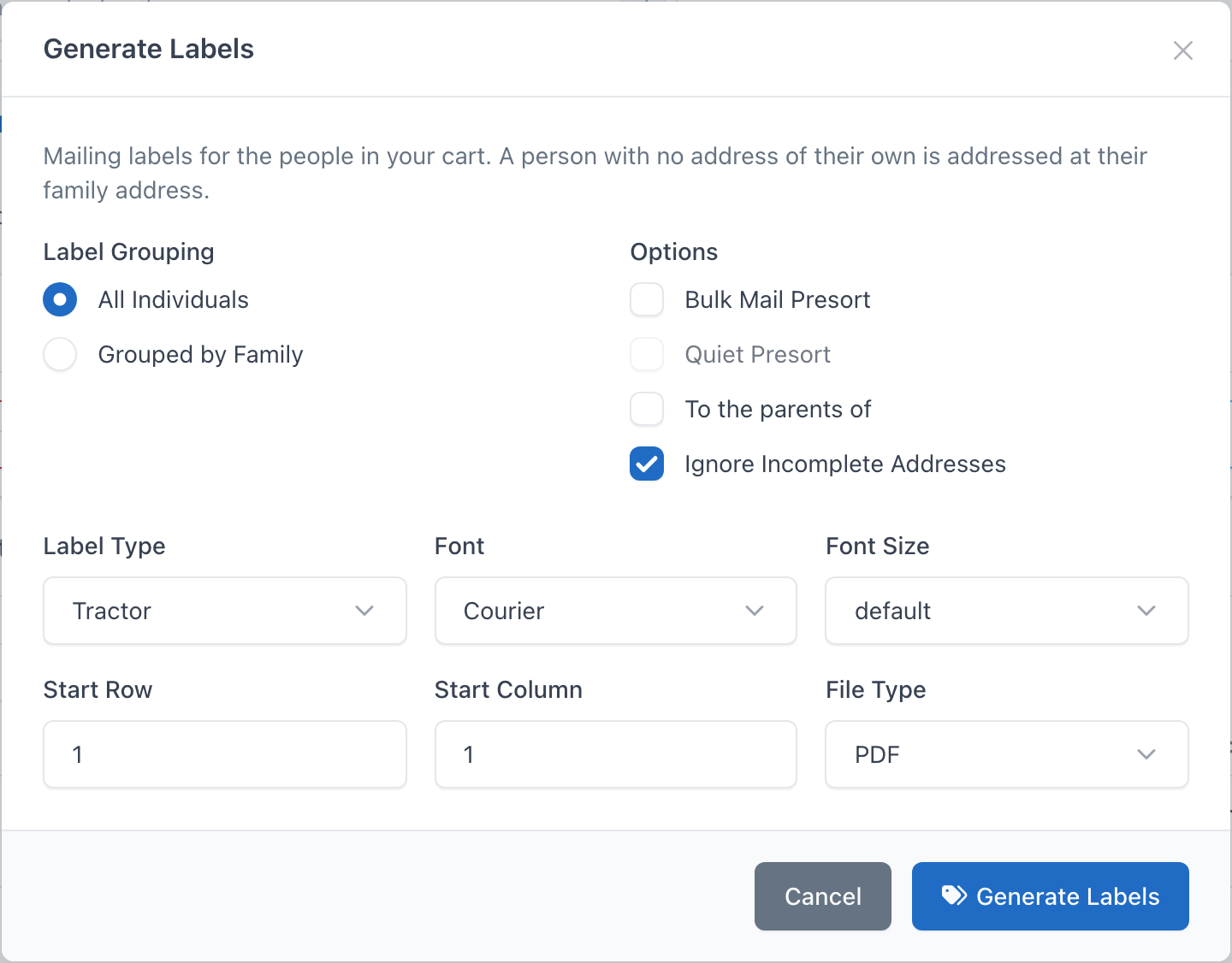
| Option | What it does |
|---|---|
| Label Grouping | All Individuals prints one label per person. Grouped by Family prints one label per family, addressed to the family. |
| Bulk Mail Presort | Sorts the labels into ZIP-code bundles for bulk-mail discounts and prints the bundle note as the first line of each label. Quiet Presort (available once presort is ticked) sorts the same way but leaves the bundle note off the labels. |
| To the parents of | Prefixes labels for children with "To the parents of". |
| Ignore Incomplete Addresses | Skips anyone without a usable street, city, state and ZIP instead of printing a blank label. Ticked by default. |
| Label Type | Tractor (continuous feed), Avery 5160, 5161, 5162, 5163, 5164, 8600 or L7163. |
| Font and Font Size | Typeface and point size; default uses the report's standard 10 pt. |
| Start Row / Start Column | Where on the first sheet to begin, so you can use up a partly used sheet of labels. |
| File Type | PDF for printing, or CSV to open the addresses in a spreadsheet or a mail-merge. |
Which address is used
Each label uses the person's own address when one has been entered on their record, and otherwise the family's mailing address: the family's second address when it is ticked as This is the mailing address, and the primary family address otherwise (see Second Address and Mailing Address). A household whose address is recorded only on the family record — the normal case — is addressed correctly; the whole address block (both street lines, city, state and ZIP) always comes from one record, never a mix of the two.
Labels for a filtered mailing
To send a mailing to a subset of people — for example everyone with a birthday or wedding anniversary in a date range:
- Go to Admin → Export → Open CSV Export, set the filters you need, and choose Add Individuals to Cart as the output.
- Open People → Cart and check the list.
- Click Labels and generate the labels as above.
People Reports offer Add All to Cart, which feeds the same workflow.
People Reports can print the filtered list directly. On the report results, Print Labels sits next to Add All to Cart and uses this same dialog without putting anyone in the Cart. See Print Labels on People Reports.
How do I remove a person from the Cart?
- Open the cart from View Cart on the cart icon. The page is
/v2/cart. - Each person row has Remove from Cart.
- Click it to take that person out of the cart. Their person record is unchanged.
To clear everyone at once, click Empty on the Cart Functions bar. To Group is the separate action that moves people into a group. The bar also has To Family and Email.
Can't find what you need? Ask in Discord, or open an issue on the ChurchCRM repository.