First Run Configuration
First-Run Setup Flow
After the setup wizard completes and you log in for the first time, ChurchCRM walks you through two mandatory steps before you can access the application.
Step 1: Change Your Password
The default admin account uses the temporary password changeme. On first login you are immediately redirected to the Change Password page. Choose a strong password — you cannot skip this step.
Step 2: Church Information
After your password is set, you are automatically redirected to Admin → Church Information. The system enforces this: until a church name is saved, every page you visit redirects back here. Fill in the required fields and click Save Church Information to proceed.
Church Information Page
Admin → Church Information is a set of cards, not tabs. Click Save Church Information when you are done.
| Card | What you enter |
|---|---|
| Church Identity | Church name (required) and website |
| Church Logo | The logo shown in the sidebar, on the login page, and in emails. See Church Logo below. |
| Contact Information | Phone number and email address |
| Location | Street, city, state, zip, and country. Map Coordinates has latitude and longitude. Click Generate Coordinates to look up the address, or leave the coordinates blank and ChurchCRM fills them in when you save. |
| Address Defaults | Default city, state, zip, and country for new families. Copy from church address fills these from the location above. |
| Social Media | Optional https:// links to the church's X, YouTube, Facebook, and Instagram accounts. Leave a field blank to hide that network. See Social Media. |
| Display Preview | How the church block will look on reports and directories, with an icon for each saved social media link |
Language and time zone are not on this page. Set them under Admin → Localization & Formats.
Social Media
The Social Media card has one field each for X, YouTube, Facebook, and Instagram. Members see each saved link as an icon in the footer of the Member Portal. Leave a field blank to hide that network.
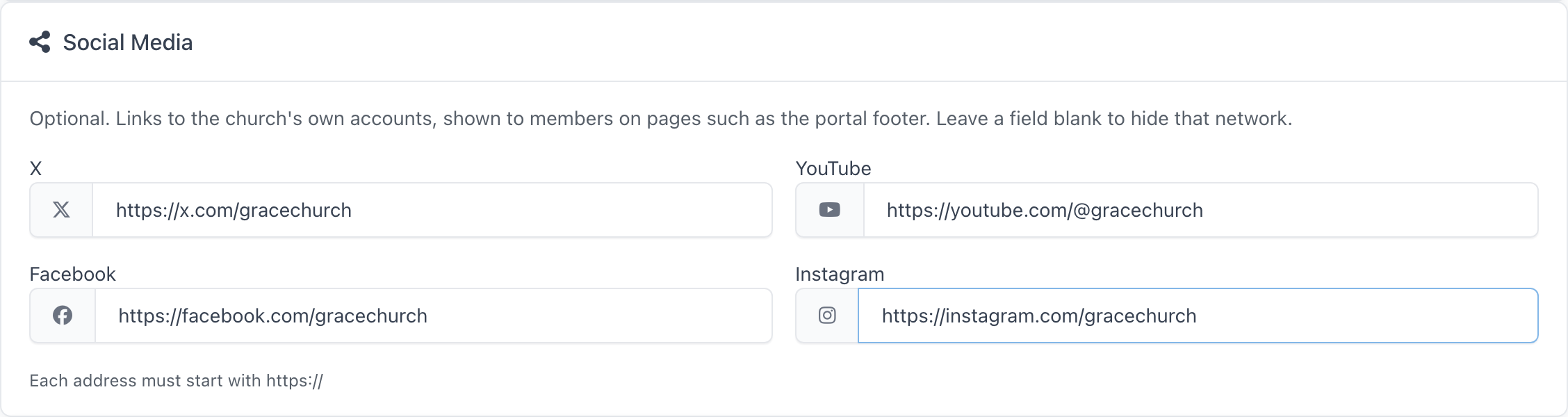
Each address must start with https://, for example https://facebook.com/yourchurch. A plain http:// link or a handle such as @yourchurch is not saved. ChurchCRM names the network in the message, for example "X must be a full https:// web address", and nothing on the page is saved until you fix it. What you typed stays on the form.
These links are only on this page, not on Admin → System Settings. In Display Preview, the icons change when you click Save Church Information, not as you type.
Church Logo
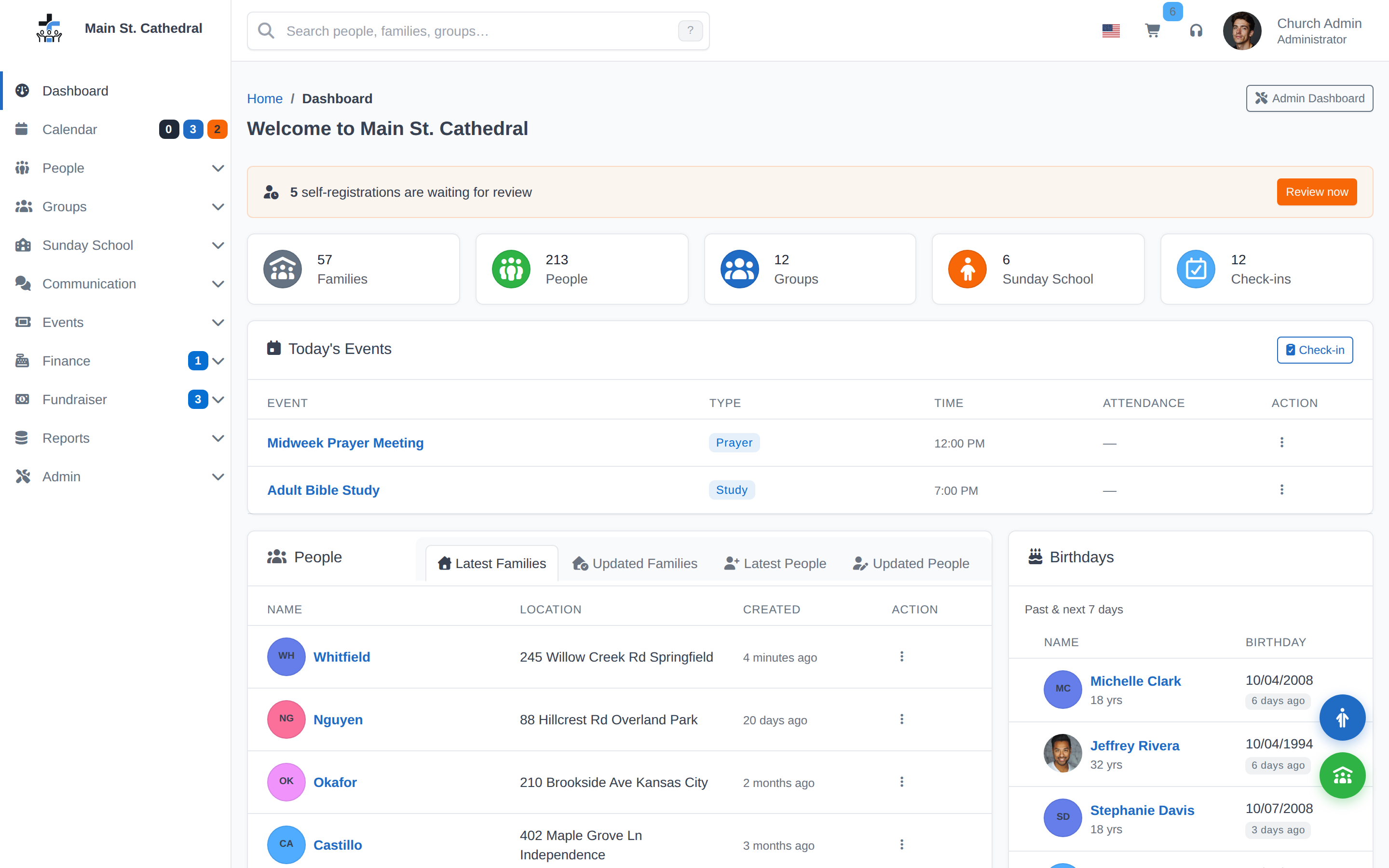
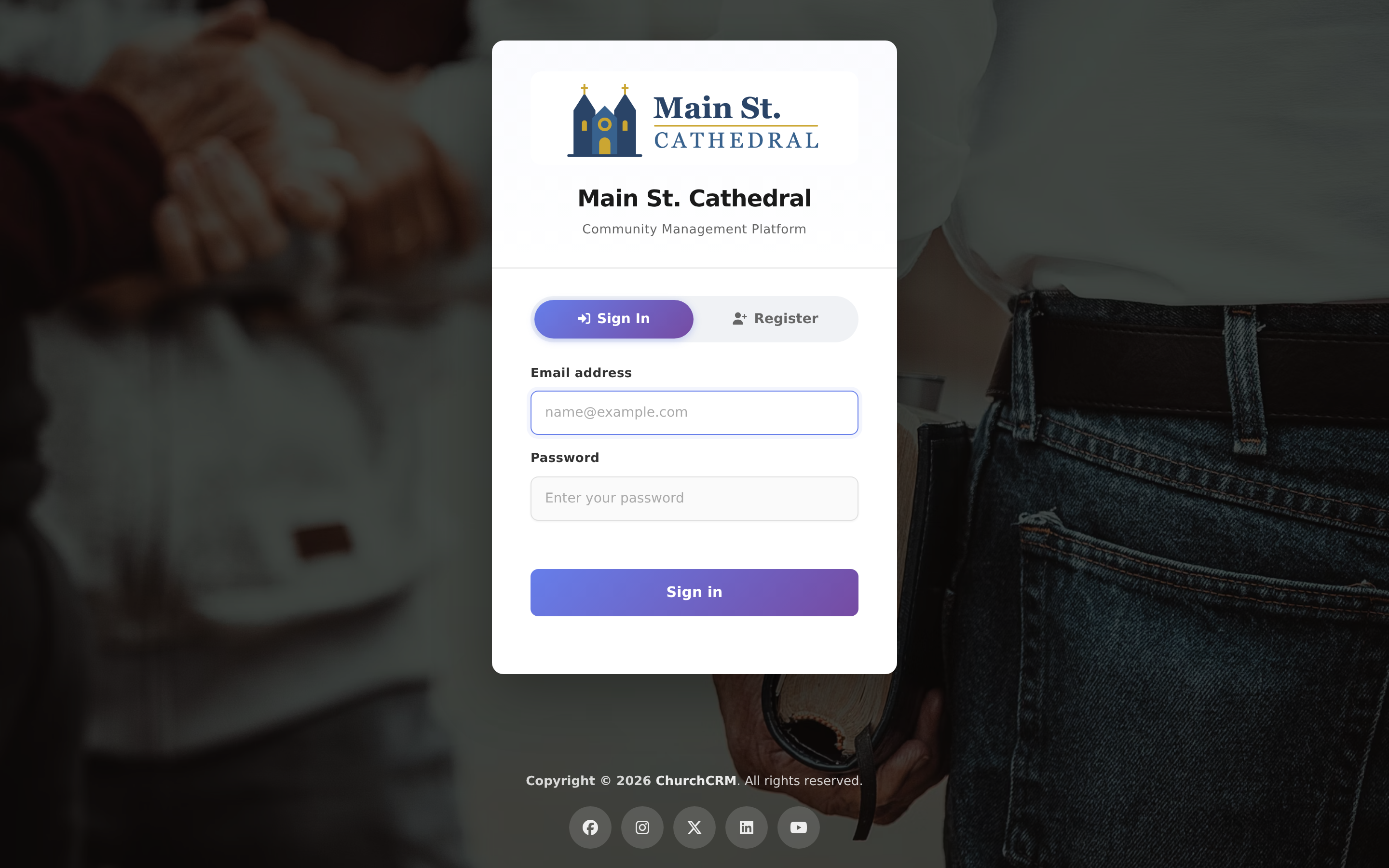
The Church Logo card sits below Church Identity. Uploading a logo here replaces the ChurchCRM branding everywhere it appears: in the sidebar (where it also replaces the church name text), on the login page and the password-reset, two-factor, error, limited-access and change-password pages, and in emails. Until you upload one, the card shows the default ChurchCRM logo with the note Using default ChurchCRM logo.
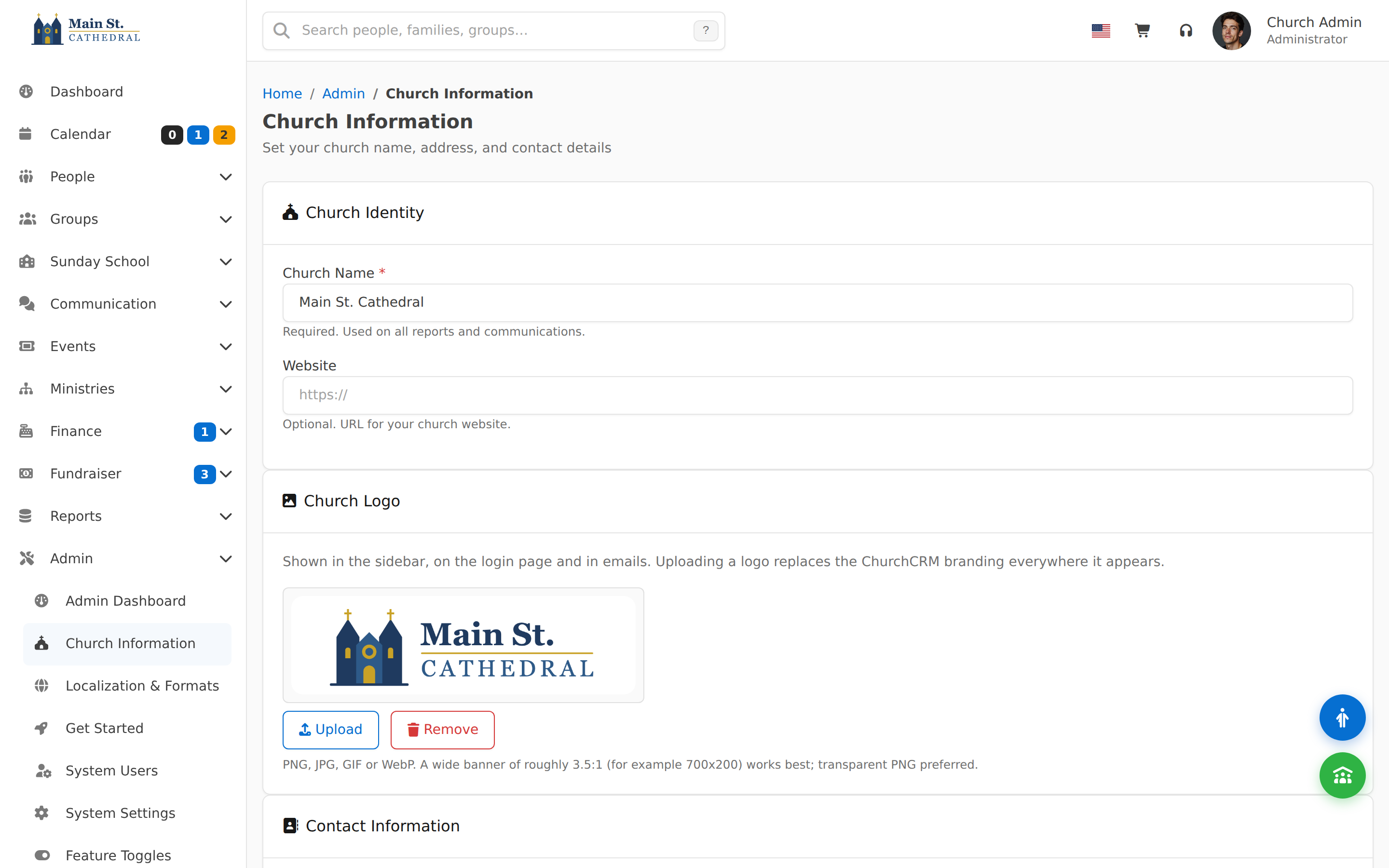
- Click Upload and choose an image file (there is no webcam option for the logo). PNG, JPG, GIF or WebP are accepted (not SVG), and the file you pick can be up to 50 MB, so a photo straight from a phone works. An iPhone HEIC photo is converted to JPEG in your browser first. A wide banner of roughly 3.5:1 — for example 700×200 pixels — works best, and a transparent PNG is preferred.
- The image editor opens; adjust the crop if you like and click Save, then click Upload 1 file. When the server has stored the logo, the page reloads and shows it in the card and the sidebar; there is nothing else to save. If the upload fails, the page stays open, shows the reason, and offers Retry.
- To go back to the default ChurchCRM branding, click Remove. The logo is removed straight away and the page reloads.
Your browser scales the image down to fit 1200×400 pixels before it is uploaded. The server's own limit of 16 megapixels (for example 4000×4000) only matters for uploads made directly through the API. The logo is stored as Images/church-logo.png. It is kept across upgrades. The file-integrity check ignores it, it is not reported as an orphan file, and it is left out of release packages.
| Sidebar | Login page |
|---|---|
 |  |
Uploading a logo is optional. You can do it at any time from Admin → Church Information. The letterhead printed on PDF reports is a separate image — see How do I set up my logo or letterhead?.
Get Your Data Into ChurchCRM
After the church name is saved, ChurchCRM opens Get Started. The page title is Get Your Data Into ChurchCRM (also under Admin → Get Started). Pick one path:
- Explore with Demo Data — Load demo data
- Import from a Spreadsheet — Import CSV
- Enter Data Manually — Add first family
- Restore a Backup — Restore backup
The setup checklist is the Admin Dashboard, not this page. You can skip Get Started with Skip — go to Admin Dashboard.
Completing Your Configuration
Once the mandatory setup is done, a few additional settings are worth configuring right away.
Email Settings
Open Communication → Email, then click Email Settings.
- SMTP Host — one field. Include the port in the host when your provider needs it, for example
smtp.gmail.com:587. - Encryption — None, TLS, or SSL.
- SMTP Username and SMTP Password
- Copy Church Email — address that receives a copy of mail ChurchCRM sends
Backups
Backups are not kept in churchcrm/SQL. On the Admin Dashboard, open System Info and click Backup. The archive is temporary and is deleted after you download it. See Backup & Restore.
System Locale
If ChurchCRM does not display your chosen language correctly, the server may need the corresponding locale installed. See Server Locale Requirements for how to install locales on Debian/Ubuntu and Rocky Linux/RHEL.
Can't find what you need? Ask in Discord, or open an issue on the ChurchCRM repository.