Events and attendance
ChurchCRM allows you to create events which will appear in your church calendar.
Events can be recurring (such as a weekly church service) or unique (such as a community outreach day).
Once an event is created, you can:
- Take attendance for your event and review attendance metrics
- Manage child care security by checking children in and out of classrooms
- View event history and statistics
Tip: Events appear on your church calendar and can be set to recur automatically.
Events Dashboard
Events → Events Dashboard opens the events dashboard.
Four cards sit at the top: Events This Year, Total Check-ins, Current Events, and Event Types.
Actions on the page are Add Event, Add Recurring Event, Check-in, and Calendar. Open an event from the list to edit it or record attendance.
The Calendar (in the top navigation) shows events in a month/week view with an offcanvas editor — great for scheduling. The Events Dashboard is focused on attendance, metrics, and event management. Both read from the same underlying event data.
Filtering the Dashboard
Three filter dropdowns appear at the top of the Events Dashboard:
| Filter | Options | Default |
|---|---|---|
| Type | Any event type defined in your system | All Types |
| Month | All Months, January – December | All Months |
| Year | Years that have events | Current year |
Month filter — Select a specific month to narrow the dashboard to events that fall in that month within the chosen year. Selecting All Months (the default) restores the full-year view with no change in behaviour.
Direct linking to a specific month — Append the ?month=N query parameter to the dashboard URL (where N is 1 for January through 12 for December) to open the dashboard pre-filtered to that month:
/crm/event/dashboard?month=3        ← March of the current year
/crm/event/dashboard?month=12       ← December of the current year
You can combine parameters to link directly to a specific month and year:
/crm/event/dashboard?month=6&year=2025 ← June 2025
Clear Filter — Clear Filter appears when a type or month filter is set. It goes to /event/dashboard and clears the type, month, and year, so the year returns to the current year. It is not shown when only the year has changed.
By default the dashboard auto-scrolls to the current month's section. When a Month filter is active, auto-scroll is suppressed so the filtered view stays at the top of the page.
Past Events (collapsed sections)
Past and inactive events are grouped into collapsible month sections below the active events list. This keeps the dashboard focused on upcoming events without losing access to history.
What counts as a past event:
- The event's end date/time is earlier than now, or
- The event has been manually deactivated (marked inactive)
How to use past events:
- Each month with past events shows a collapsed card header (e.g. "July 2026 — 4 events").
- Click the header to expand that month and see the events inside.
- Your expanded/collapsed state is remembered per browser — refreshing the page keeps the same sections open.
- If a month contains only past events (no upcoming events fall in that month), its section expands automatically so the events are visible without an extra click.
Step-by-step: Recording Attendance
- Create an event type (if needed): Events → Admin → Event Types → Add Event Type.
- Create an event: Events → Add Church Event — choose type, date, time, and save.
- Add people to the Cart: Search or browse people, click Add to Cart.
- Record attendance: open the cart and choose Check In to Event. The page title is Add Cart to Event. Select the event and confirm.
Attendance is saved with the check-in. To find people who missed events, use the Missing People report under Reports → People Reports.
Creating an Event Type
Event types behave like templates which define the parameters for events you will create in the future. Event types allow you to set details such as the recurrence frequency and the default start time an event can have.
You can also create free-form text fields allowing you to identify the type of individuals you would like to count for the purpose of attendance. These fields are arbitrary, carry no inherent meaning, and possess no relationship with the ChurchCRM database itself.
To create an event type:
- Go to Events → Admin → Event Types.
- Click Add Event Type.
- Fill in the form and click Save Event Type.
The count fields are Attendance Count Categories, not a field named Attendance Counts.
Example
You want to create an event type to support the "Newcomers' Lunch" you host once in a while at your church. The lunch doesn't take place on a regular basis, and you want to be able to see the number of regular churchgoers (whether they are members or not) as well as newcomers who attended this lunch.
To do this, you will add a new event type and make the following settings:
- Event Type Name: Newcomers' Lunch
- Recurrence Pattern: None
- Default Start Time: 12:30PM
- Attendance Count Categories: Regular Churchgoers, Newcomers
Creating an Event
Events inherit some properties from event types. You can additionally define the event title, description, date range, event sermon (if any), and status.
To create an event:
- Choose Events -> Add Church Event.
- Select an event type.
- Make your entries and choose Save Changes.
Taking Attendance for an Event
Throughout the course of an event, you can take attendance to track the participation across various people classifications, such as members, regular attenders, visitors, and so on.
To add an existing person to an event:
- Go to People → Person Listing.
- The Filters card narrows the list (family status, gender, classification, role, and so on). There is no Apply Filter button. Clear Filter resets the card.
- Use Add to Cart on the people you want.
- Open the cart in the header and choose Check In to Event.
- The page title is Add Cart to Event. Select the event and check those people in.
To add a visitor to an event:
- Go to People → Add New Person.
- Make your entries, ensuring you set the Classification field to Guest.
- Choose Save.
- Choose Add to Cart.
- Open the cart and choose Check In to Event.
- The page title is Add Cart to Event. Select the event and check the person in.
Generating Attendance Reports for an Event
You can generate reports based on attendance history for an event. The tracked person types measured are defined in the event type.
To generate a report:
- Open Reports → People Reports → Missing People.
- Choose one or more Events, optionally narrow by Classification, and click Run Report.
Using the Calendar
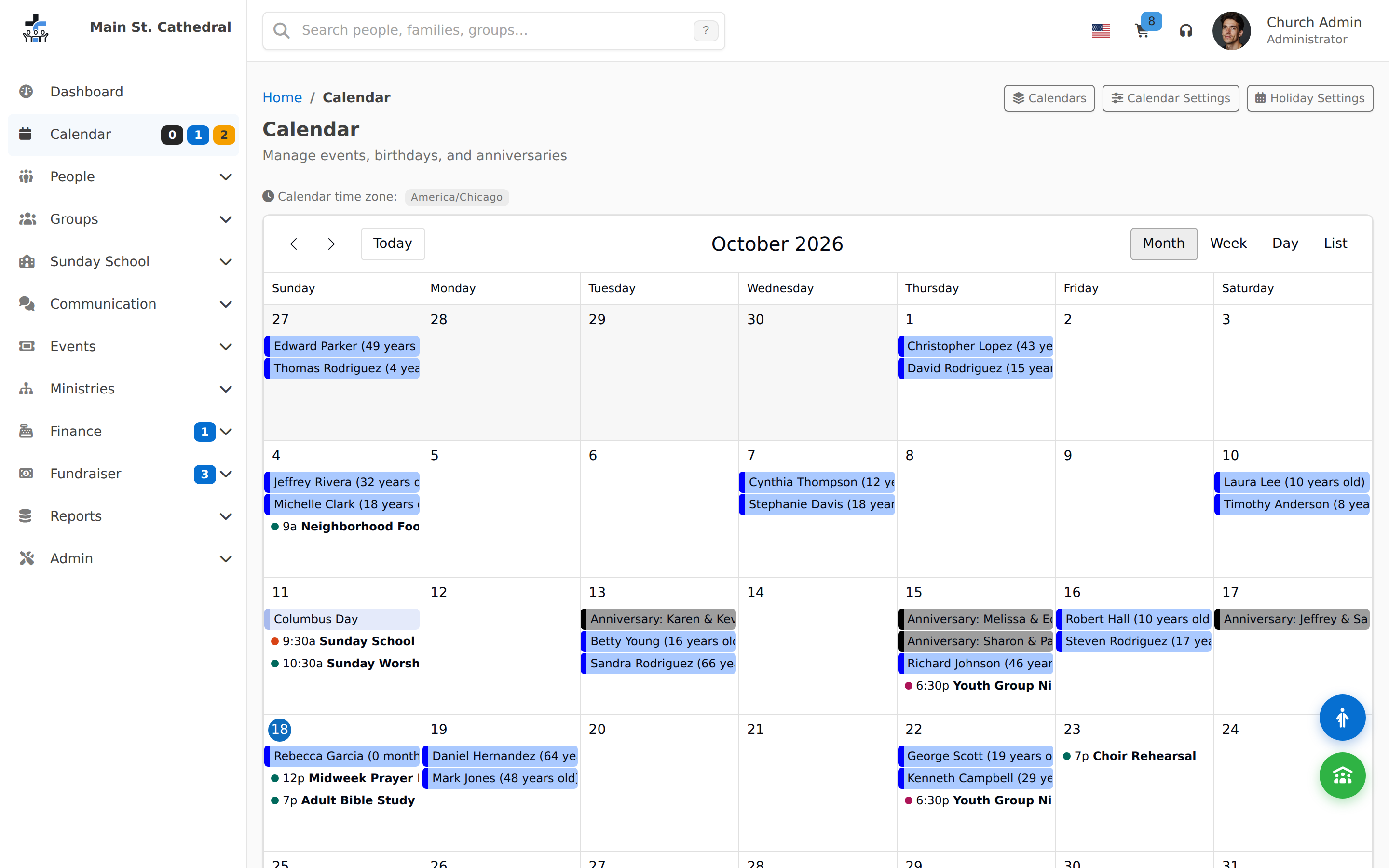
Open Calendar in the top navigation. The page subtitle is Manage events, birthdays, and anniversaries. Times on this page use the church time zone shown next to Calendar time zone. If your browser is in a different zone, a Browser time zone differs badge appears. Administrators can open Details from that badge.
Use the month, week, day, and list buttons to change the view, and today to jump back to the current day in the church time zone.
To show or hide a calendar, click Calendars.
- My Calendars are calendars your church created. If you can add events, New Calendar is at the bottom of that list. Name it, pick a foreground and background color, and click Save.
- System Calendars include Birthdays, Anniversaries, and Unpinned Events. Fundraisers is included when the fundraiser menu is turned on. A holiday calendar appears here only when that plugin is installed.
Click a day, or drag across a range, to open the new-event form. You can do this when your account can add events. Click an event you are allowed to change to open the same editor. Drag or resize an event on the grid to move it; confirm the change when asked.
Clicking a birthday, anniversary, or other item that is not an editable event shows a short notice with the title. It does not open the editor.
The same form is used from the calendar, the Events Dashboard, and the event detail page. Times are the church's wall-clock time.
Sharing a calendar
On a calendar you can edit, open its access token. ChurchCRM can show an HTML URL and an ICS URL. Copy the URL with Copy to clipboard, or open it with Open. New Access Token replaces the token. Delete removes it.
Those links do nothing for outside apps until an administrator turns on Enable External Calendar API under Calendar Settings. If tokens exist and that switch is off, the calendar page shows External Calendar API Disabled.
Calendar Embed Origins (also under Calendar Settings) lists which websites may place the public calendar in a frame. The default * allows any site.
Volunteer Ministry and the Volunteers card
When Volunteer Management (v2) is on, volunteers are scheduled for calendar events: every volunteer occurrence follows an event, and the event stays in charge of the date and time. A ministry creates its own one-time and recurring events on its Calendar tab; a schedule can also follow church services (events of a type with one title) or a Sunday School class's meetings (events whose Linked Group is the class).
- The event editor gains a Volunteer Ministry dropdown under Linked Group (open Show more options) that says which ministry owns the event. A ministry coordinator without the Add Events permission may create and edit events of their own ministry, and no other.
- An event that has volunteer occurrences shows a Volunteers card on its detail page to those who may manage them — the ministry, the schedule, how it stands (for example "Needs 2 more" or "Covered · 1 more welcome") with the numbers, and a Manage staffing link.
- A church calendar's settings gain Ministries that may add events, so that a ministry's coordinators may put its events on that calendar.
- ChurchCRM 7.8.0 adds an event type named Other when there is none; a ministry's new events start with it unless Admin → Ministry Settings names another default type.
Details are on Events and the calendar.
Unified Event Editor
The event editor is consistent across all entry points — Calendar offcanvas, Events Dashboard, and full event detail page all show the same form. All times are saved in the local wall-clock time of the church, eliminating daylight-saving edge cases.
Timeline Filters & Breadcrumbs
Event roster pages show member photos on each attendee row, with improved badge contrast. Breadcrumb navigation (Events → [Event Name] → Attendance) lets you jump back up the hierarchy without the browser back button.
Checking Children In and Out of an Event
During any event, you can monitor the checking in and checking out of children to comply with your church child protection policy.
For continuous self-service check-in at a station, see Kiosk Devices. The kiosk now works with any group type — not just Sunday School.
You do not type a PersonID, and there is no Verify or Finalize CheckOut step.
To check someone in:
- Open Events → Check-in and Check-out, or click Check-in on the Events Dashboard, and select the event.
- Under Person Checking In, search by name or email.
- Checked In By is optional. Search for the adult, or use Assign to me.
- Click Check In.
To check someone out, find them under People Checked In and choose Check Out. Check Out All checks out everyone still checked in.
Can't find what you need? Ask in Discord, or open an issue on the ChurchCRM repository.