Events and the calendar
Volunteer Management v2 schedules people for events on the church calendar. It never invents dates of its own: every occurrence a team staffs is tied to a calendar event, and the event's date and time decide when the volunteers serve. So the events come first. A ministry creates its own events on its Calendar tab, and a schedule then follows them, or follows church services and class meetings that are already on the calendar.
The order of work is:
- Create the events on the Calendar tab, one-time or recurring (or use events that are already on the church calendar).
- Add a schedule that follows them, with its staffing needs. See Schedules and occurrences.
- Fill the positions on each occurrence. See Staffing an occurrence.
After you create events on the Calendar tab, the page asks whether to staff them now and takes you to the next step.
The Calendar tab
The Calendar tab of the ministry page lists the events this ministry owns from today to a year ahead, the soonest first. Turn on Show past events to see the last year's events instead, the newest first.
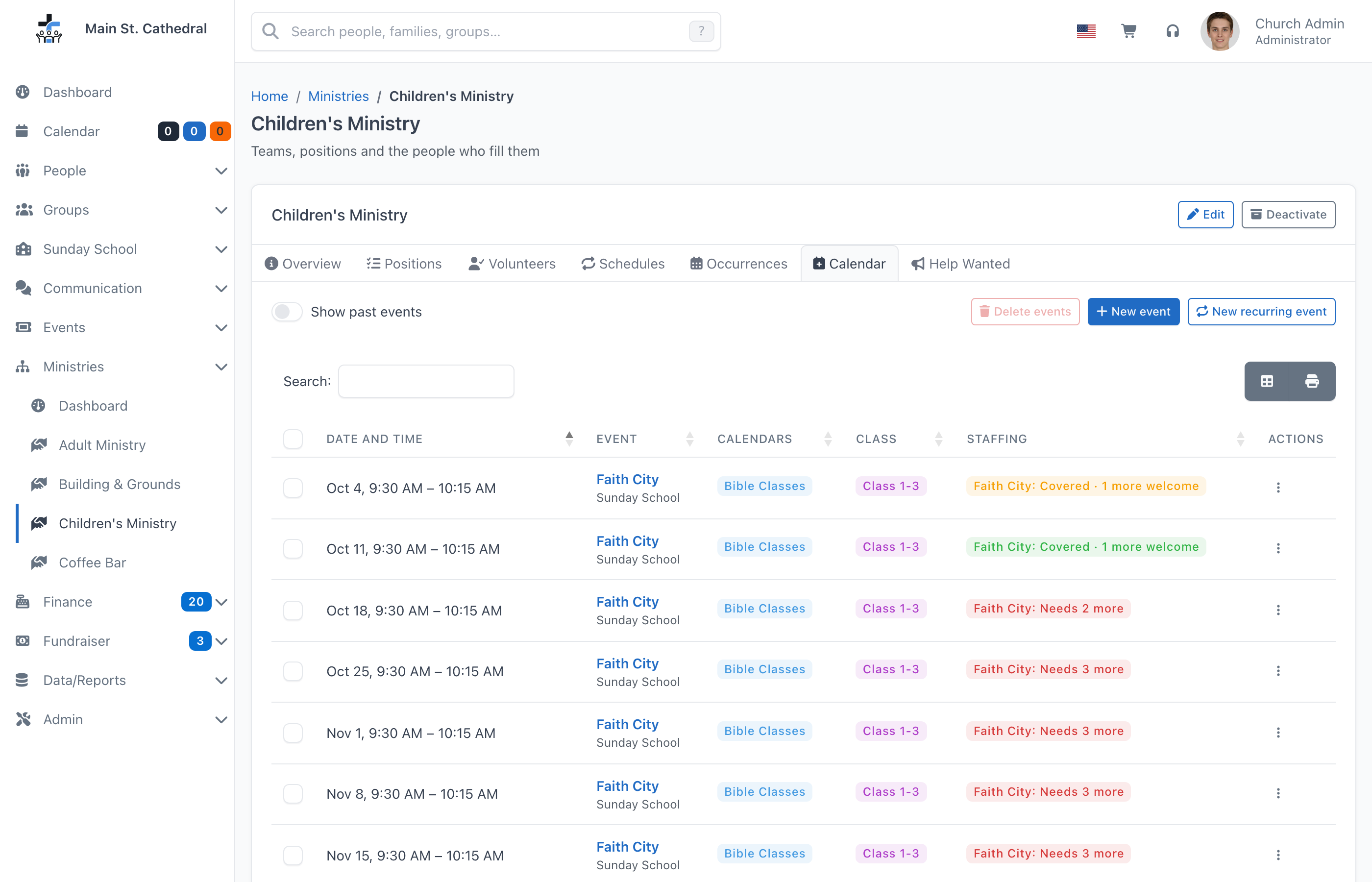
| Column | What it shows |
|---|---|
| Date and time | When the event happens, for example "Oct 4, 9:30 AM – 10:15 AM". |
| Event | The title, linked to the event's page, with its event type underneath and an Inactive badge when the event is inactive. |
| Calendars | The calendars the event is on. |
| Class | The Sunday School class that is the event's Linked Group, if any. |
| Staffing | One badge per team of this ministry that staffs the event, for example "Faith City: Needs 2 more" or "Faith City: Covered · 1 more welcome": red while a position is short, yellow while someone has not answered, green when every position has its people and everyone has answered, grey while nothing is required and nobody has signed up. A team whose occurrence has no staffing needs reads "Faith City: no staffing needs set", also grey. The tooltip gives the numbers, for example "1 of 3–4". A badge opens the team's occurrence on that event; when the team staffs the event twice (a schedule and a single event), the badge adds both up and opens the first. Not staffed when no team staffs it. A past event also shows its headcount, for example "Headcount: 42" or "No headcount recorded yet". |
The action menu of a row offers Staff this event (for an upcoming, active event: the Staff an event dialog with the event already chosen), Edit event, which opens the church event editor, and View event.
To end a series or remove events, tick them (the header box selects every row) and click Delete events (N). The confirmation explains that the events leave every calendar, with their check-ins and headcounts, and that the ministry's occurrences for them keep only their dates. If another ministry has volunteers assigned to one of the events, the confirmation names that ministry, and the delete is refused unless you may manage the church calendar (the Add Events permission). Nothing is deleted while people are still checked in to one of the events or a kiosk is assigned to it; the message names the event. The Delete on the Occurrences tab, by contrast, removes only the staffing and never the event.
New event and New recurring event
New event and New recurring event open the same dialog, with a One-time / Recurring switch at the top.
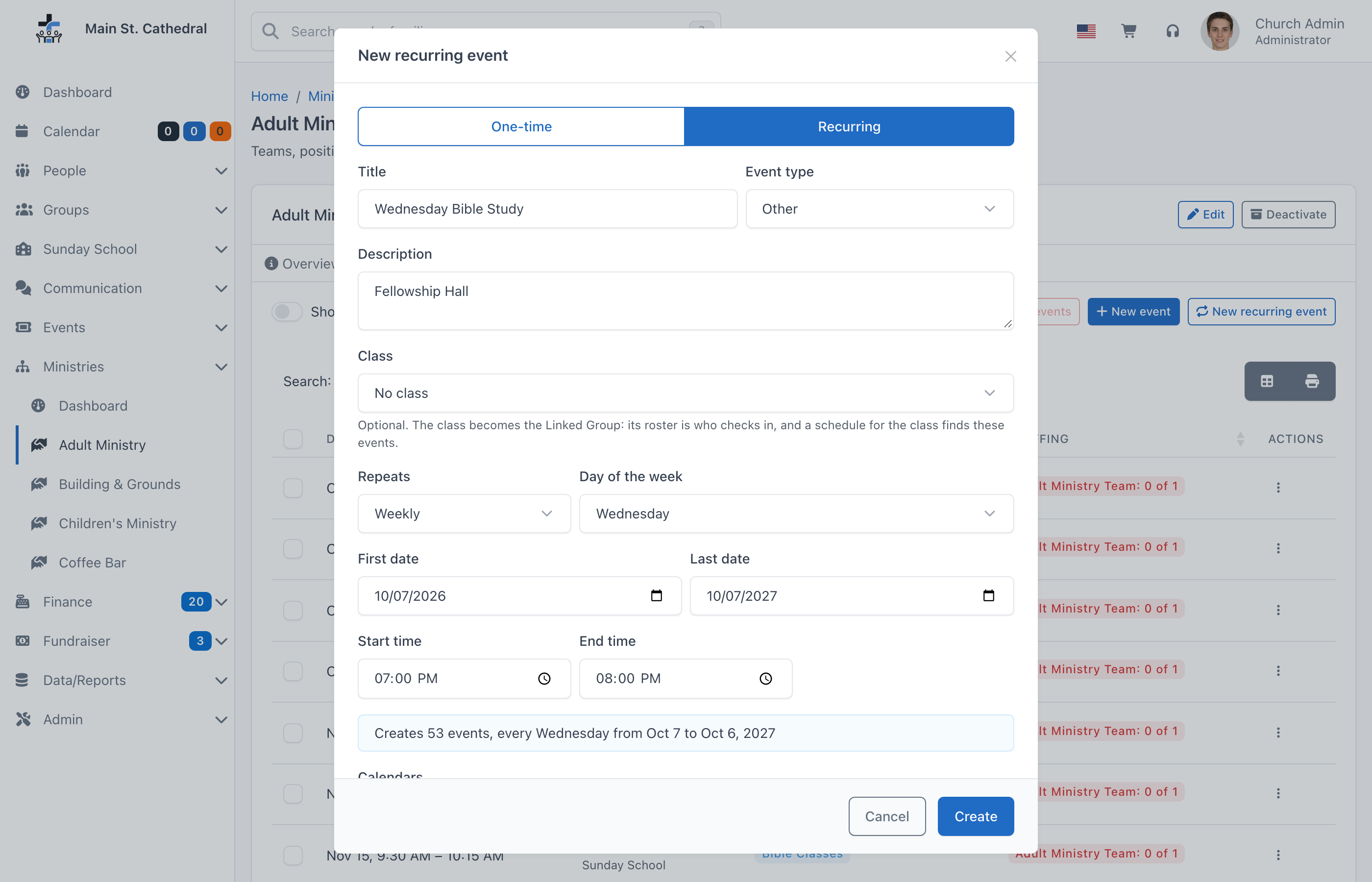
| Field | Meaning |
|---|---|
| Title | The event's title. A schedule that follows This ministry's events matches this title exactly. |
| Event type | Starts on the default event type for ministry events (see The "Other" event type), and can be changed. Choose a type with attendance count categories for a class that needs a headcount. |
| Description | Optional, for example the room. |
| Class | Optional. The class becomes the event's Linked Group: its roster is who checks in, and a schedule for the class finds these events. Shown only when the ministry provides teachers for Sunday School. |
| Date | One-time only. Starts on tomorrow. |
| Repeats | Recurring only: Weekly on a Day of the week, Monthly on a Day of the month (if a month does not have that day, for example the 31st in April, the event falls on that month's last day), or Yearly on a Date each year. |
| First date, Last date | Recurring only. Last date starts one year after the first date and moves with it until you change it yourself. It is required: if you clear it, it is put back with the note "A recurring event needs a last date, so it is back to …". |
| Start time, End time | The event's times. They start at 9:00 and 10:00. |
| Calendars | The calendars the events go on. The ministry's own calendar is ticked to start with. A coordinator sees only the ministry's own calendar and the church calendars an administrator has opened to the ministry (see Calendars a ministry may use). |
For a recurring event the dialog shows what it will make, for example "Creates 53 events, every Wednesday from Oct 7 to Oct 6, 2027". It says so when no date matches, or when the range would make more than 366 events, which is the most one series can have. The scheduling horizon does not limit how far a series reaches.
Click Create. The dialog only creates the events; staffing them is the next question.
Staff them now?
After Create, the page asks "11 Wednesday Bible Study events created. Staff them now?", or for a one-time event "Fall Workday on Oct 17 created. Staff it now?"
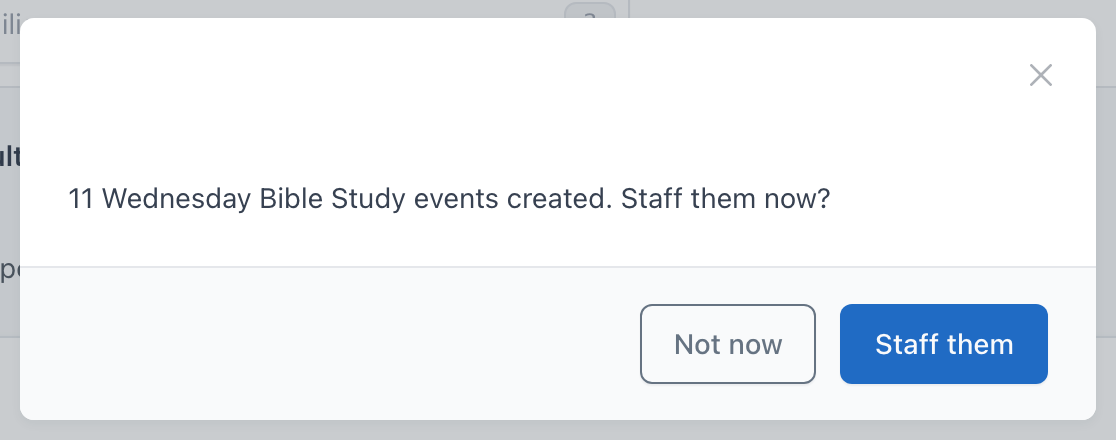
- Not now closes the question and does nothing else. The events stay on the calendar, and you can staff them later.
- Staff them on a one-time event opens Staff an event with the new event already chosen.
- Staff them on a recurring event looks for the ministry's active schedules that already follow these events: a class schedule on the same class, or a schedule that follows this ministry's events, or church events of the same type, with exactly this title. Every schedule that matches makes occurrences for the new events up to the scheduling horizon, extends its first or last date to cover them when needed, and assigns its default volunteers. The page then opens the Occurrences tab, filtered to the title, with a message per schedule, for example ""Wednesday Bible Study": 8 occurrences created". When all the new events lie beyond the horizon, the page stays on the Calendar tab and says that the schedules will staff them as they come within the horizon.
- When no schedule follows the new events, the Schedules tab opens Add schedule, already filled in: A class's meetings on the class when the events have one, otherwise This ministry's events with exactly this title; the team linked to that class, otherwise the first team; and the title as the schedule's name. Add the staffing needs and default volunteers and click Save. See Adding a schedule.
ChurchCRM finds a series by its class or its title, because calendar events do not record which series they belong to. A schedule that follows a title therefore takes every event with that title, whichever series it was created in.
Staff an event
Some events happen once and need people only that day: a workday, a funeral meal, a baptism. Staff an event staffs one such event without a schedule. It is on the Occurrences tab, in a Calendar tab row's action menu (Staff this event), and after Staff them for a one-time event.
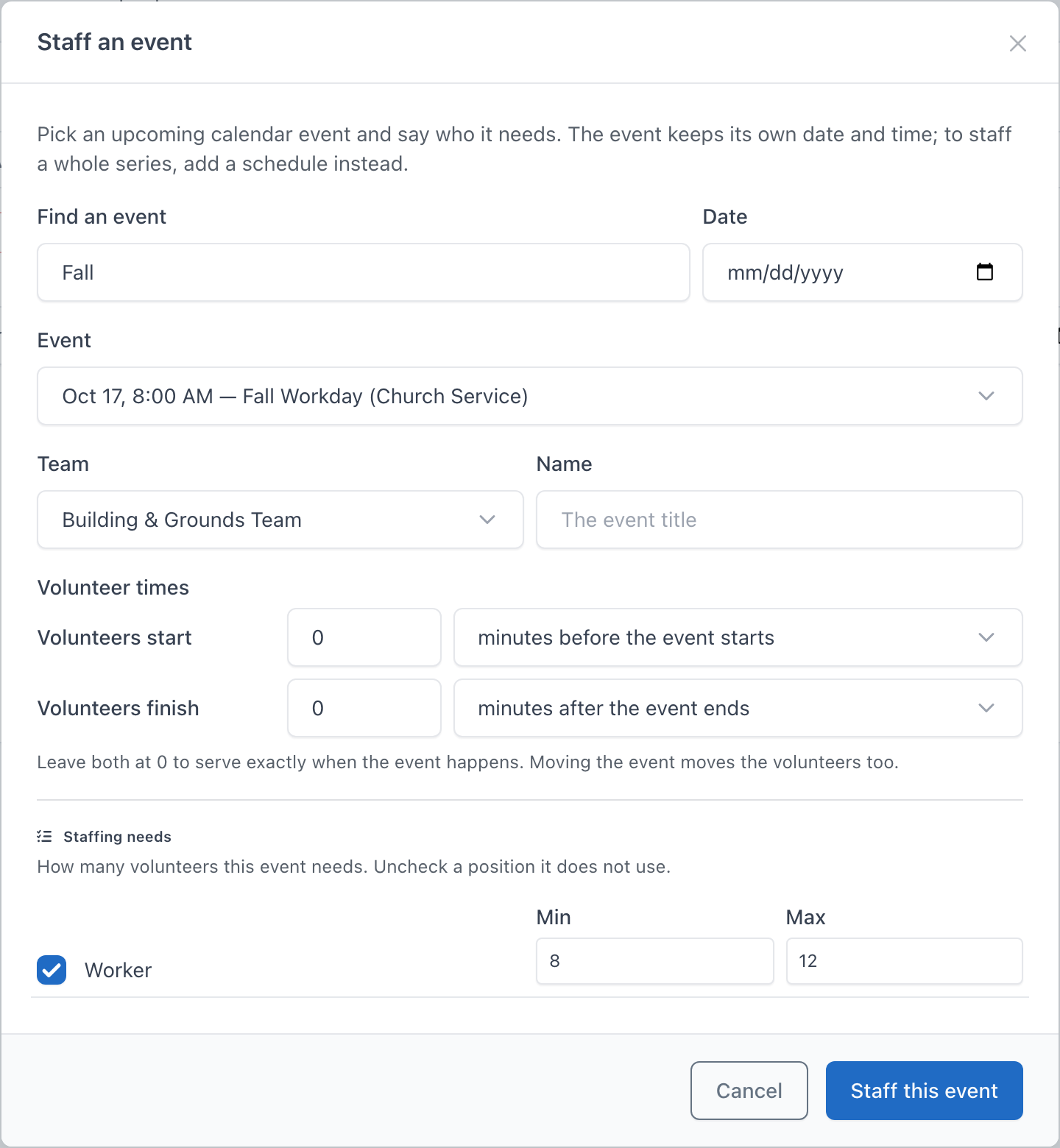
- Type part of the title in Find an event, or pick a Date, to search the upcoming active events. Each event is listed as "Oct 17, 8:00 AM — Fall Workday (Church Service)", with "· already staffed by this team" when the chosen team already has an occurrence on it. Any upcoming event can be staffed, including events that another ministry or the church owns.
- Choose the Team, and optionally a Name (the event's title is used when it is left empty).
- Set the Volunteer times and the Staffing needs, as for a schedule.
- Click Staff this event.
The occurrence appears on the Occurrences tab with a single event badge. Deleting it there removes everything Staff an event made. A team can staff an event only once this way, but it may also staff the same event from a regular schedule, for example setup through a schedule and cleanup as a single event. The scheduling horizon does not apply: an event months away can be staffed today.
The "Other" event type
ChurchCRM 7.8.0 adds an event type named Other when the installation has none. A ministry's new events start with the type chosen in Admin → Ministry Settings → Default event type for ministry events. When that setting is not set, or names a type that was deleted or deactivated, the active type named "Other" is used. If there is no active type named "Other" either, no type is chosen in advance and you choose one for each event. The type can still be changed for each event.
Calendars a ministry may use
Every ministry is created with a calendar of its own, listed under Ministry Calendars in the Calendar page's calendar picker. Its coordinators may put the ministry's events on it.
An administrator, or anyone with the Add Events permission, can also open a church calendar to ministries. On the Calendar page, open a church calendar's settings (or New Calendar) and choose Ministries that may add events. "Their coordinators may pin their ministry's events to this calendar without Add Events permission." For example, a shared Bible Classes calendar opened to the Children's and Adult Ministries holds every class meeting. A ministry's own calendar has no such field.
Events, classes and headcounts
A class meets at events: one event per class per meeting, with the class as its Linked Group. Check-in, the kiosk and the class roster all work from that event, as they do in core ChurchCRM. A schedule that follows A class's meetings staffs exactly those events.
The occurrence page shows the event's Headcount: the event type's attendance count categories and their total, entered in the event editor. Volunteer Management never writes check-ins or counts itself.
The Volunteer Ministry field on an event
In the church event editor (and in the event dialog the Calendar page opens), under Show more options, a Volunteer Ministry dropdown sits directly beneath Linked Group: "Lets that ministry's coordinators schedule volunteers for this event — and edit the event itself." It lists the active ministries the user may manage, with No ministry first, and is hidden for a user who may manage none. Events created on a ministry's Calendar tab already have it set.
The Volunteers card on the event view
An event with volunteer occurrences shows a Volunteers card on its detail page to anyone who may manage one of those occurrences: the ministry, the schedule, the numbers (for example "3 assigned, 3 needed, room for 1 more") and a badge in the same words as the ministry pages ("Needs 2 more", "Covered · 1 more welcome", "Full", "Optional", or No staffing needs set; see How staffing reads), with a Manage staffing link to the staffing view. An event that no team staffs shows no card.
Coordinators and events
Normally only users with Add Events may create and edit events. A ministry coordinator (or a Manage Ministries user) without that permission may still create, edit, re-time, deactivate and delete the events of their own ministry: on the ministry's Calendar tab, and in the church event editor, where the Add Church Event entry appears for them, the Volunteer Ministry field lists only their ministries and must be set. Any other event is refused. Team leaders cannot create events unless their login has Add Events.
Deleting an event
Deleting a calendar event does not delete the occurrences that followed it. Each occurrence keeps its date, its people and its history, but no longer has times, and the "Times come from this event" link disappears.
Related pages
Can't find what you need? Ask in Discord, or open an issue on the ChurchCRM repository.