Ministries, teams and positions
A ministry is the unit everything else hangs off: it owns its teams, positions, volunteer pool, schedules, its events and a calendar of its own. Every position belongs to a team, and every ministry has at least one team.
A Group whose type is "Ministry" is just a group. A v2 ministry is created under Ministries, uses positions rather than group roles, and gets a pool Group of its own automatically (that Group has the type "Ministry" too, and says on its page which ministry it belongs to). See Volunteers: the pool and qualifications.
Creating a ministry
Only an administrator or a user with Manage Ministries can create one (see Who can do what).
- Go to Ministries → Dashboard.
- Click New ministry. The dialog explains: "A ministry is created with its own calendar, volunteer pool and first team, so the only things to decide here are its name and what it does."
- Enter the Ministry name and a Description.
- Turn on Can this ministry provide teachers for Sunday School? only for a ministry whose teams teach Sunday School classes, such as a children's ministry (see Editing a ministry). It is off by default.
- Click Create ministry.
You land on the new ministry's page. Its first team (named after the ministry, for example Coffee Bar Team) and its pool Group already exist, and the ministry now has an entry under Ministries in the sidebar.
The ministry page
Ministries → the ministry's name, or /ministries/{id}. The header shows the name, an Inactive badge when the ministry is deactivated, an Edit button (see Editing a ministry) and the lifecycle buttons described below. Seven tabs follow:
| Tab | What it holds |
|---|---|
| Overview | Three counts (Teams, Volunteers, Unfilled Positions), the description, the Teams card and — for ministry managers — the Ministry Coordinators card. |
| Positions | The roles people serve in. |
| Volunteers | The pool and the qualification grid — see Volunteers: the pool and qualifications. |
| Schedules | Which calendar events each team staffs, with how many people — see Schedules and occurrences. |
| Occurrences | The dates those schedules produced, each with a Filled indicator, and Staff an event for a single event. |
| Calendar | The events this ministry owns, with New event and New recurring event — see Events and the calendar. |
| Help Wanted | A switch that puts the ministry on the Member Portal's Open Opportunities page, and the text shown there. |
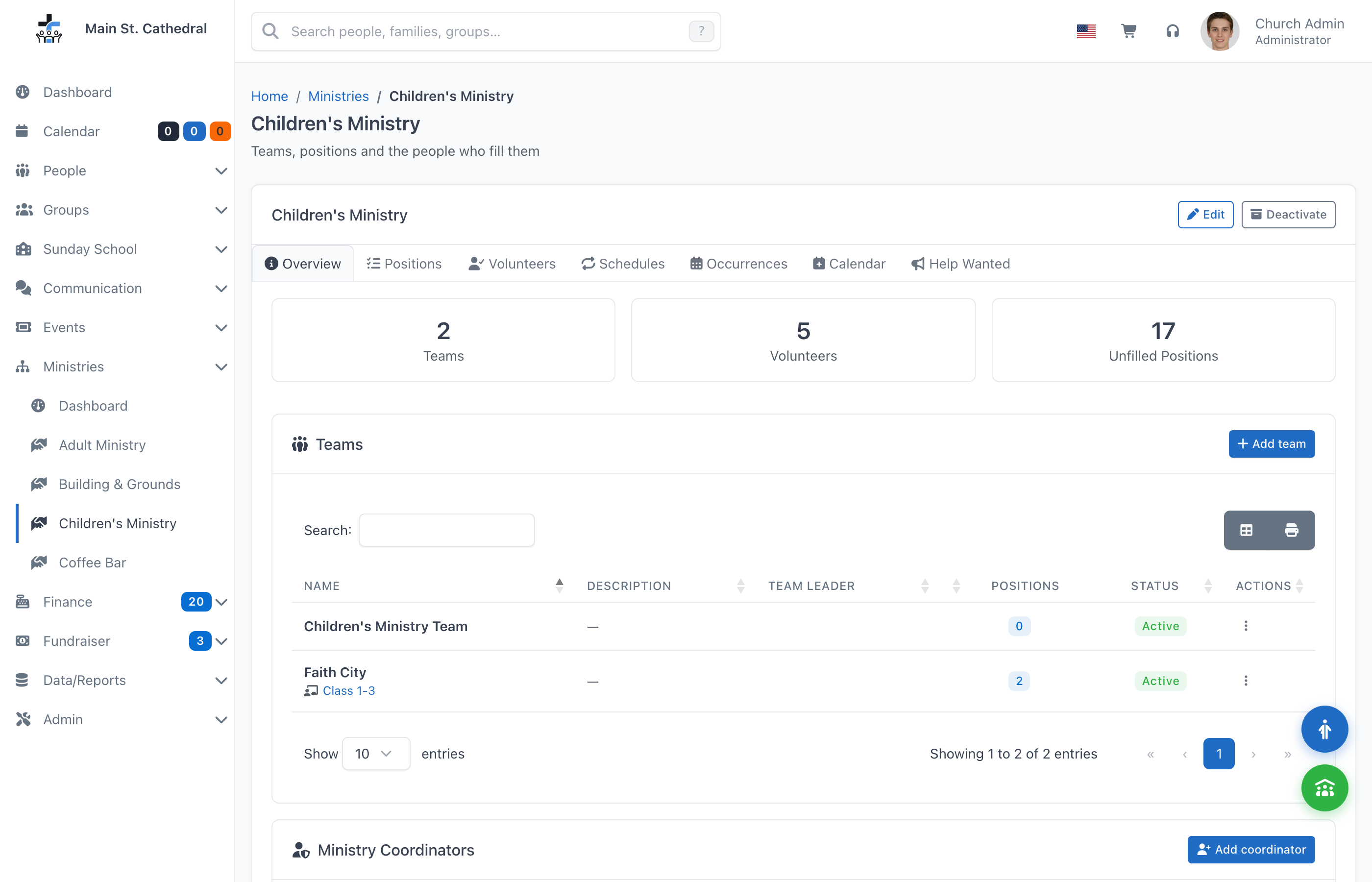
Unfilled Positions adds up how many more people every upcoming occurrence of the ministry still needs to reach each position's Min (the "Needs N more" numbers), so it is the quickest way to see whether the ministry is short of people. An assignment still waiting for an answer counts as filled, and room above Min is not counted.
Editing a ministry
Edit in the header opens Edit ministry: the Ministry name, the Description and Can this ministry provide teachers for Sunday School?
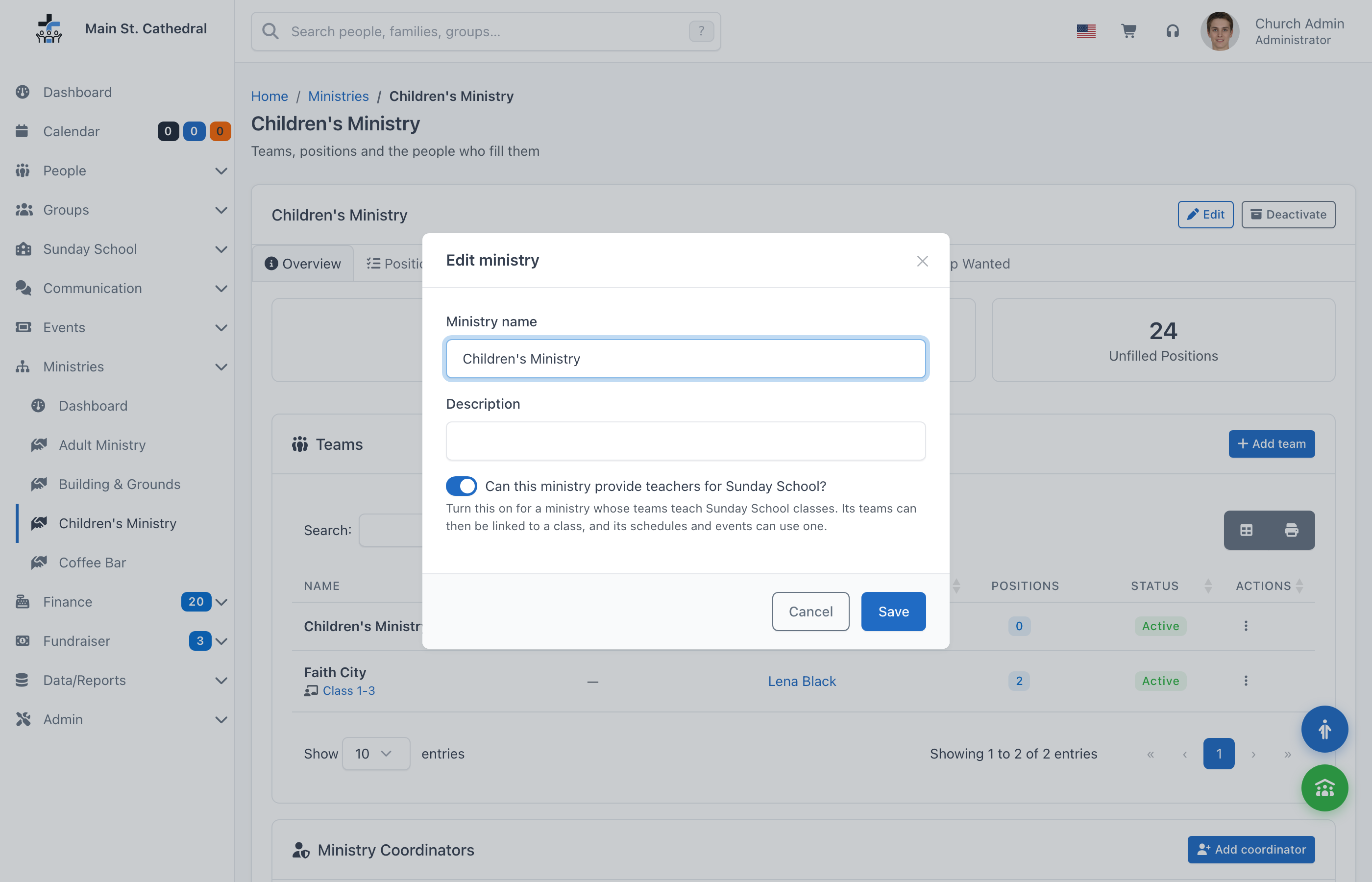
Turn the switch on for a ministry whose teams teach Sunday School classes: "Its teams can then be linked to a class, and its schedules and events can use one." While it is off, the ministry's screens hide everything about classes: the Sunday School Class field in the team dialog, the A class's meetings choice in the schedule dialog (except on a schedule that already follows a class) and the Class field for new events.
Only an administrator or a Manage Ministries user can change the switch. A coordinator sees it greyed out, with "Only a volunteer manager can change this." It cannot be turned off while one of the ministry's teams is linked to a class; unlink the class first.
Help Wanted
The Help Wanted tab puts this ministry on the Member Portal Open Opportunities page, where any volunteer can see it and offer to help — they join the volunteer pool and you are emailed. Turn on Show this ministry on the Open Opportunities page, write what you want to say (line breaks are kept), and click Save.
A ministry also appears on that page when any of its active positions is marked Recruit Volunteers (see Positions), so you do not have to use this tab to advertise a specific role.
Teams
Teams live in the Teams card on the Overview tab. Each row shows the name (with its Sunday School class underneath when it has one), description, Team Leader, the number of positions and an Active/Inactive status.
- Add team opens the team dialog: Team name, Description, Team leader, Sunday School Class (when the ministry provides teachers for Sunday School) and an Active switch.
- The row menu offers Edit and Delete. Delete removes the team and everything in it — its positions, qualifications, staffing needs, schedules, occurrences and assignments, past service records included — and its team-leader grant. The confirmation says so. A ministry's last team cannot be deleted; rename it instead.
- Turning a team's Active switch off keeps it, with its history; its status then reads Inactive.
The Team leader field is where a team leader is granted, by an administrator, a Manage Ministries user or the ministry's coordinator. Clearing the field removes the leader. What a team leader can do is on Who can do what.
Linking a team to a Sunday School class
A team that teaches a Sunday School class can be linked to it in the team dialog's Sunday School Class field. The class's teachers are then managed here, in the ministry, and not on the class page.
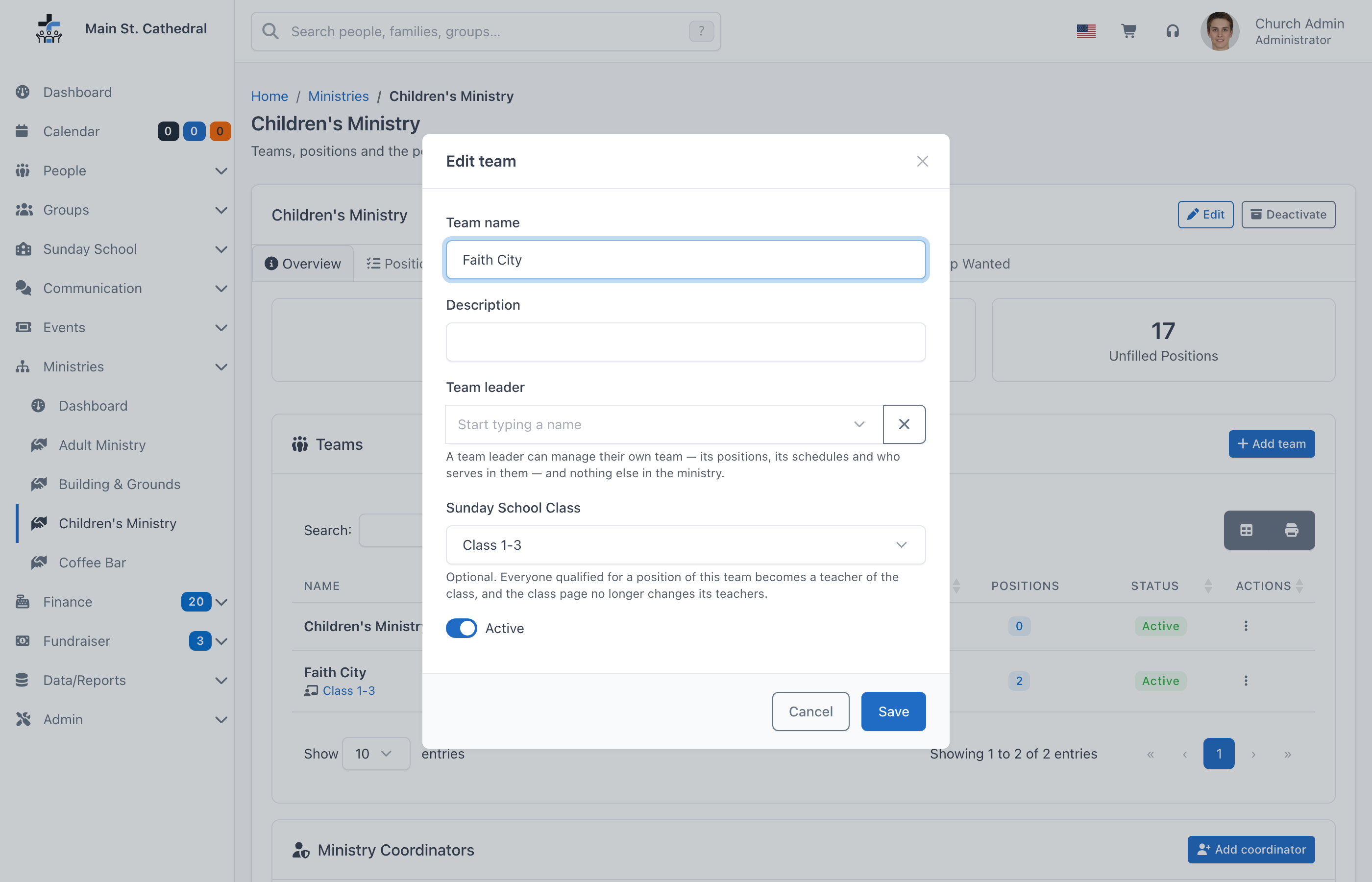
- Everyone qualified for a position of this team becomes a teacher of the class. Ticking a qualification on the Volunteers tab gives the person the class's Teacher role; taking away their last qualification in the team removes it. Someone who is already in the class in another role, such as Student, cannot be qualified until they are removed from the class.
- The class's current teachers are brought in. When you choose a class that already has teachers, the dialog asks which position to Qualify its current teachers for, and says how many there are ("Teachers to import: 2"). A team with no position named Teacher can create one here ("New position: Teacher").
- The class page stops changing teachers. The Sunday School class page and the group page say "Teachers of this class are managed in Ministries → Children's Ministry → Faith City." (with an Open the ministry link for those who may manage it), and refuse teacher changes. Students are still managed there as before. Attendance, the Sunday School dashboard and the class reports keep reading the Teacher role as before.
- A new schedule for the team starts on A class's meetings with this class. See Adding a schedule.
- Clearing the field unlinks the class and leaves its members as they are.
The link and the class's events are separate things. When Edit team changes or clears the class and this ministry created events for the old class, the dialog says how many ("Children's Ministry created 52 events for Class 1-3 (52 upcoming).") and asks what should happen to them: Keep them on Class 1-3 (the default), Remove the class from them, or Move them to the new class. Delete on a linked team asks the same, with Delete those events instead of moving them, and names any other ministry that staffs some of them. Only events this ministry created are changed; events an administrator created are never touched.
Positions
A position is a role someone serves in — Espresso, Song Leader, Lead Teacher. The Positions tab lists them with Order, Name, Description, Team, Recruiting, Self sign-up, Status and an action menu.
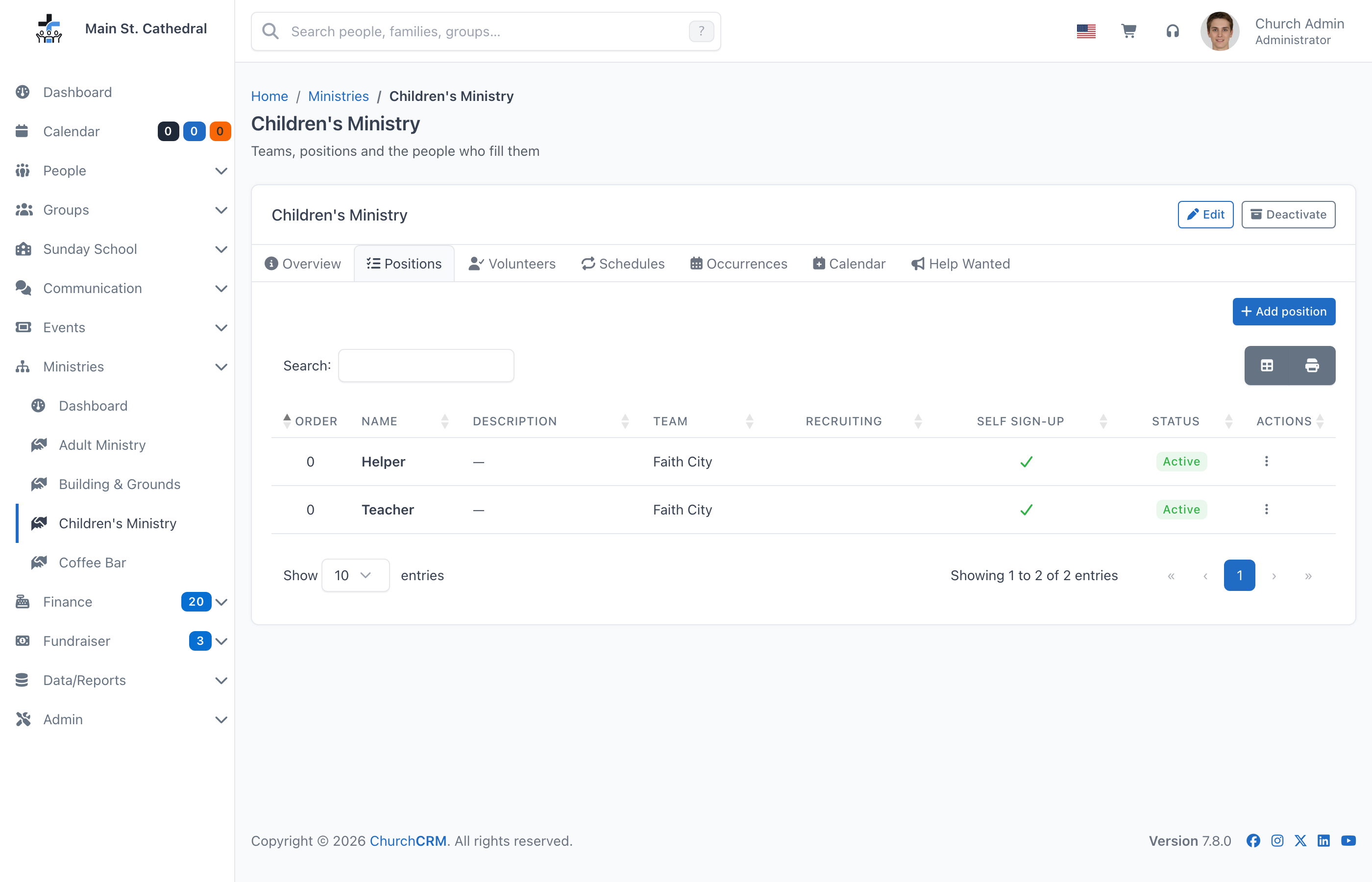
Add position (and Edit in a row's menu) opens a dialog with:
| Field | Meaning |
|---|---|
| Position name, Description | The description is shown to volunteers on the Member Portal when the position is recruiting. |
| Team | Every position belongs to one team. |
| Order | Sort order on this tab and in staffing views. |
| Active | An inactive position is kept with its history but can no longer be staffed or advertised. Deactivate here rather than deleting a position that has been used. |
| Recruit Volunteers | "Advertise this position on the Member Portal Open Opportunities page." Off by default. |
| Self-assignable | On by default: qualified volunteers may sign themselves up for open dates of this position. Turn it off for positions only a team leader or coordinator should assign (the preacher is chosen, not signed up for); the Member Portal will not offer them. |
The row menu also offers:
- Add Volunteers to Cart — puts everyone qualified for the position into the Cart, ready to email or export.
- Delete — removes the position with its qualifications, staffing needs and assignments, past service records included. To keep the history, deactivate the position instead.
A position nobody is qualified for cannot be staffed; the next step is the Volunteers tab.
Ministry Coordinators
The Ministry Coordinators card on the Overview tab is shown to administrators and Manage Ministries users only. Add coordinator grants a person authority over this whole ministry — its teams, positions, schedules and every assignment in it. Remove takes it back.
Authority is given to the person, not to a login, so it can be granted before they have one. To actually open the ministry page, the coordinator's login also needs the Manage My Ministries permission — see Who can do what.
Deactivating, reactivating and deleting
- Deactivate (on an active ministry) is offered to anyone who can open the page, including a coordinator on their own ministry. Nothing is removed: the ministry moves from the Ministries heading to the nested Deactivated Ministries group, its page shows an Inactive badge, and it contributes nothing to the Ministry Dashboard.
- Reactivate (on a deactivated ministry) puts it back.
- Delete is shown on a deactivated ministry to administrators and Manage Ministries users only. The confirmation quotes how many occurrences and assignments will go with it, past service records included. Deleting removes the ministry's teams, positions, qualifications, schedules, occurrences, assignments, its pool Group and its calendar. The ministry's events stay on the church calendar; one that was only on the ministry's own calendar is then on no calendar. To remove the events as well, delete them on the Calendar tab first.
An active ministry cannot be deleted — deactivate it first, which is also the moment to change your mind. Once deleted, the ministry's service history is gone.
Related pages
- Volunteers: the pool and qualifications
- Schedules and occurrences
- Who can do what
- Groups — the ministry's pool Group
Can't find what you need? Ask in Discord, or open an issue on the ChurchCRM repository.