Schedules and occurrences
A schedule says which calendar events a team staffs: a church service, a class's meetings, or the ministry's own events. Each of those events gets an occurrence, which is the date the team serves on and carries the staffing needs. Assignments, reminders and the dashboard's gaps all hang off occurrences.
Every occurrence is tied to a calendar event. A schedule has no dates or times of its own: it follows events that are already on the calendar, and the event's date and time decide the occurrence's. Moving the event moves the occurrence. If the events do not exist yet, create them first on the ministry's Calendar tab.
The Schedules tab
On the ministry page, open the Schedules tab. Each row shows the schedule's Name, Which events it follows, its Team, how many Occurrences it has made, its Status (Active or Inactive) and an action menu.
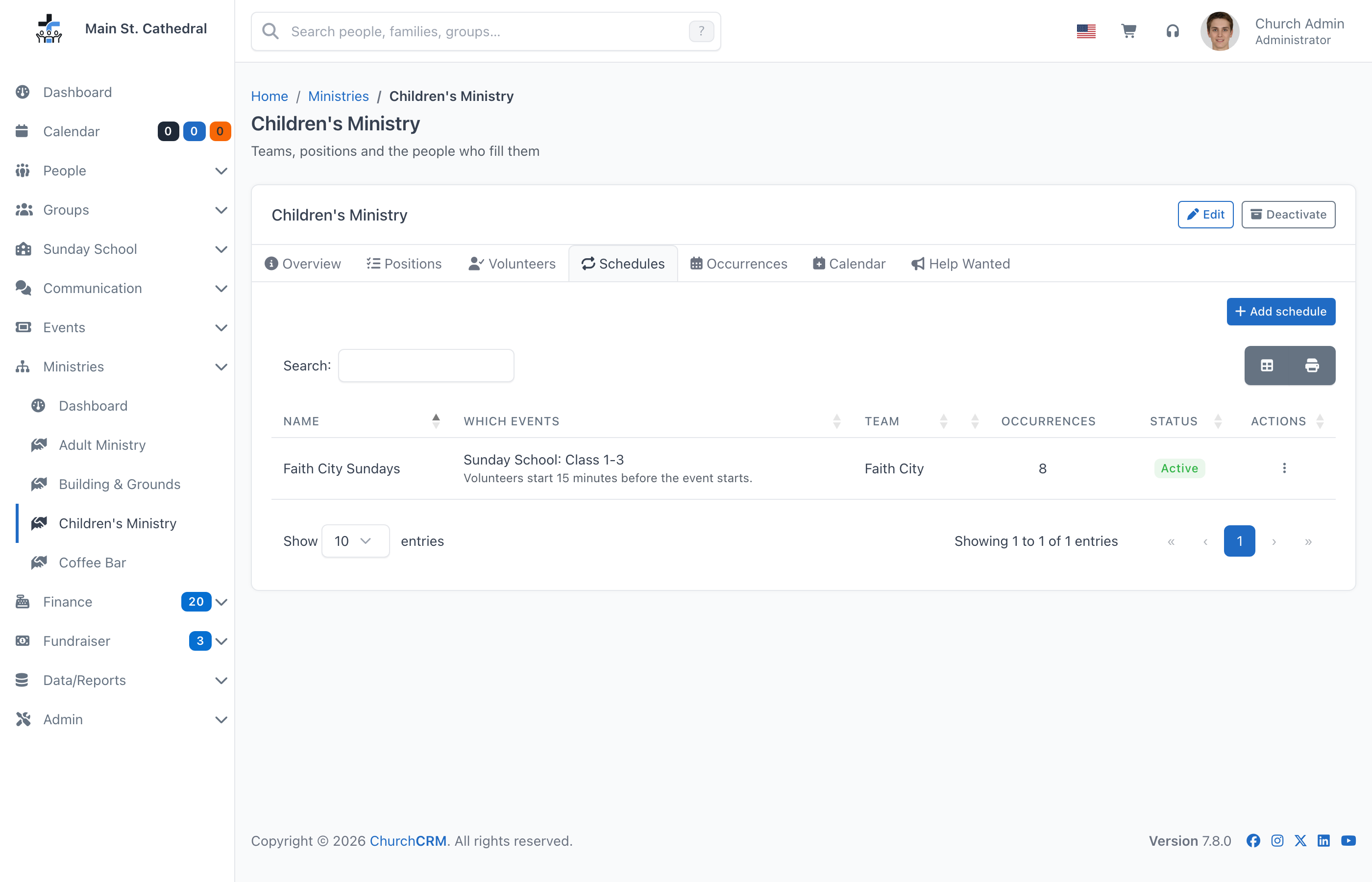
Which events says in words where the dates come from, for example "Sunday School: Class 1-3", "Church Service events titled Worship Hour" or "This ministry's events titled Class on Romans". When a schedule moves its volunteers' times away from the event's own times, a second line says how, for example "Volunteers start 45 minutes before the event starts."
Adding a schedule
- Click Add schedule.
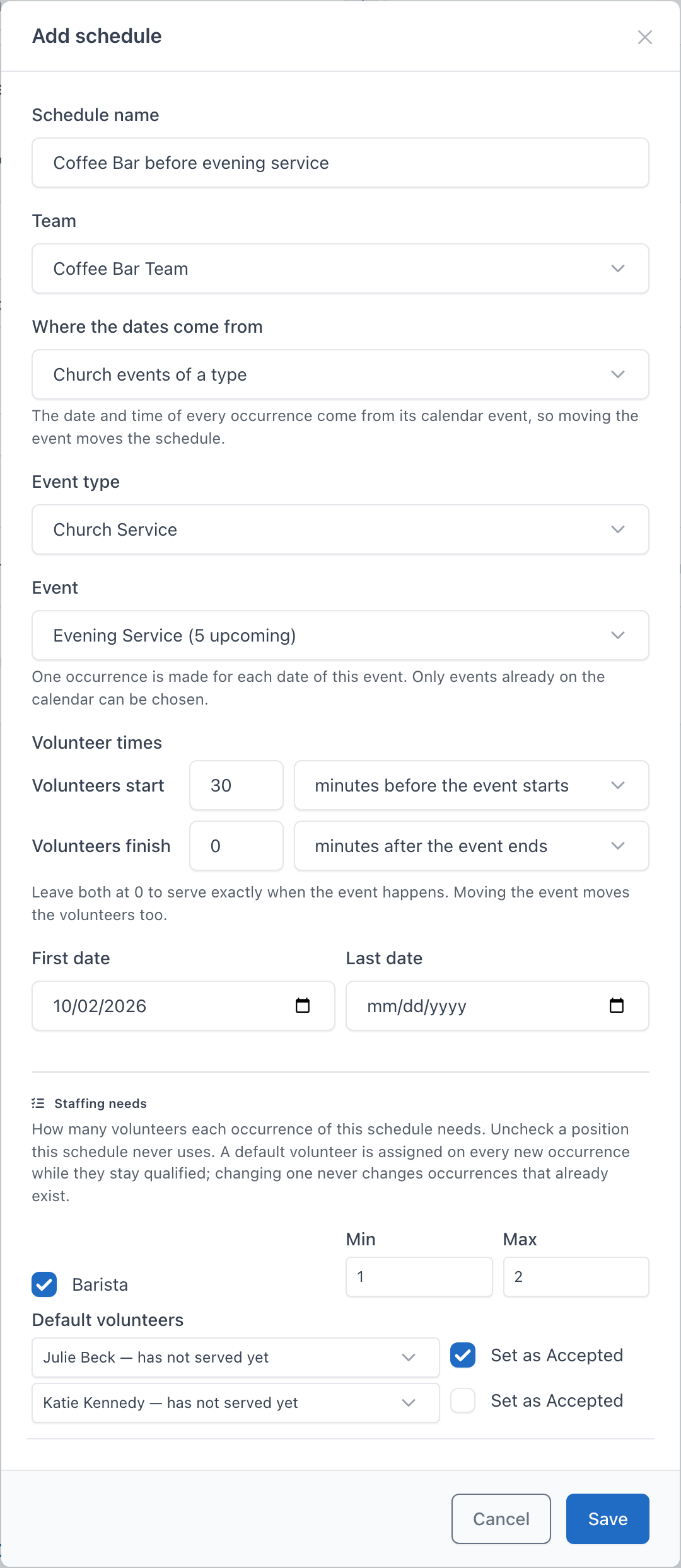
- Enter the Schedule name and choose the Team. Every schedule belongs to one of the ministry's teams, and its staffing needs can only name that team's positions.
- Choose Where the dates come from, then the event or class (see the table below).
- Set the Volunteer times, the First date and Last date, and the Staffing needs with their default volunteers.
- Click Save.
The rest of the dialog, and the Save button, appear only once an event or a class is chosen. A schedule must follow at least one event that is still to come.
| Where the dates come from | Then choose | The schedule follows |
|---|---|---|
| Church events of a type | Event type and Event | Church events of that type with exactly that title, for example the Worship Hour events of type Church Service. Use it for services that are already on the church calendar. |
| A class's meetings | Class | Every calendar event whose Linked Group is that Sunday School class. Offered only when the ministry provides teachers for Sunday School (see Editing a ministry). |
| This ministry's events | Event | This ministry's own events with exactly that title, for example the Wednesday Bible Study events created on its Calendar tab. |
Titles are matched exactly, ignoring upper and lower case. There is no "any event of this type" choice: a schedule always names one event title or one class.
- The Event list offers only titles that have events still to come, with how many, for example "Worship Hour (5 upcoming)". When there are none, it says "No upcoming events to choose from".
- The Class list shows each class's upcoming meetings, for example "Class 1-3 (52 upcoming)". A class with no meetings on the calendar cannot be chosen: it is listed as "(no upcoming meetings — add its meetings first)". For a coordinator the link Add its meetings first with New recurring event on the Calendar tab opens New recurring event; a team leader is told that a coordinator adds the class's meetings.
- A new schedule for a team that is linked to a class starts on A class's meetings, with that class already chosen when it has upcoming meetings.
Volunteer times
By default volunteers serve exactly when the event happens. The two Volunteer times rows move that:
- Volunteers start n minutes before the event starts (or after the event starts), for a team that sets up before a service. A Coffee Bar that opens 45 minutes before the 10:30 Worship Hour starts at 9:45.
- Volunteers finish n minutes after the event ends (or before the event ends), for a team that clears up afterwards.
Each value can be at most 720 minutes (12 hours). The times are always worked out from the event, so moving the event moves the volunteers too. Reminder emails count back from the volunteers' start time.
First and last date
First date starts on today and Last date is empty. Leave Last date empty for a schedule that keeps going. A schedule makes occurrences only for events between its first and last date.
Staffing needs and default volunteers
Staffing needs has one row per active position of the team, each with Min and Max. Every position starts ticked on a new schedule; untick a position the schedule never uses. A schedule with no staffing needs makes occurrences that need nobody, so there is nothing to fill. Raising Min above Max raises Max with it. A Max below Min is refused with "Barista: the maximum cannot be below the minimum."
Each row also has Default volunteers: one list per place the position has, so a position with Max 2 has two lists (up to 10 lists; with a higher Max, one more list than people already chosen). Each list offers only people qualified for that position, people in the volunteer pool first and in rotation order, each with when they last served (see Assign a volunteer), and someone chosen in one list is not offered in the others. Everyone chosen is assigned on every new occurrence of this schedule, in the order of the lists, for as long as they stay qualified, and asked to respond. Tick Set as Accepted beside a person to record their acceptance as well, so they are not asked; reminders are still sent. Leave a list on None to fill that place week by week.
- Changing the defaults never changes occurrences that already exist. It applies to occurrences made from then on.
- If a default volunteer loses the qualification, their list shows them as "(no longer qualified)", and their place is left open on new occurrences until they are qualified again. The other default volunteers of the position are still assigned.
- Lowering Max below the number of default volunteers keeps every choice but marks the extra ones "Over Max: remove this one or raise Max.", with the message "Barista: Max is 1 but 2 default volunteers are chosen. Remove one or raise Max."
- Remove Volunteer on the Volunteers tab clears the person as a default on every schedule of the ministry. The position's other default volunteers stay.
A problem with the staffing needs or the default volunteers is shown once, under the staffing needs, as soon as it arises. Save brings it into view and saves nothing until it is fixed.
What happens when you save
A new schedule makes its occurrences as soon as you save it. It makes one occurrence for each matching event from today up to the scheduling horizon (see below), or up to the schedule's last date if that comes first, and assigns the default volunteers on them. The page then opens the Occurrences tab, filtered to the new schedule, with a message such as "Schedule "Wednesday Bible Study" created: 8 occurrences". When no event was found in that period, the schedule is still saved, the page stays on the Schedules tab, and an amber message says why.
Editing a schedule never makes occurrences. Changing what a schedule follows (where the dates come from, the event type, the title or the class) is refused unless at least one upcoming event matches. Other changes, such as the name, the staffing needs, the volunteer times or the dates, are always accepted.
The scheduling horizon and the daily top-up
Occurrences are made only up to the scheduling horizon: Admin → Ministry Settings → Scheduling horizon (weeks), 8 weeks by default, from 1 to 52. The horizon applies to every schedule in the church, including schedules with a later last date.
Nobody has to come back to make more. Once a day the background jobs top up every active schedule of every active ministry: each one gets occurrences for its events up to the horizon, and each position's default volunteers are assigned on the new ones. Ministry Settings shows when the top-up last ran and what it made, for example "Schedules last topped up: Oct 1, 5:13 PM — 0 new occurrences", and Run background jobs now on that page runs it at once. See the Ministry Settings reference.
Generate occurrences
Generate occurrences in a schedule's action menu makes the occurrences now instead of waiting for the daily top-up, for example right after adding events that an existing schedule follows. It is offered only on an active schedule; reactivate an inactive one first.
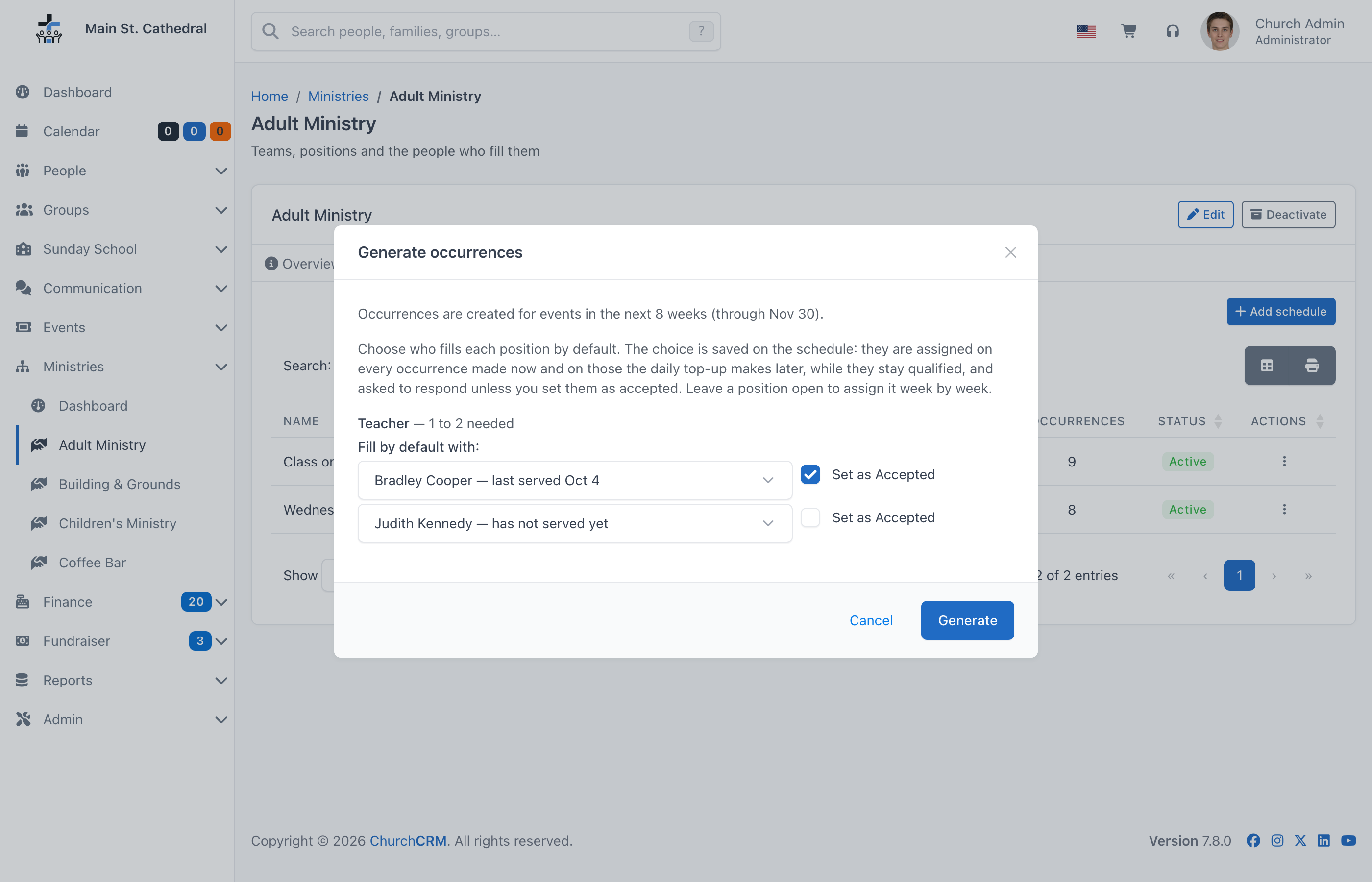
The first line says how far the run reaches: "Occurrences are created for events in the next 8 weeks (through Nov 30).", or "Occurrences are created for events through Nov 1, when this schedule ends." Below it, each position the schedule needs is listed with how many it needs (for example "Teacher — 1 to 2 needed") and Fill by default with. These are the schedule's default volunteers, one list per place up to Max, each with its own Set as Accepted, as in the schedule dialog. The lists open on the saved choices, and whatever the dialog shows when you click Generate is saved on the schedule. Leave open leaves that place without a default. A position nobody is qualified for says "Nobody is qualified for this position yet, so it stays open."
Click Generate. The result appears as a message:
- Occurrences made: for example "8 occurrences created, 0 were already there. 16 volunteers assigned".
- Nothing new: "No new occurrences. All 8 events through Nov 30 already have one." Running Generate again is always safe: it never makes a second occurrence for the same event, and default volunteers go only on the occurrences that the run makes.
- No events found: the dialog stays open with an amber warning in the schedule's own terms, for example "No events on the calendar use Faith City as their class between Oct 4 and Nov 29." For a class or a ministry schedule, a coordinator also gets a button such as New recurring event for Faith City, which opens New recurring event on the Calendar tab with the class or the title filled in.
A run is refused when its period holds more than 366 events ("Too many occurrences … — narrow the date range. Maximum allowed: 366").
Editing, deactivating and deleting a schedule
The action menu of a row offers:
- Edit: the same dialog as Add schedule. Changing the staffing needs applies to every occurrence of the schedule, past and future, except an occurrence that has its own needs (see Edit staffing needs).
- Deactivate: Generate occurrences, the daily top-up and Staff them stop making occurrences for it. Its existing occurrences and assignments stay, and it can be reactivated. The row then shows Inactive, and the menu offers Reactivate and no longer offers Generate occurrences.
- Delete: removes the schedule and its occurrences. A schedule whose occurrences have volunteer assignments cannot be deleted; deactivate it instead, or delete those occurrences first.
The Occurrences tab
The Occurrences tab of the ministry page lists the dates every schedule produced.
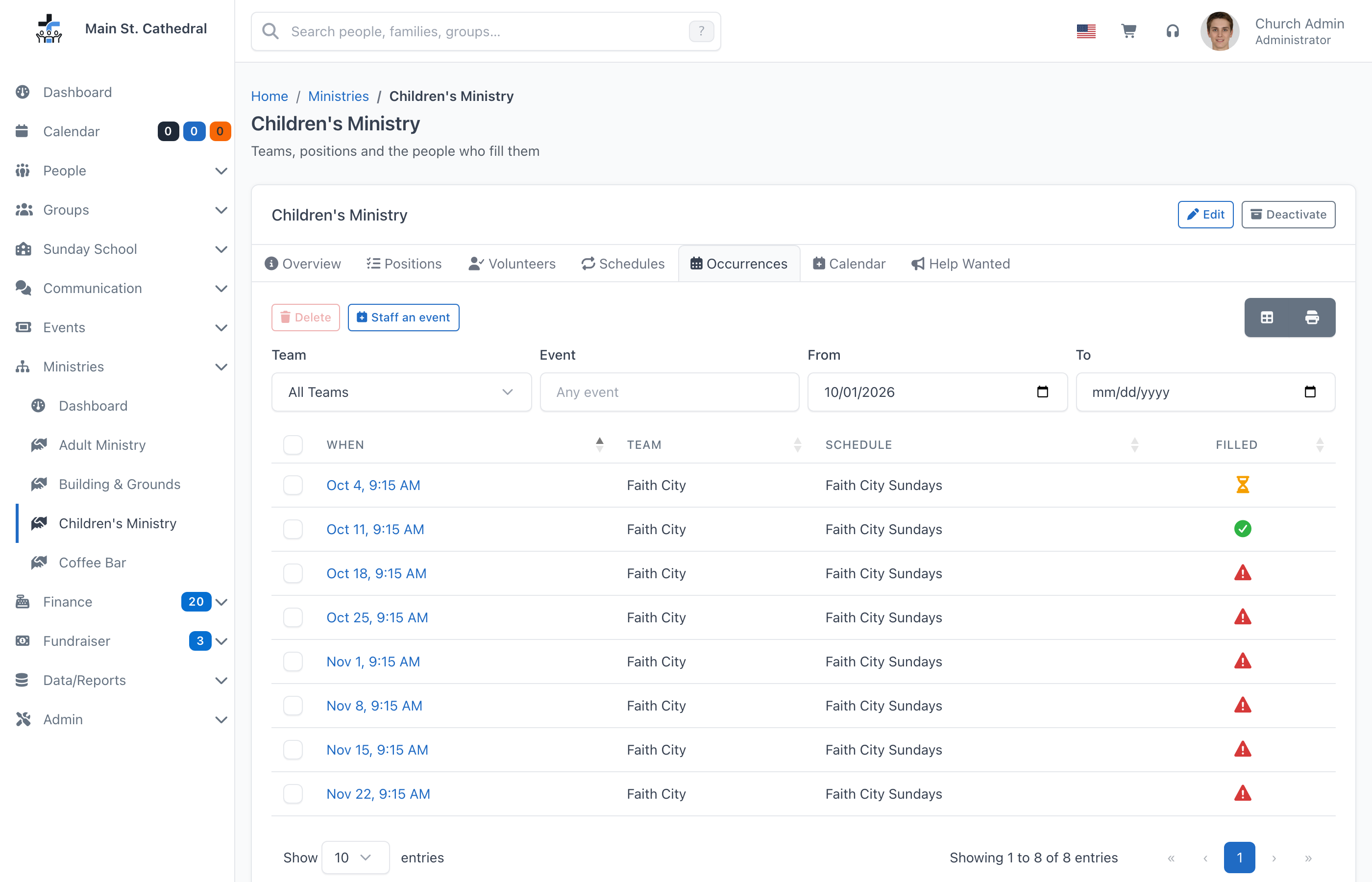
- Team, Event, From and To above the table filter the list as you type or pick. Event matches the schedule's name or the event's title. From starts on today; leave To empty to see the year ahead, or move From back to see the past.
- Columns: a tick box, When, Team, Schedule and Filled. When is the volunteers' start time, so it includes the schedule's volunteer times. Click the date to open the staffing view; its Back to Occurrences button returns here with the same filters.
- The Filled icon sums up the date; its tooltip gives the details:
| Icon | Meaning |
|---|---|
| Green check | Every position has the people it needs (Full, Covered · N more welcome or Optional), and everyone has answered. |
| Amber hourglass | Every position has the people it needs, but someone has not answered yet. |
| Red triangle | At least one position is still short. The tooltip says how many more are needed in all and which positions are short, for example "Needs 3 more", "0 of 3–4" and "2 Faith City · Helper, 1 Faith City · Teacher". |
| Grey circle | Nothing is required (every Min is 0) and nobody has signed up yet. |
| Grey question mark | No staffing needs set, so there is nothing to fill. |
The tooltip uses the same words as the rest of Volunteer Management; see How staffing reads.
- Tick one or more rows and click Delete (it reads Delete (N)) to remove those occurrences. Their assignments, the volunteers' responses, any substitutions and the queued reminders go with them. The calendar events stay, so while an event is active and the schedule still follows it, the next Generate or daily top-up makes its occurrence again, with the schedule's default volunteers. To drop a date for good, delete the event on the Calendar tab or deactivate it in the event editor. A single event occurrence does not come back.
- Staff an event staffs a single event that no schedule follows, such as a workday. See Staff an event. Its occurrence is listed with a single event badge.
Related pages
Can't find what you need? Ask in Discord, or open an issue on the ChurchCRM repository.