Families
A Family is a group of Person records. Person records are grouped into Families for three reasons:
- To represent the social constructs of the Family within the church
- To share information common to all members of the family — address, phone, email, etc.
- To support the church financially as a single unit ("pledge unit")
Every Person should belong to a family.
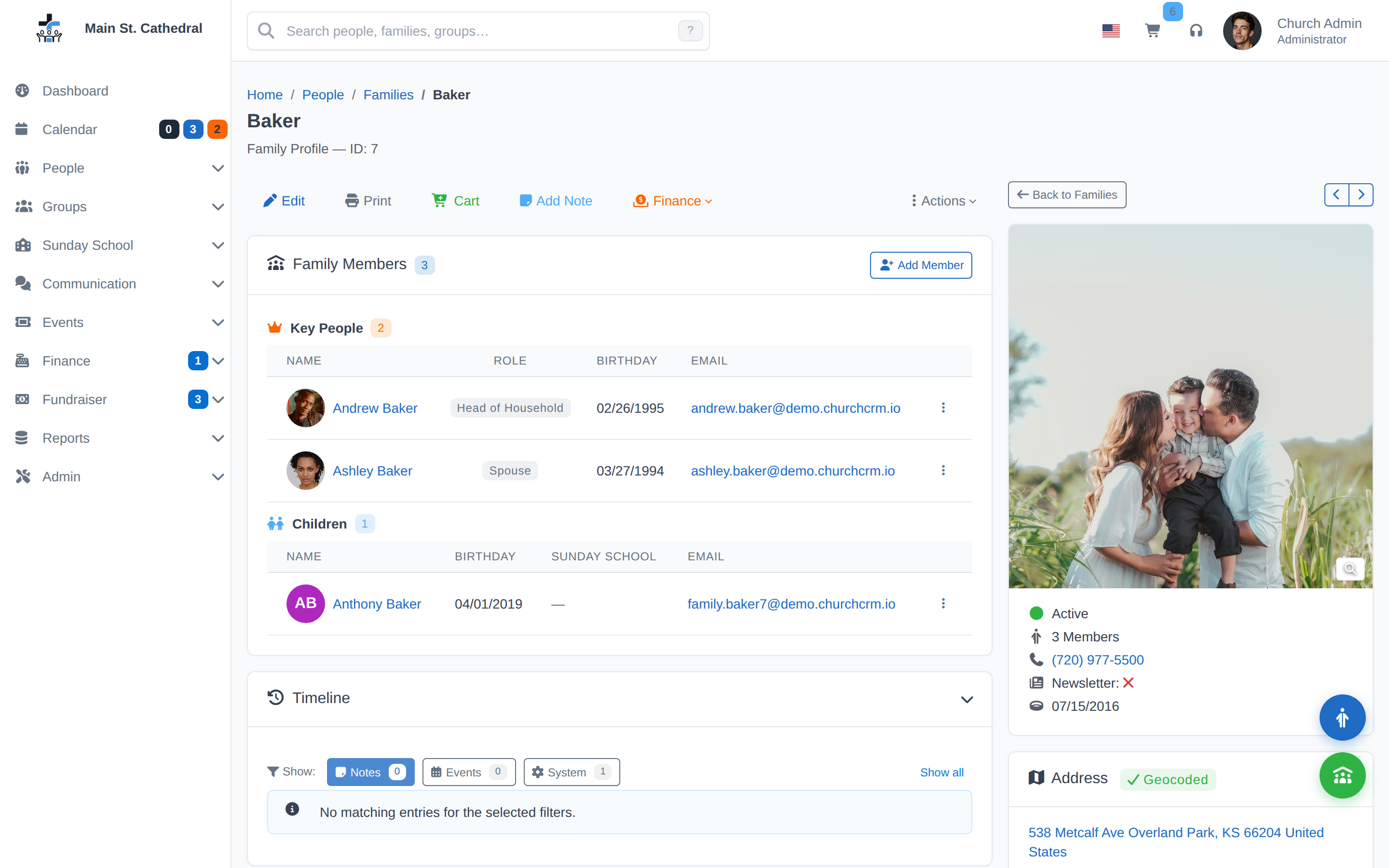
Step-by-step: Adding a Family
- Go to People → Add New Family.
- Enter the Family Name.
- Enter the shared Address, City, State, ZIP, Country. If the family's mail goes somewhere else (a PO Box, for example), expand Second Address (optional) and see Second Address and Mailing Address.
- Enter Home Phone and Family Email.
- The form starts with four family-member rows. Add Another Family Member appends another row. There is no limit of 10. Enter a first name for each person you are adding; enter a last name only when it differs from the family name.
- Set Classification for each person (Member, Guest, etc.), and a Grade for each child if you track school grades.
- Click Save.
Tip: Family members share address, phone, and email. Enter them once on the family record — individual persons inherit them unless you override on the person record.
How do I add a new Family?
- Go to People → Add New Family.
- Complete the form. It starts with four member rows. Add Another Family Member appends another row. There is no limit of 10.
- Complete the individual lines for each person, but only enter the last name if it differs from the last name of the Family record. All people entered in this manner will create a new Person record which will be assigned to the designated Family record.
- Press Save when the form is complete.
How do I view a family?
- Use the header search field (Search people, families, groups…) and open the family from the results.
- Or go to People → Family Listing.
Family Listing
People → Family Listing is the list of families. The page title is Family Listing.
The Filters card has City, State, Status (All, Active, or Inactive), and Address Status. Open a family name to see that family. This list is separate from the family editor.
Second Address and Mailing Address
Every family has one primary address: the physical location used for the map on the family page, Get Directions, geocoding and Find Neighbors. Unless you say otherwise, it is also where the family's mail goes, so nothing changes for the families that only have one address.
A family can also record an optional second address with the same fields (Address 1, Address 2, City, State, Zip, Country) and one checkbox, This is the mailing address:
| Second address | Checkbox | What it means |
|---|---|---|
| Not entered | — | Mail goes to the primary address. This is the case for most families. |
| Entered | Ticked | Mail goes to the second address, for example a PO Box, a care-of address or a winter address. The primary address stays the physical location used for maps and directions. |
| Entered | Not ticked | A second home. It is shown on the family record and included in exports for information only; mail still goes to the primary address. |
Entering a second address
- Open the family and click Edit in the toolbar above the family members.
- Below the address fields, click Second Address (optional) to expand the section. It is collapsed on families that have no second address.
- Enter the address. The family has a second address once Address 1 or City is filled in.
- Tick This is the mailing address if mail should go here. The checkbox is greyed out until Address 1 or City has a value, and the record will not save with the box ticked on an empty second address ("Enter a second address before marking it as the mailing address").
- Click Save.
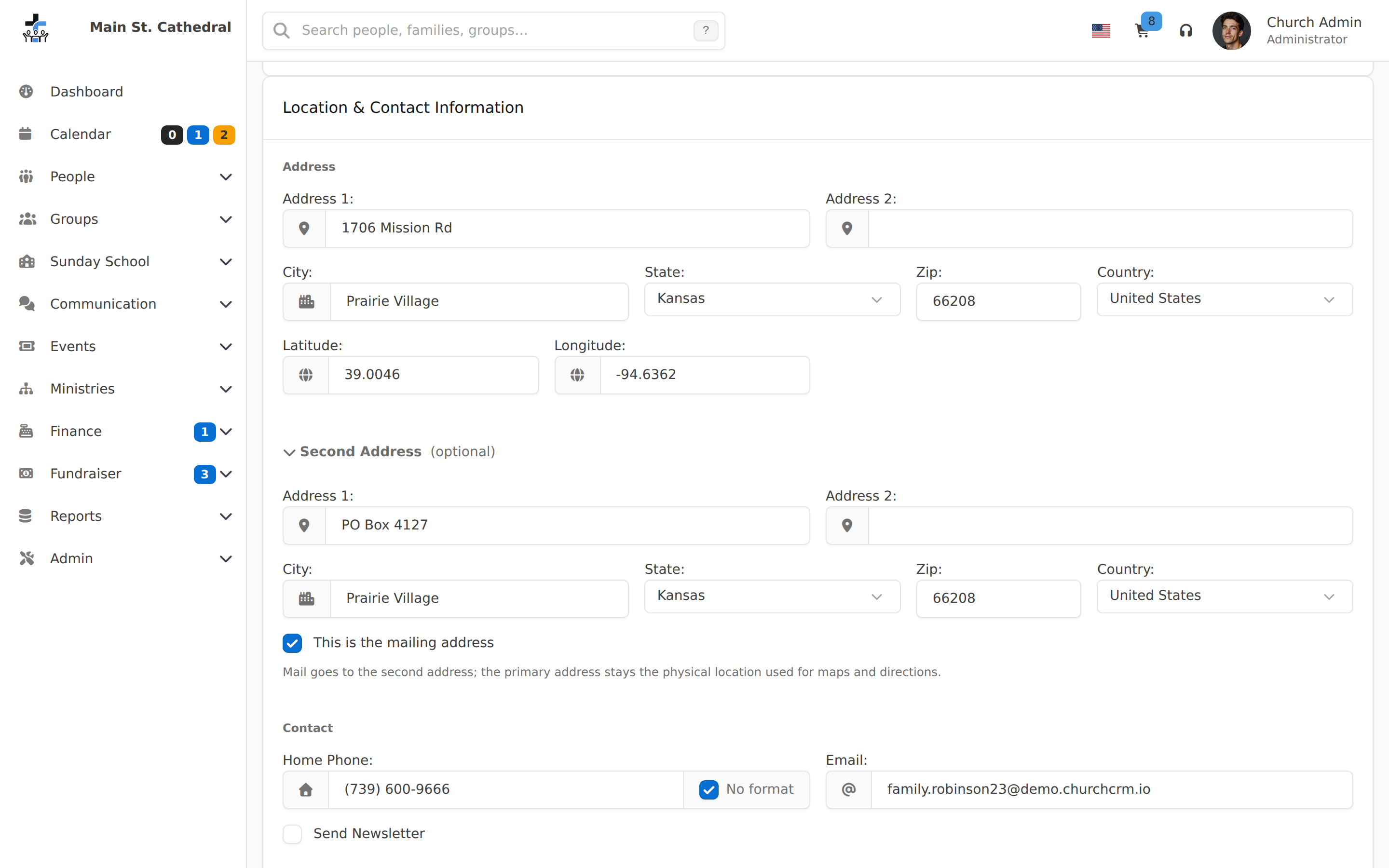
To remove a second address, clear its fields and save. The mailing checkbox is cleared with it.
How it shows on the family and person pages
When a second address exists, the family page relabels the address card Primary Address and shows a second card beneath it:
- Mailing Address, with a Receives Mail badge, when the checkbox is ticked.
- Second Home when it is not.
The map, the geocoding badge, Get Directions and Find Neighbors stay on the primary card. When a family has no second address, the second card is not shown and the first card is simply called Address.
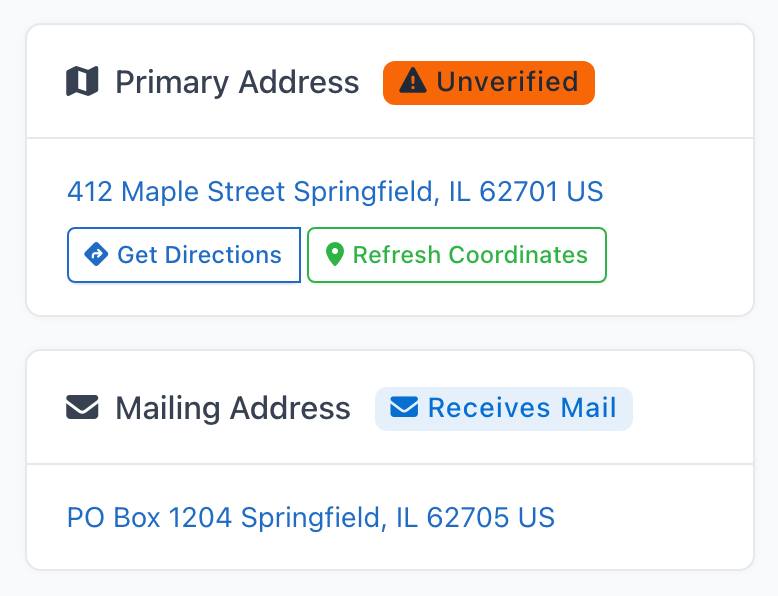
Each person's page shows their address: their own, or the one they inherit from their family. When the family has a mailing address that differs from the primary address, it is listed beneath it as Mailing Address, so it is clear where that person's mail goes.
Where the mailing address is used
The family's mailing address is the flagged second address when there is one, and the primary address otherwise. It is used here:
- Newsletter labels, Confirm data labels and mailed letters such as confirmation letters, tax statements and reminder letters are addressed to it. See Which address is printed.
- The cart's Labels use it for anyone who has no address of their own on their person record. See Which address is used.
- The People Directory report can print the mailing address beneath the primary address; see Which address is printed.
- The CSV export can include the second address and the mailing flag, and the CSV import can load them.
Family maps and geocoding always use the family's primary address, never the second address. A person with an address of their own is mapped and geocoded at that address.
A person's own address (someone who lives somewhere other than the rest of the family) is separate from this. The second address belongs to the whole family; it is not a per-person setting.
Unified Member & Family Profiles
Person and Family profiles have been consolidated. Notes that previously appeared on both the person and family timeline are deduplicated — each note shows exactly once in the correct context. Property management is faster and more consistent across both record types.
Timeline
Family View uses the same timeline chips as a person: Notes, Events, and System, plus Show all. There is no date-range filter and no type list.
Pledges & Payments fiscal-year filter
The finance section on a Family profile defaults to the current fiscal year. Use the fiscal-year pills to switch to a historical fiscal year for which that family has financial data, or select All Time to view the family's complete pledge and payment history.
The selected fiscal year is applied by the server, so the totals and records shown are scoped to that fiscal year rather than simply hiding rows in the browser. Your church's fiscal-year start month is configured under Admin → System Settings → Finance.
Photo Cleanup
Profile images are automatically deleted from the server when a family or person record is removed, preventing orphaned files from accumulating.
Photo Upload
Family photos are uploaded the same way as person photos: JPEG, PNG, or HEIC/HEIF up to 50 MB, resized in your browser to 600x600 and never enlarged. HEIC/HEIF photos are converted to JPEG in your browser. See Photo Management.
How do I change the available Family Roles?
- If you have permission, you should find a link called "Family Roles Manager" (under "People").
- If you want to add a new Family Role, type it into the blank field on the bottom of the page
- If you want to change a new Family Role, type it into the field you wish to change.
Note: Field changes will be lost if you do not "Save Changes" before using an up, down, delete, or "add new" button!
- If you want to re-arrange the order, click the "up" and "down" links to the left of the field you wish to re-order.
- If you want to delete a Family Role, click on the "delete" button to the right of the field you wish to delete.
How do I delete a Family?
- Filter for the desired family, and bring up the Family View.
- Select "Delete this Record"
If this link doesn't appear, then either you don't have permissions to delete records, or the Family still has Person records assigned to it. You cannot delete a Family record until all Person records have been unassigned from it.
- Confirm the deletion
How do I deactivate a Family?
- Search/Filter for the desired family, and bring up the Family View.
- Select "Deactivate this family"
If this link doesn't appear, then either you don't have permissions to Edit records, or the Family is already deactivated.
- Confirm the deactivation
- Once the page refreshes, You will see a banner on top with message "This family is deactivated."
How do I Activate a Deactivated Family?
- Search for the desired family, and bring up the Family View.
- If the family is deactivated, you will see a banner on top with message "This family is deactivated."
- Select "Activate this family"
If this link doesn't appear, then either you don't have permissions to Edit records, or the Family is already Active.
- Confirm the Activation
- Once the page refreshes, the banner on top with message "This family is deactivated" will disappear and the family is active now.
How do I assign a Property to a Family?
See the Properties help topic.
How do I add a Note to a Family?
See the Notes help topic.
What is the Classification feature?
See the Classification help topic.
Can't find what you need? Ask in Discord, or open an issue on the ChurchCRM repository.