Member sign-in
Members sign in to the Member Portal with their own email address. ChurchCRM emails them a code and a link; there is no member account and no password. On their own device a member can choose to stay signed in, and add a passkey. Staff keep their login name, password and two-factor sign-in, on a separate page at /admin/.
This page is for administrators. What members see is on Signing in to the Member Portal. The settings are on People → Admin → Member Portal, described tab by tab on Member Portal administration.
Turn on member sign-in
Member sign-in is off on a new installation and after the upgrade that brings it. Turn it on when you are ready:
- Make sure ChurchCRM can send email. Members get their code by email, so the switch stays grayed out until email works, with a Set up email link beside it. Set up the mail server under Communication → Admin → Email Settings (Email Setup) and send yourself a test.
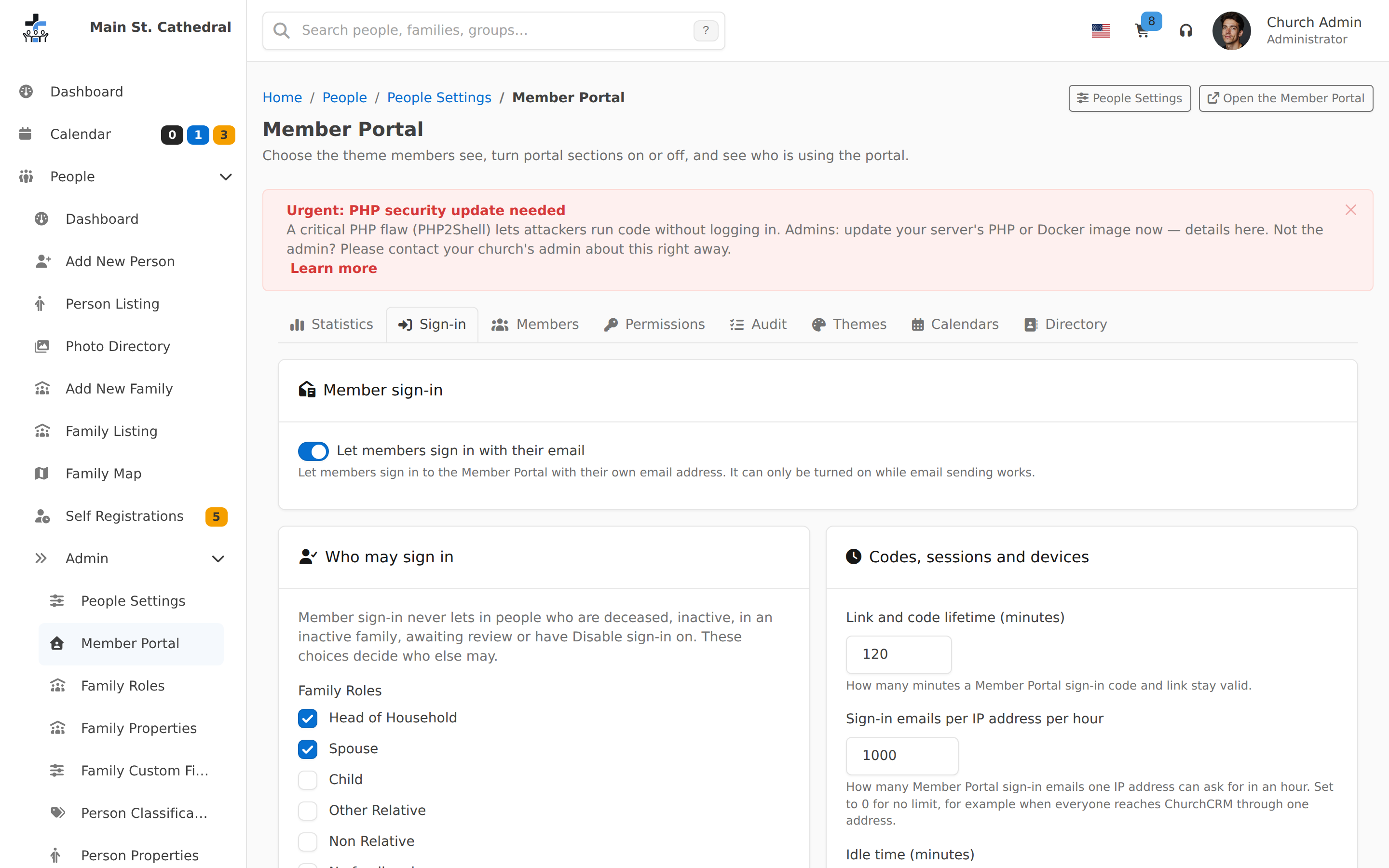
- Choose who may sign in. Open People → Admin → Member Portal and the Sign-in tab. Head of Household and Spouse are ticked under Family Roles, but no classification is ticked, so nobody may sign in until you tick at least one, for example Member and Regular Attender. Check Minimum age (13). See Who may sign in.
- Fill in the office list. Pick the people who should hear about failed sign-in attempts. Only living people with their own email can be added.
- Check the emails. On the Members tab, open Email needs attention: people the rules let in who have no personal email, share one with someone else, or have one that isn't confirmed yet. Fix what you can now. See The sign-in email.
- Check the site address if you want passkeys. See Passkeys and the site address.
- Switch on Let members sign in with their email and press Turn on. The question shows how many people may sign in. Every setting on this tab saves as soon as you change it; there is no Save button.
- Tell your members. They open the usual ChurchCRM address, type their email and use the code. Signing in to the Member Portal is written for them.
Turning member sign-in off asks first, then signs out every member who is signed in. Staff can still open their own portal from the user menu.
A member's calendar subscription keeps working only while that person may sign in. While member sign-in is off, the member rule is not applied to subscriptions, so the ones the upgrade carried over keep working. Once you turn it on, a subscription stops for anyone the rules leave out. Tick the classifications before you switch it on.
Who may sign in
A person may start a portal session only when all of these hold. They are checked at sign-in and again on every portal page, so a change takes effect on the person's next click.
Nobody signs in, staff included, who is deceased or inactive, or has Disable sign-in on (below).
No member signs in who is in a deactivated family, or is awaiting review (from the public registration form, a kiosk walk-in, or a family member added in the portal).
The member rule, set on the Sign-in tab, decides who else may sign in to the portal:
| Setting | What it means | At first |
|---|---|---|
| Family Roles | One checkbox per family role, plus No family role for people without one | Head of Household and Spouse ticked |
| Classifications | One checkbox per classification, with the number of active people in each, plus Unassigned. "This is where you decide about guests." | Nothing ticked |
| Minimum age | The youngest age at which a person may sign in. 0 means no age rule. When the birth date is unknown, only a head of household or spouse qualifies | 13 |
The Who may sign in card's footer counts the people the saved settings let in. The member rule doesn't apply to staff signing in at /admin/.
The email rule. The address typed must be the person's own Email (never the work email), match after trimming and ignoring case, and be confirmed. When two people who would otherwise qualify share an address, neither can sign in with it until you give each their own; both appear under Email needs attention.
To check one person, open Look up anyone on the Members tab: each row says whether they can sign in and, if not, why. On a family's page, staff with Edit Records see Can sign in to the Member Portal or Cannot sign in with the reason under each member, while member sign-in is on.
In the portal, an adult is a head of household or spouse aged 18 or over. Only adults see other family members' email and phone, change family details, add a family member or confirm the family. A younger member who may sign in sees their own details, the family names and photos, the calendar and their volunteering. See Portal permissions.
How email sign-in behaves
- One answer for every address. The page says "If this address can be used to sign in, we've emailed you a code." whether or not the address belongs to anyone, so it can't be used to find out who your members are.
- A refused address gets no email. The reason goes into the audit, and the office list gets a notice, at most one per address per hour. An address that matches nobody also notifies the office.
- The code and the link are valid for Link and code lifetime (120 minutes). Each works once, and a new request cancels the last. The code works only in the browser that asked for it, and five wrong codes cancel the request. The link opens a confirm page first, so mail scanners can't use it up.
- Limits. One address may ask five times an hour, one person gets five sign-in emails a day, and one IP address may ask Sign-in emails per IP address per hour times (20). Set the IP limit to 0 when everyone reaches ChurchCRM through one address. A request over a limit gets the same answer and no email.
- Sessions end after Idle time (30 minutes) without a click, or when the browser closes.
- Remembered devices. A member who ticks This is my own device. Keep me signed in. is signed back in on that device for Keep me signed in days (14), counted from the day they ticked it. Setting it to 0 removes the box and stops every device that is remembered now; lowering it shortens them too.
- One sign-in per browser. A member sign-in ends a staff session in the same browser, and a staff sign-in replaces a member session.
- The email history records that a sign-in email was sent, never the code or link.
Passkeys and the site address
Passkeys is on by default. Members can add a passkey only when the site address in Include/Config.php is an https address with a host name (not an IP address); the Sign-in tab says what is missing. Passkeys work only at that host name: a member who opens ChurchCRM at another address signs in by email there. If you move ChurchCRM to a new host name, members' passkeys stop working and they add new ones after an email sign-in.
The sign-in email
Whoever controls a person's email can sign in as that person, so ChurchCRM treats changes to it carefully. The first time someone signs in by email, ChurchCRM records the address as proven: below, has signed in means that has happened.
| Who changes it | What happens |
|---|---|
| The member, in the portal (Profile → Update your details) | The new address gets a confirmation link, and the change happens when the link is used. The old address gets a notice. |
| Staff with Edit Records, in the person editor or by import or API | Allowed. If the person has signed in, all their portal sessions and remembered devices end, the old address gets a notice with a confirm link, and the new address can't sign in until it is confirmed. Their passkeys stay. The person editor says so under the field before you save. |
| Anyone, for a person with a staff account or a portal permission given by an administrator | Administrators only. For other staff the field is read-only, with a hint saying why. |
Before a person's first sign-in, the address on record is accepted as theirs: receiving the code at that address is the proof. That covers addresses staff, an import, the API or the registration form gave them, and a family email the upgrade moved to the only living, active member of a family.
Unconfirmed addresses receive mail at once but can't be used to sign in. An address is unconfirmed when staff, an import or the API replace the email of someone who has signed in, or when the upgrade moved a family email to a head of household or spouse in a family of two or more living, active people (everyone who reads that family mailbox would get the code). Saving the same address again doesn't confirm it. It is confirmed when:
- the member uses the link in the notice sent to their old address;
- the member signs in with a passkey and presses Email me a confirmation link on Sign-in and devices; or
- someone who has checked who the person is, in person or by phone, presses Confirm Email Address on the person's Portal sign-in card, or ticks it in Email needs attention and presses Confirm selected:
- an address moved from the family email: staff with Edit Records, or an administrator;
- a replacement address after the first sign-in: an administrator only (Edit Records staff could have set it, so they can't vouch for it too);
- anyone with a staff account or a given portal permission: an administrator only.
Fix shared emails, on the Email needs attention list, shows a preview first. When everyone sharing an address is in one family, the head of household keeps it (else the spouse, the oldest first) and the others lose it. Addresses shared across families, or with no head of household or spouse among the people sharing them, are listed under Fix by hand. Someone who loses an address and has signed in is signed out everywhere, and the address gets a notice.
Staff with Edit Records also reach the list from People → Dashboard: Email needs attention is under Quick Actions once at least one classification may sign in.
Every change and confirmation is in the audit, with the old and new address, who made it, and how.
The person's Portal sign-in card
Staff with Edit Records see a Portal sign-in card on every person's page, in the left column.
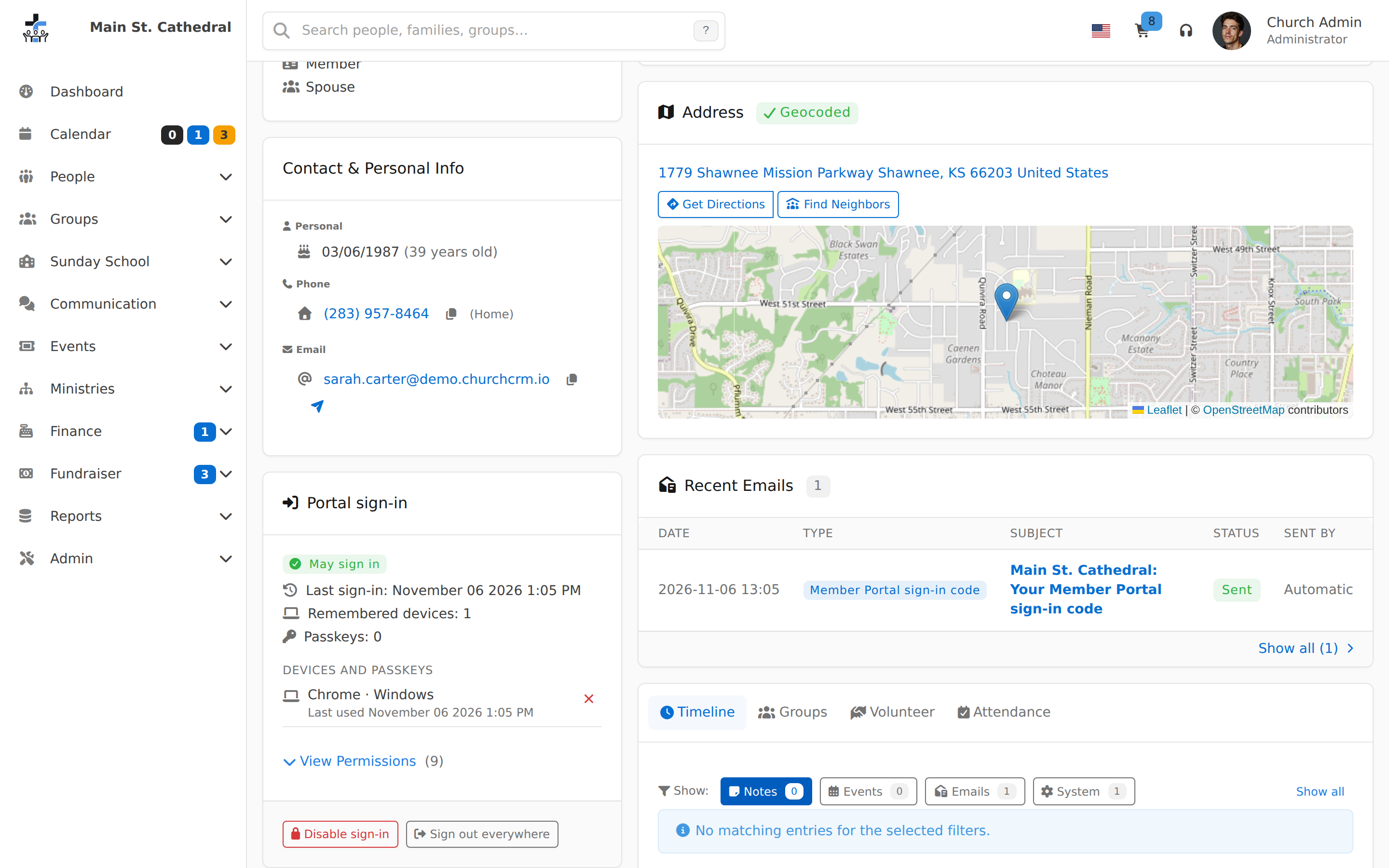
- Staff with Edit Records see May sign in or Cannot sign in with the reason in plain words (such as "Their classification may not sign in"), the last sign-in, how many remembered devices and passkeys the person has, any unconfirmed email, and Confirm Email Address where the rules above allow it. "Member sign-in is off for the church." shows while it is off.
- Administrators also see each device and passkey, with a button to sign out a device or remove a passkey; View Permissions, which lists the person's portal permissions grouped by where they come from, with Give a permission; and Disable sign-in and Sign out everywhere.
Disable sign-in and Sign out everywhere
- Disable sign-in asks for a reason (only administrators see it) and then stops the person signing in anywhere, the Member Portal and the staff side alike. Every session ends on the next click, and their remembered devices and passkeys are removed. The card shows who turned it on, when, and why. Enable sign-in undoes it; devices and passkeys don't come back. You can't disable your own sign-in, nor that of the only administrator who can sign in.
- Sign out everywhere ends every Member Portal session, signs out every remembered device and cancels any code or link already emailed. Passkeys stay, so the person can still sign in with one.
Both are in the audit.
Login as Person
Login as Person lets an administrator see the Member Portal exactly as a member sees it, to help them with a problem. Only administrators can use it, and only while member sign-in is on.
- On the Sign-in tab, in the Login as Person card, switch on Allow Login as Person. It is off by default; while it is off, the menu item doesn't appear.
- Open the person's page and choose Actions → Login as first name, for example Login as Pat, then confirm.
- The portal opens as that person, with a banner on every page: "You're logged in as <name> in the Member Portal (read-only)." and a Stop button.
- Press Stop to return to your own staff session, on the person's page.
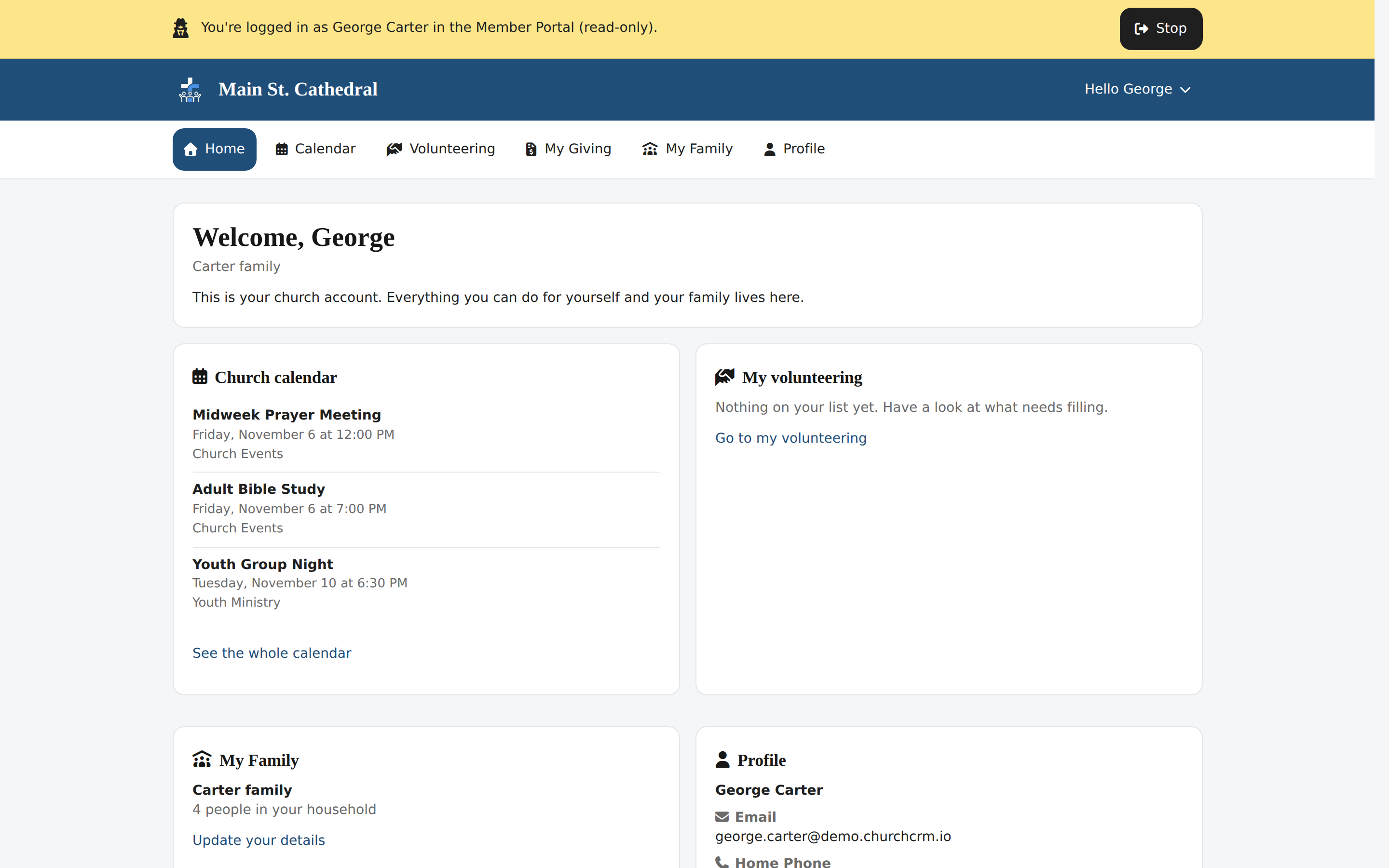
- Read-only by default. Any save is refused with "Changes are turned off during Login as Person." Switch on Allow changes during Login as Person to allow them; the banner then says (changes allowed).
- Grayed out, with the reason on hover, while member sign-in is off and for a person who is deceased, has Disable sign-in on, or has a staff account. Login as Person never opens a staff account. It does work for someone inactive, in a deactivated family, awaiting review, outside the member rule or without a usable email, so you can see what they would see.
- Staff pages stay closed until you press Stop: they send you back to the portal, and Admin Console and Change Password are hidden. Signing out ends your own staff session too, and so does the portal's idle time.
- A Login as Person history card on the person's page and on your own user page lists each session and every change made or refused. A session doesn't count as the member's sign-in in the statistics or their last sign-in. Starting and stopping are in the audit.
The audit
The Audit tab records every member sign-in, refusal and change to sign-in, newest first, in plain words: Sign-in email requested, Emailed sign-in code and link cancelled, Signed in (with how), Sign-in refused and Too many attempts (with the reason), Session ended (with why), Device remembered and Remembered device removed, Passkey added and Passkey removed, Email changed and Email confirmed, Sign-in disabled and Sign-in enabled, Portal permission given and Portal permission removed, Login as Person started and Login as Person stopped, and Family details confirmed. Each row shows the person, how, the reason, who did it and the address. Filter by Person, From and To dates and Event. It never holds a code, link or passkey.
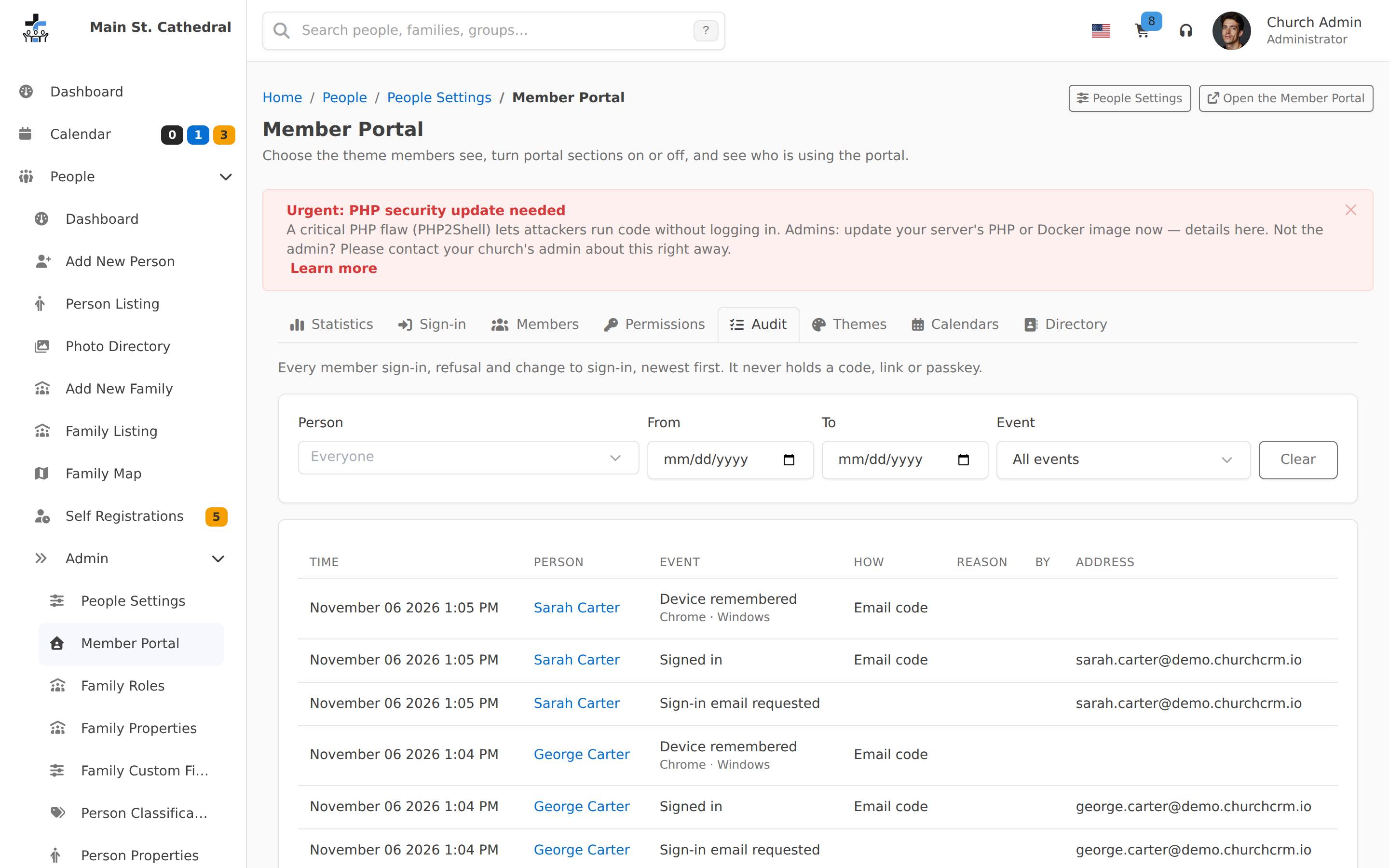
What it keeps. A person's own history stays with them. A row that matches no person (an address nobody has) is deleted after 30 days. After 90 days every row loses its IP address, and refused and Too many attempts rows lose the address that was typed. ChurchCRM tidies the audit once a day, with its other background jobs.
A member says no code arrived. Filter the audit by that person, or by Sign-in refused and the day for an address that matched nobody:
- Sign-in email requested: the email was handed to your mail server; ask them to check spam. The email could not be sent. under it means the mail server refused it: check the email settings.
- Sign-in refused: the reason says why, for example "Their email is shared with someone else" or "No person has this email".
- Too many attempts: they asked too often; they can try again in an hour, or the next day when the reason is Too many sign-in emails today.
Staff sign-in at /admin/
Staff sign in at /admin/ with their login name, password and two-factor code, as before. /session/begin shows the same form, so old bookmarks, the sign-in link in user-account emails and a sign-in form on a church website keep working.
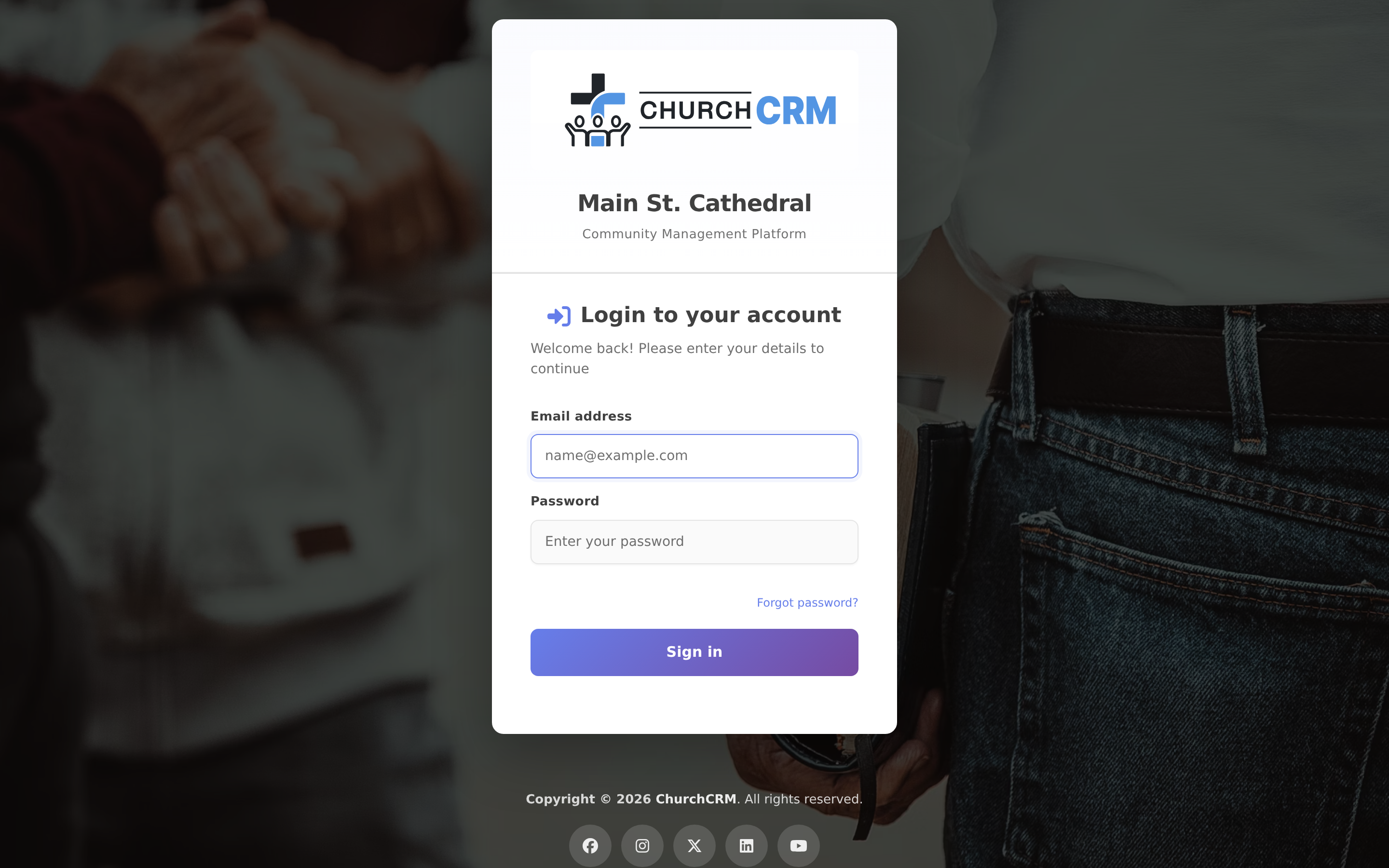
The web root (your plain ChurchCRM address) sends each visitor to the right place:
| Who opens it | Where they go |
|---|---|
| Signed in as staff | The staff dashboard |
| Signed in to the portal as a member | The Member Portal |
| Signed out, member sign-in on | The member sign-in page, /portal/login. It has no staff link: staff go to /admin/ themselves |
| Signed out, member sign-in off, self-registration on | /portal/login, which then shows a Welcome page: a Register your family button, "Member sign-in isn't available yet. Please contact the church office.", and a Church leader sign-in link to /admin/ |
| Signed out, both off | The staff sign-in at /admin/ |
Self-registration is the Self-Registration setting on People → Admin → People Settings → New Members & Greeting. The signed-out portal pages link to each other in the top bar: Sign in while member sign-in is on, Register your family while self-registration is on.
- A signed-out staff page goes to
/admin/and returns to that page after sign-in. - Signed in at
/admin/, an administrator gets the Admin Dashboard and other staff go to the staff dashboard. Every other/admin/…page stays administrator-only. - Switching. In a staff session, Member Portal in the user menu opens your own portal, and Admin Console in the portal's Hello menu goes straight back, without signing in again. Change Password shows in the portal only in a staff session. In a member session (email or passkey), Admin Console shows only for a person who also has a staff account, and goes to the staff sign-in page; only a staff sign-in there opens the staff side.
After the upgrade
The upgrade that brings member sign-in changes these things. Take a backup before you upgrade: it is the only way back. See the Upgrade Guide.
- Self-service logins are removed. Every user account with Edit Self that is not an administrator is deleted, and the person's timeline gets a System Upgrade note, "Member Portal account removed by the upgrade". The person records stay. Their calendar subscriptions keep working, because the subscription moves to the person.
- Member sign-in is off until you turn it on. When self-service logins were removed, the Admin Dashboard says "Member sign-in is off" with how many people used to sign in, a Turn on member sign-in button that opens the Sign-in tab, and Dismiss.
- The user editor offers Administrator or Custom only; there is no self-service account any more. Other staff accounts are not touched.
- Family emails move to people. See Email belongs to people.
- Staff sign in at
/admin/./session/beginstill shows the same form.
Email belongs to people
Families no longer have an email address of their own: email belongs to people, and that is also how members sign in. The upgrade moves each family's email:
- If someone in the family already has that address as their own email, nothing is copied. If someone in another family has it, the family gets a timeline note instead.
- Otherwise it goes to the head of household, if the head has no email of their own,
- or else to the spouse, if the spouse has none. Only living, active people count; with more than one head or spouse, the oldest goes first. When two families had the same address, only one of them gets it moved.
- If nobody can take it, the family gets a System Upgrade note in its timeline: "The family email … was not moved to a person", with the reason (the head of household and spouse both have their own email, the family has no living, active head of household or spouse, or another person already uses the address).
A moved address can be used to sign in at once when the family has only one living, active member. In a larger family it is unconfirmed until staff confirm it. The Members tab has a one-time Family emails not moved list, linking each family with a note, with counts of how many went to a head of household, to a spouse, were already held by a family member, and were noted in the family timeline.
After the upgrade:
- The family editor, the family page and the portal's family form have no family email. The family page lists each adult's own email instead. See Families.
- Mail for a family goes to the head of household's own email, or the spouse's when the head has none. When neither has one, nothing is sent and the screen says why. See Email.
- A person without their own email has no email. People who were reached only through the family address, mostly children, now are not. Group and cart mailing and notifications leave them out; the Email needs attention list shows who they are among the people who may sign in.
- The printed directory prints each person's own email; its Family Email option is gone.
- CSV import and export, and public registration, use each person's own email. The family API still returns an
Emailfor a family, read-only: the head of household's, else the spouse's. A family email sent to it is ignored (see the Private API reference). - The Duplicate Emails report lists every personal email that two or more people share.
Related documentation
- Member Portal administration — every tab on People → Admin → Member Portal
- Portal permissions — what members can do in the portal, and giving a permission
- Signing in to the Member Portal — for members
- Email Setup
- Upgrade Guide
Can't find what you need? Ask in Discord, or open an issue on the ChurchCRM repository.