School Grades
Each person can have a school grade, chosen from a list your church controls. Once a year everyone with a grade moves up one grade. Next year's classes then start from "Kindergarten through 5th" instead of from birth dates.
A grade is blank until someone sets it. Adults and children you do not track simply have no grade.
The grade list
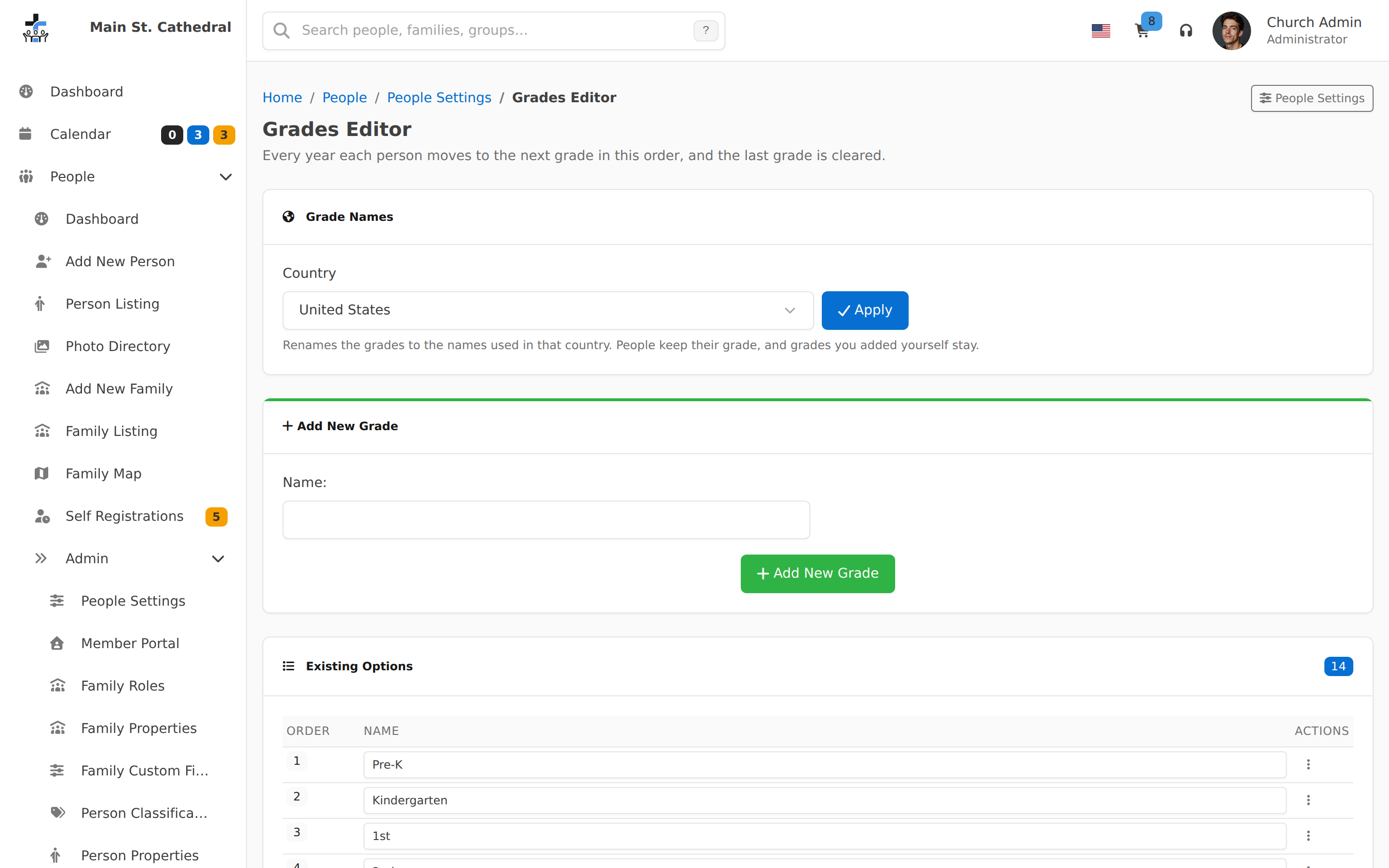
Go to People → Admin → Grades. The page title is Grades Editor. It works like the Person Classifications editor: add a grade, rename one in the Existing Options table and click Save Changes, or use Move up, Move down and Delete in the row Actions menu.
A new installation starts with Pre-K, Kindergarten, 1st, 2nd … 12th. The names leave out the word "Grade", because every place they appear is already labelled Grade.
The order matters. Each year everyone moves to the next grade in this list, and the last grade is cleared. Put a grade you add, such as "College", where it belongs in the order.
Deleting a grade clears it from everyone who had it.
Grade names for your country
The Grade Names card at the top of the Grades Editor renames the grades to the names used in another country:
| Country | Grades |
|---|---|
| United States | Pre-K, Kindergarten, 1st … 12th |
| Canada | Junior Kindergarten, Kindergarten, 1 … 12 |
| England and Wales | Nursery, Reception, Year 1 … Year 13 |
| Scotland | Nursery, P1 … P7, S1 … S6 |
| Northern Ireland | Nursery, P1 … P7, Year 8 … Year 14 |
| Ireland | Pre-school, Junior Infants, Senior Infants, 1st Class … 6th Class, 1st Year … 3rd Year, Transition Year, 5th Year, 6th Year |
| Australia | Pre-school, Foundation, Year 1 … Year 12 |
| New Zealand | Pre-school, Year 1 … Year 13 |
| South Africa | RR, R, 1 … 12 |
| Philippines | Pre-Kindergarten, Kindergarten, 1 … 12 |
- Choose the Country and click Apply.
- A dialog lists what will change: the grades renamed, the grades added, and the grades removed with how many people are in them.
- Click Apply to make the change.
Children keep their grade when the names change. Grades are matched by the age of the children in them, not by their position in the list: an English "Year 2" child is a US "1st" grader.
- Grade names you typed yourself are replaced by the country's names.
- Grades you added yourself stay where they are.
- A grade the new country does not have is removed. Its children lose their grade, and each gets a note on their timeline. For example, England's Nursery is removed when you switch to United States.
When an existing installation is upgraded, it gets the grade names of the country on Church Information. In the United Kingdom, a state of "Scotland" or "Northern Ireland" picks those names, and otherwise the names for England and Wales are used. Every other country starts with the United States names.
Setting a grade
- One person: open the person, click Edit, choose Grade in the Birth & Family section, and click Save. Choose Unassigned to clear it.
- A whole family: the Family Editor has a Grade on every member row.
- An import: the CSV import reads a
Gradecolumn.
The person's page shows the grade as "Grade: 1st".
Finding children by grade
- People list: People → Person Listing has a Grade filter and a Grade column you can turn on.
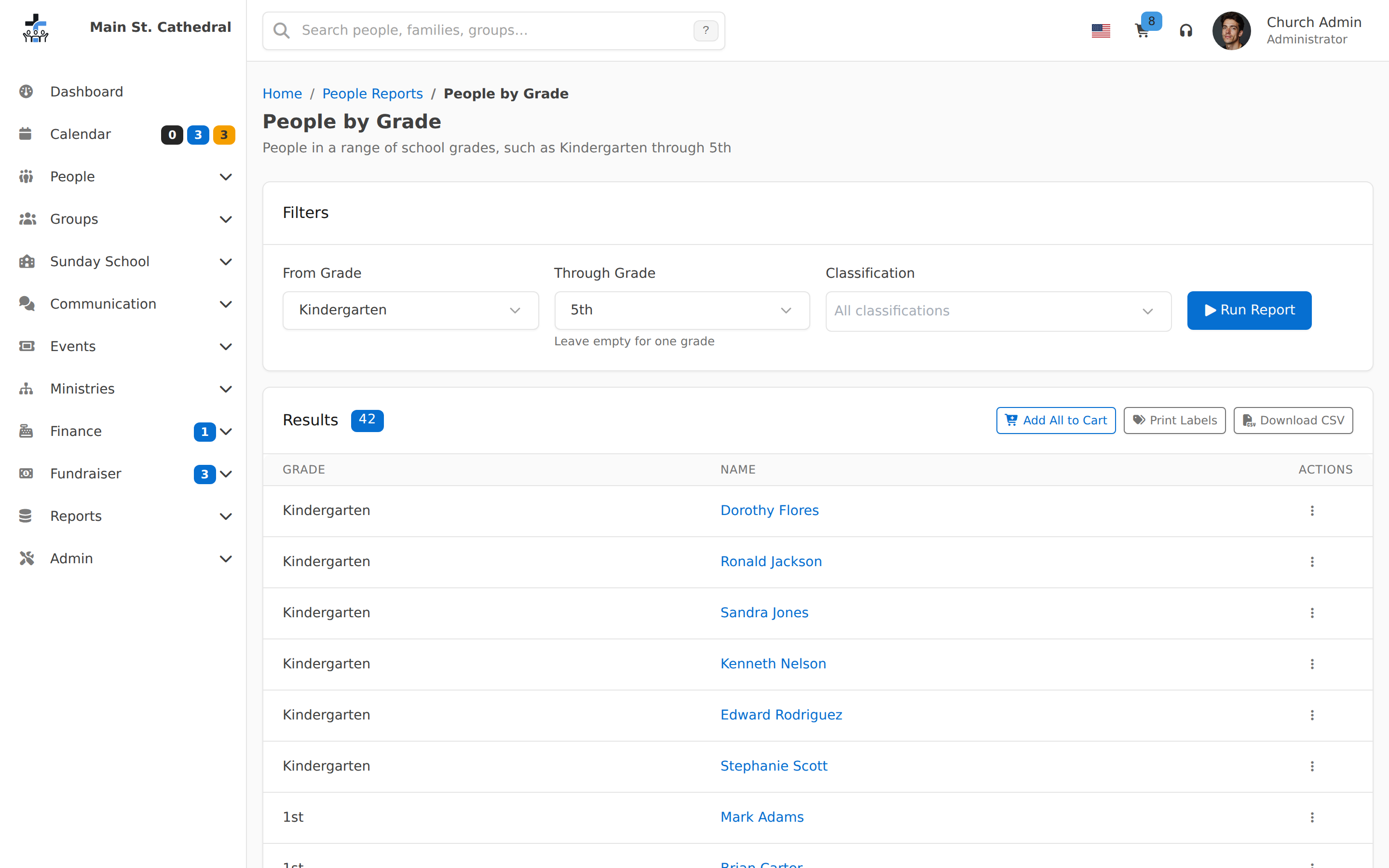
- People by Grade report: Reports → People Reports → People by Grade lists everyone from one grade through another, sorted by grade. See People by Grade.
- Sunday School class: the class roster has a Grade column. See Sunday School.
Moving everyone up one grade
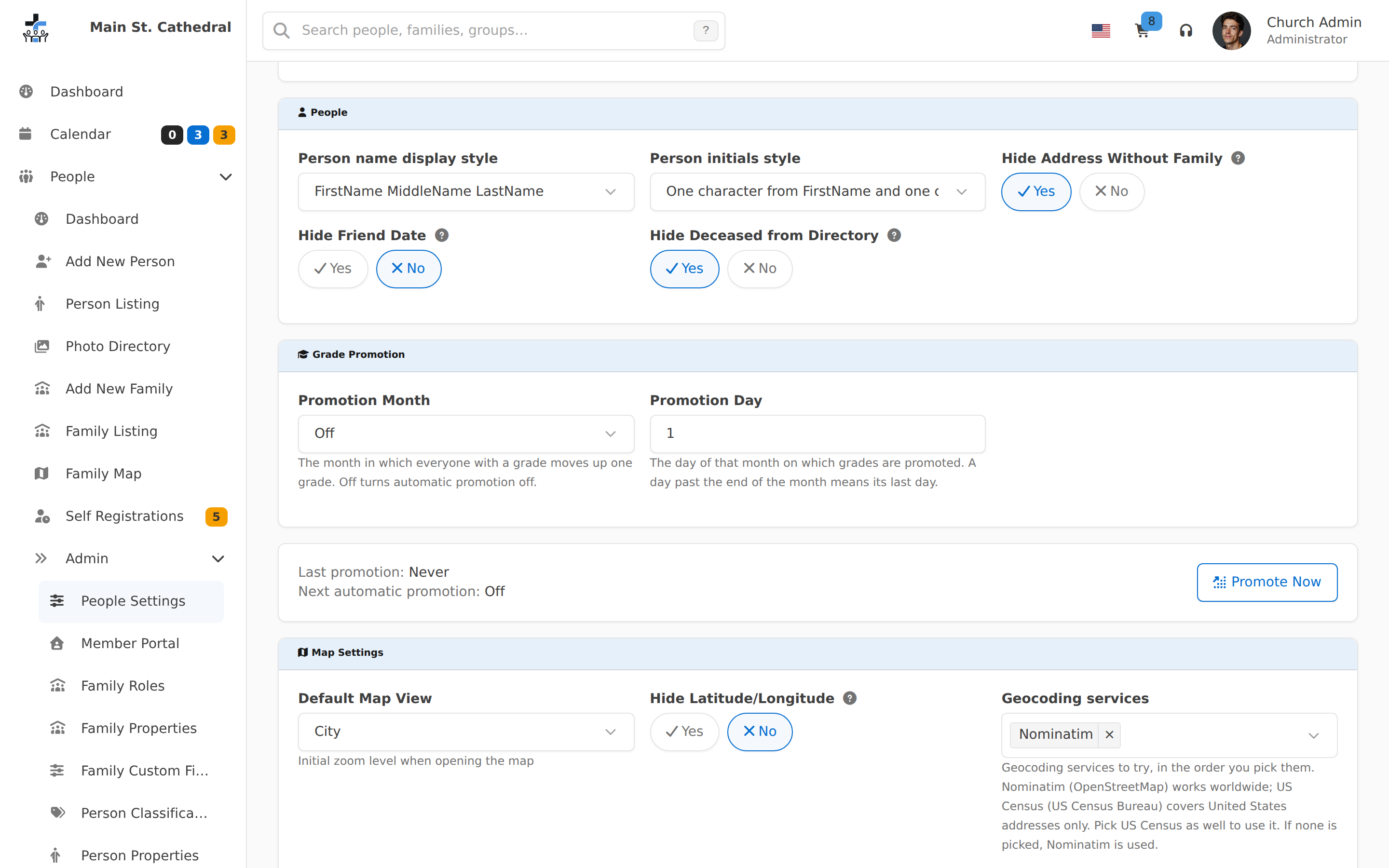
Go to People → Admin → People Settings. The Grade Promotion section has two settings:
- Promotion Month: Off turns automatic promotion off. It is Off until you choose a month.
- Promotion Day: a day past the end of the month means its last day.
Once a year, on or after that date, everyone with a grade moves to the next grade in the list:
- Someone in the last grade has the grade cleared.
- Deceased people are skipped.
- Each moved person gets a note on their timeline, such as "Grade changed from 1st to 2nd by the yearly promotion".
Promotion runs with ChurchCRM's background jobs. A server that was off on the date catches up on its next run, one grade only.
If the date you choose has already passed this year, the first promotion is next year. Choosing June in October does not move everyone the next time a page loads.
Under the settings, a card shows when the last promotion ran, how many people moved, and the Next automatic promotion.
Promote Now
Promote Now moves everyone up one grade right away. A dialog first shows how many people will move up and how many will finish the last grade, then click Promote Now.
A Promote Now counts as this year's promotion, so the automatic promotion does not run again this year.
There is no undo. To correct one child, edit their grade. Each change is on their timeline.
Can't find what you need? Ask in Discord, or open an issue on the ChurchCRM repository.