Signing in to the Member Portal
You sign in to the Member Portal with your own email address. There is no username and no password to remember: ChurchCRM emails you a code and a link, and either one signs you in. On your own phone or computer you can choose to stay signed in, and add a passkey so that next time you don't need the email at all.
This page is written for members. If you look after ChurchCRM for your church, see Member sign-in for the settings behind it.
Your church decides when member sign-in starts and who may use it. Until then, your church's ChurchCRM address opens the staff sign-in page. If the church lets new families register, it opens a Welcome page with Register your family instead, which says "Member sign-in isn't available yet. Please contact the church office."
Sign in with your email
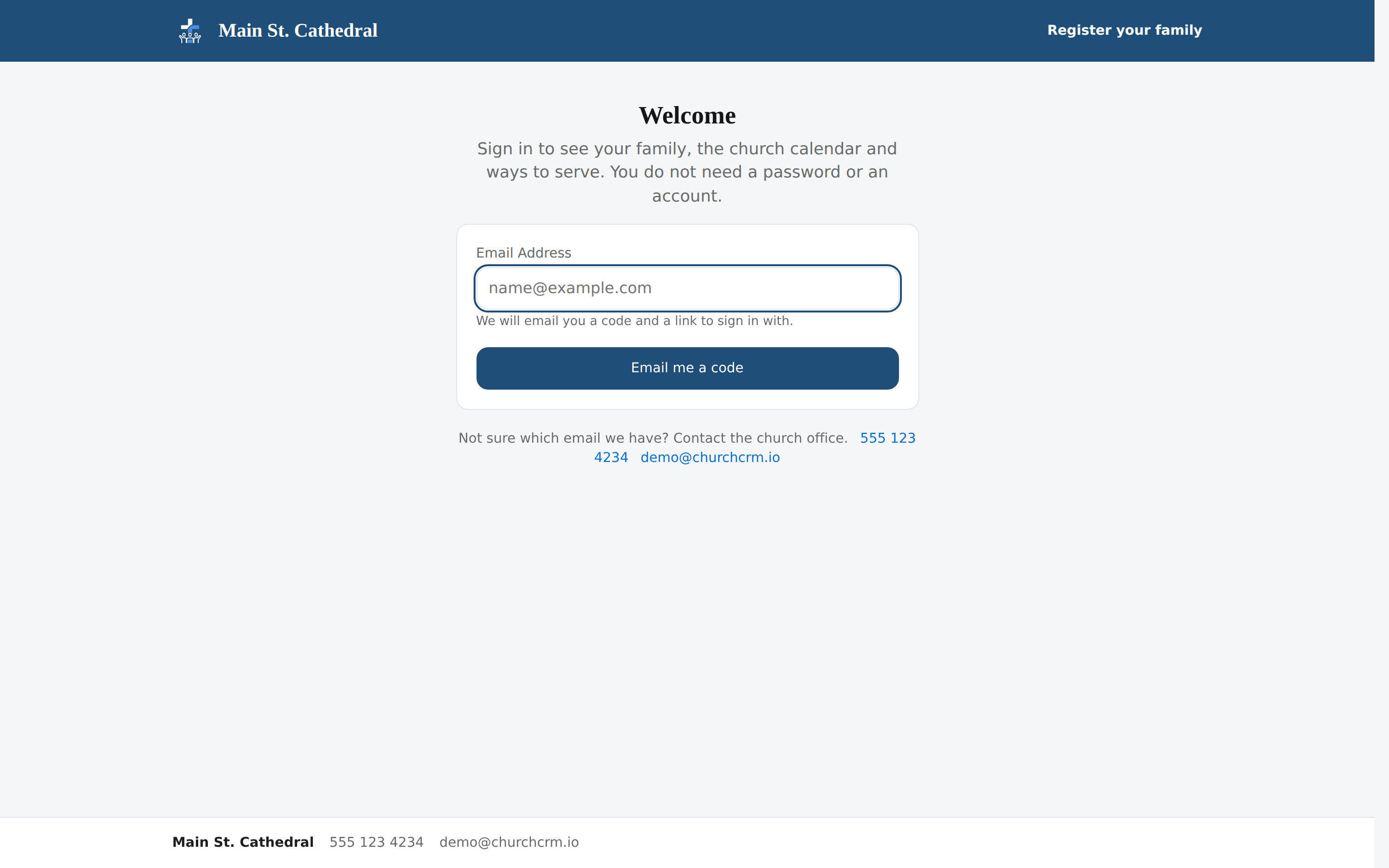
- Open your church's ChurchCRM address. The member sign-in page, Welcome, opens on its own; its address ends in
/portal/login. - Type the email address the church has for you under Email Address and press Email me a code.
- The next page, Check your email, says "If this address can be used to sign in, we've emailed you a code. Nothing after a few minutes? Ask the church office." It reads exactly the same for every address, so nobody can use it to find out who belongs to the church.
- Open the email Your Member Portal sign-in code. It holds a six-digit code and a Sign in button. Use either one:
- The code. Type it in the Code box on the page you are on and press Sign in. The code works only in the browser where you asked for it.
- The button. It opens a page with the church's name and "Sign in as <your first name>?". Press Sign in. Opening the link by itself changes nothing, so a mail program that checks links before you see them can't use it up.
If you had opened a portal page before signing in, you land on that page; otherwise on the portal home page.
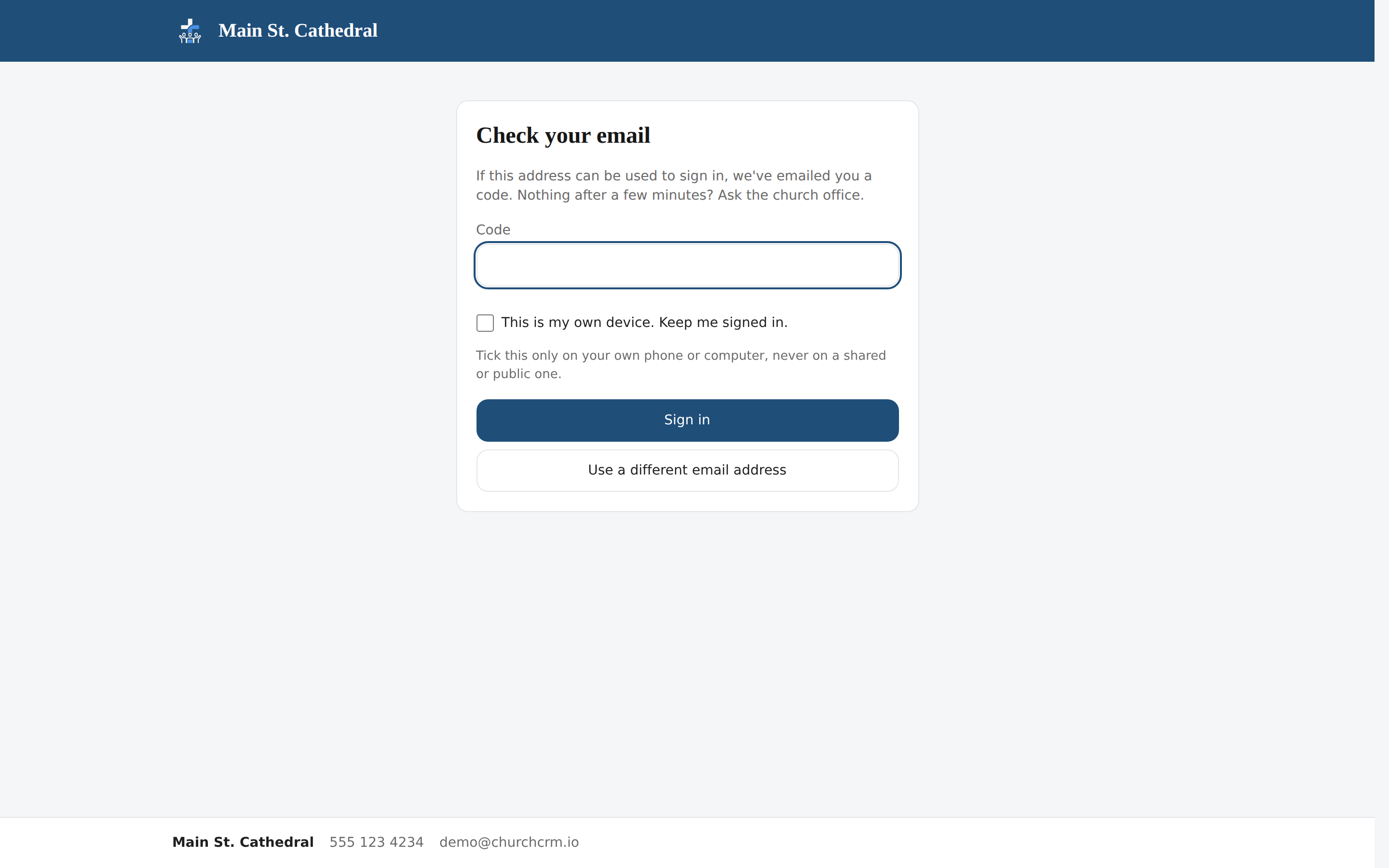
The code and the link each work once, and only for a while: two hours, unless your church has chosen another time. Asking for a new email cancels the one before it. After five wrong codes the code stops working; press Use a different email address and ask again. A link that was already used or has run out opens "This link has expired or was already used"; press Ask for a new email.
When no email arrives
- Look in your spam or junk folder.
- Check that you typed the address the church has for you. Only your own personal email signs you in; a work email on your record does not.
- An address that two people share, such as a couple's joint address, signs nobody in until the church office gives each person their own. The page still looks the same, and no email comes.
- Asking again and again does not help: one address can ask at most five times an hour, and one person gets at most five sign-in emails a day.
- Not sure which email the church has? The sign-in page shows the church office's phone and email, when the church has entered them. The office can also see what happened to your request.
Your church decides who may sign in, for example members and regular attenders but not guests, and from what age (13 unless your church changes it). Someone the church hasn't set up to sign in sees the same page and simply gets no email.
Stay signed in on your own device
Both the code page and the link page have a box: This is my own device. Keep me signed in. Underneath it says "Tick this only on your own phone or computer, never on a shared or public one."
- The box is never ticked for you. Tick it yourself, only on a device that is yours.
- Without it, nothing is kept on the device. You are signed out when you close the browser, or after 30 minutes without using the portal (your church may choose another time).
- With it, this device stays signed in for 14 days from the day you ticked the box, unless your church has chosen another number. After that, sign in with your email again.
- A sign-in with a passkey does not keep the device signed in.
- Sign out in the Hello <your name> menu signs you out and forgets this device.
If your church has turned this off, the box is not there.
Passkeys
A passkey lets you sign in with Face ID, a fingerprint or your device PIN instead of an email code. It is kept by your phone or computer (or your password manager), never by the church.
- The offer. After an email sign-in on which you ticked This is my own device, the first portal page asks once: Use a passkey on this device?, "Sign in next time on this device with Face ID, a fingerprint or your device PIN." Press Yes, add a passkey, or No, thanks. It is not offered when you left the box unticked, because the device might be shared, nor on a device that can't make a passkey.
- Add one later on Sign-in and devices with Add a passkey. This works only within 15 minutes of signing in with your email code or link. Any other time, for example after a passkey sign-in or on a device that kept you signed in, the page tells you to sign out, sign in again with your email, and come back.
- Sign in with it. On the sign-in page, press Sign in with a passkey, or pick your passkey from the suggestions that appear in the email box.
- ChurchCRM emails you, "A passkey was added to your Member Portal sign-in", whenever a passkey is added, so you would notice one you didn't add.
- If a passkey doesn't work (it was removed, or you may not sign in at the moment) the page says "We could not sign you in" and "You can also sign in with your email address."
Passkeys appear only when your church allows them and you open ChurchCRM at the church's own secure (https) address.
Sign-in and devices
Sign-in and devices in the Hello <your name> menu shows everything that can sign you in.
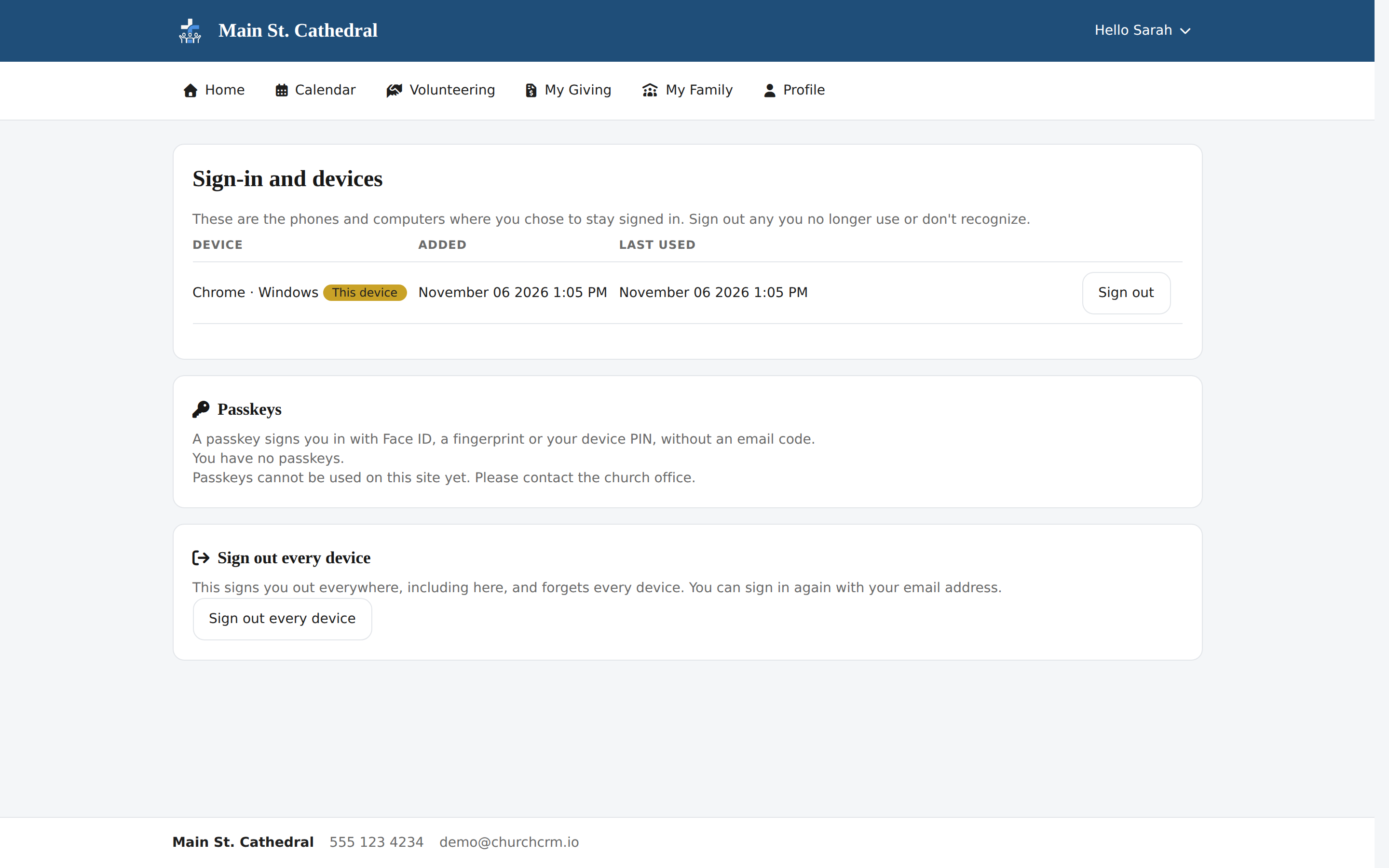
- Devices lists each phone or computer where you chose to stay signed in, by browser and system (for example Chrome · Windows), with when it was Added and Last used. The one you are using is marked This device. Sign out on a row signs that device out at once.
- Passkeys lists your passkeys with when each was added and last used. Remove asks first; after Yes, remove this passkey it can no longer sign you in. Add a passkey is under the list.
- Sign out every device asks first, then signs you out everywhere, including here, and forgets every device. Your passkeys stay, so you can sign in again with a passkey or your email.
If you don't recognise a device, sign it out, and tell the church office.
Changing your email address
Your email address is how you sign in, so a change takes effect only once the new address is proven to be yours.
- Open Profile → Update your details and type the new address under Email. The hint says "A new address changes only after you use the link we send to it."
- Press Save changes. ChurchCRM emails a link to the new address, and a notice to your old one. Until you use the link, the hint reads "Waiting for you to confirm <new address>. Use the link we sent to that address."
- Open the link and press Confirm Email Address. The page says "Your email address is confirmed", and from then on you sign in with the new address.
If the field is locked with "To change this email, please contact the church office.", the church has given you extra access in the portal or a staff login, and only an administrator can change your email.
When the church office changes your email. Staff may update your email as part of your record. If you have never signed in, the new address works straight away. If you have, you are signed out everywhere, every device is forgotten, and the new address can't be used to sign in until it is confirmed. The address you last signed in with gets a notice with a link that confirms the new one. If you have a passkey, you can also sign in with it and press Email me a confirmation link on Sign-in and devices. Otherwise an administrator can confirm it once they have checked with you in person or by phone.
Signing out and shared computers
Sign out in the Hello <your name> menu ends your session and takes you back to the sign-in page. On a shared or public computer, never tick This is my own device, never add a passkey, and sign out when you are done.
If you also work for the church
Staff sign in on their own page: your church's ChurchCRM address followed by /admin/, with their username, their password and, if it is set up, a two-factor code. The member sign-in page has no link to it, so keep a bookmark. (While member sign-in is off, the Welcome page has a Church leader sign-in link.)
- An email code, a link or a passkey only ever opens the Member Portal.
- In a member session, Admin Console in the Hello menu opens the staff sign-in page. Signing in there ends your member session in that browser, and signing in with your email ends a staff session.
- From the staff side, Member Portal in your user menu opens your own portal without signing in again, and Admin Console in the Hello menu takes you straight back.
Related documentation
- Member Portal — what you can do once you are signed in
- Member sign-in — for administrators
Can't find what you need? Ask in Discord, or open an issue on the ChurchCRM repository.