Portal permissions
One set of portal permissions decides what each member sees and can do in the Member Portal: the core pages, volunteering, the member directory, and any pages a plugin adds. Staff permissions add nothing here: being an administrator or having Edit Records on the staff side doesn't change what you can do in your own portal.
Who may sign in at all is decided separately, by the rules on Member sign-in. This page is about what happens after that.
Where permissions come from
| Source | What it is | Example |
|---|---|---|
| Everyone | What every member who signs in has | their own profile, their family's names and photos, the calendar |
| A rule | Worked out from church data on every page, so it ends by itself when the data changes. Nobody assigns it | Adult of the Carter family, Leader of Sunday Greeters |
| Given by an administrator | Given to one person on their page, with a reason and a last day | a grandparent who keeps the family's records |
The core rules are:
- Adult of the family: a head of household or spouse aged 18 or over. A head of household or spouse with no birth year counts as an adult; one added in the portal and still awaiting review does not.
- Team leader: the person named in the Team leader field of a volunteer team (see Who can do what).
- Directory classifications: people in a classification ticked under Who can see it on the Directory tab (Member Portal administration).
A permission is always held on something: Everywhere, A family or A team (a plugin's can also be held on a ministry or a group). Two permissions never add up to a third.
Some permissions are off for everyone while their part of the portal is:
- Volunteer, Manage a team and Decide substitute requests, while Show volunteering is off on the Permissions tab, or Volunteer Management is not set to V2;
- See the church calendar, while no calendar is switched on on the Calendars tab;
- See the member directory, while Show the member directory is off on the Directory tab;
- a plugin's permissions, while the plugin is turned off.
The permissions
| Permission | On | From | What it allows |
|---|---|---|---|
| Edit my details | everywhere | everyone | change their own name, contact details and photo |
| Manage my sign-in and devices | everywhere | everyone | see the devices and passkeys that sign them in, and sign out or remove any of them |
| See my family | a family | everyone | see the names and photos of the people in their family |
| See family contact details | a family | adult of the family | see the email addresses and phone numbers of the people in their family |
| Change family details | a family | adult of the family | change the family address and contact details, and add a family member for review |
| Confirm family details | a family | adult of the family | tell the church office whether the family details are still right |
| See the church calendar | everywhere | everyone | the calendars the church shares with members, and subscribing to them |
| See the member directory | everywhere | directory classifications | the people the church lists in its directory, with the details it chooses to share |
| Volunteer | everywhere | everyone | their volunteer schedule, signing up for open places, asking for a substitute |
| Manage a team | a team | team leader | run a volunteer team: positions, volunteers, schedules, staffing and headcounts |
| Decide substitute requests | a team | team leader | approve or decline substitute requests for a team |
A plugin can add its own permissions; they appear in the same list with the plugin's name beside them.
The Permissions tab
People → Admin → Member Portal → Permissions lists every permission, core and plugin, with its description and key, what it Applies to, who it is Given to (Everyone, a rule such as Adult of the family, and Admin overrides with a count when an administrator has given it to someone), its Status, and how many People hold it. Status is On, or Off with the reason, such as Off for everyone: no calendar is shared with members, linked to the switch that turns it back on. People are counted among everyone the sign-in rules let in, plus staff.
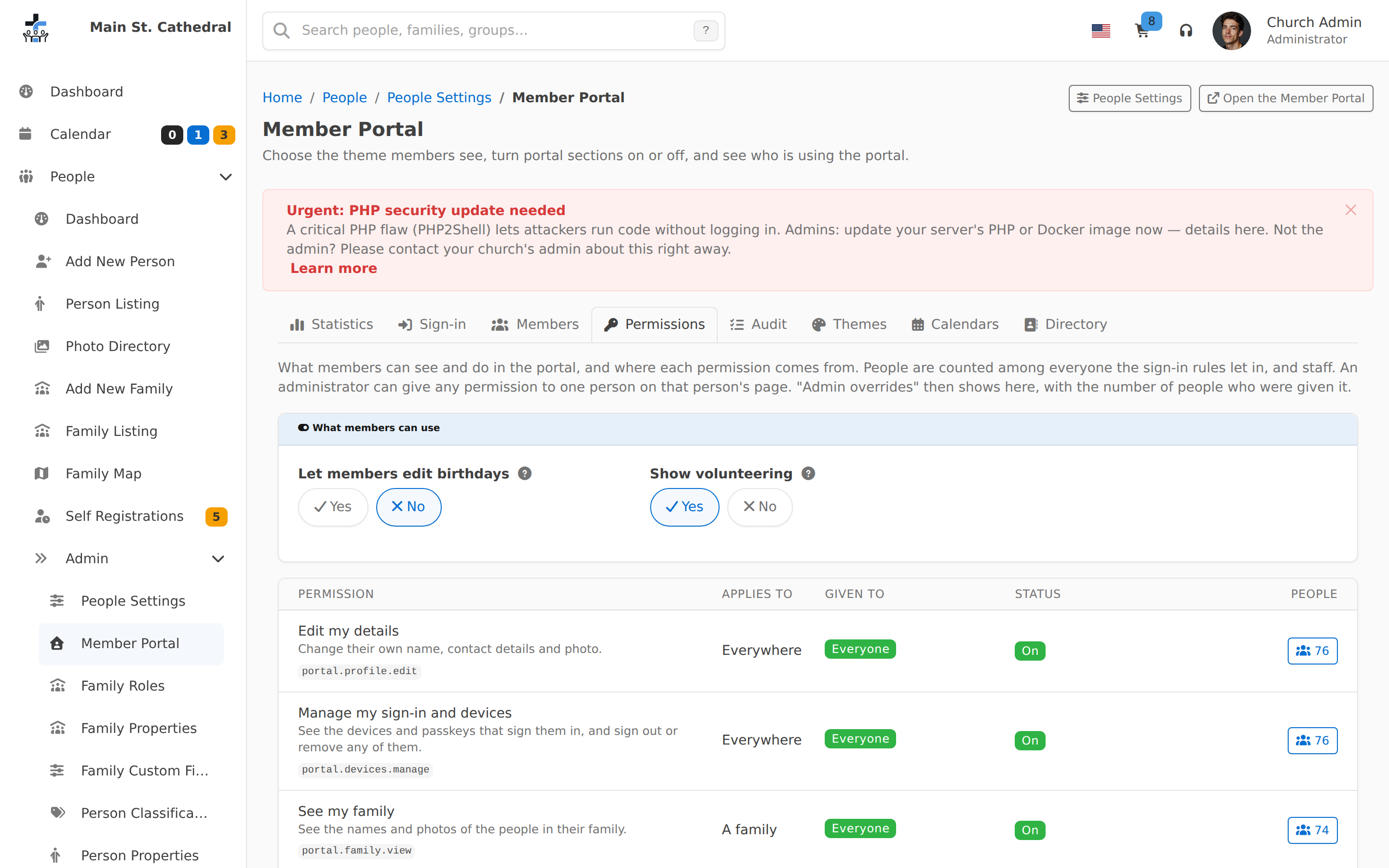
Press the People count to list the holders, their family, and why each one holds it.
The What members can use panel at the top of the tab holds Let members edit birthdays and Show volunteering (Member Portal administration).
Give a permission to one person
Give a permission when the rules don't fit a person, for example a grown son who helps his parents keep in touch with the family, or a coordinator who runs a team without being its named leader. Only administrators can.
- Open the person's page. In the Portal sign-in card, press View Permissions, then Give a permission.
- Choose the Permission. Its description shows under it.
- If it is held on something, choose the Family or Team by name.
- Set the Last day. The permission works through the whole of that day, in the church's time zone, and can be given again after it ends.
- Type a Reason. Only administrators see it.
- Press Give permission.
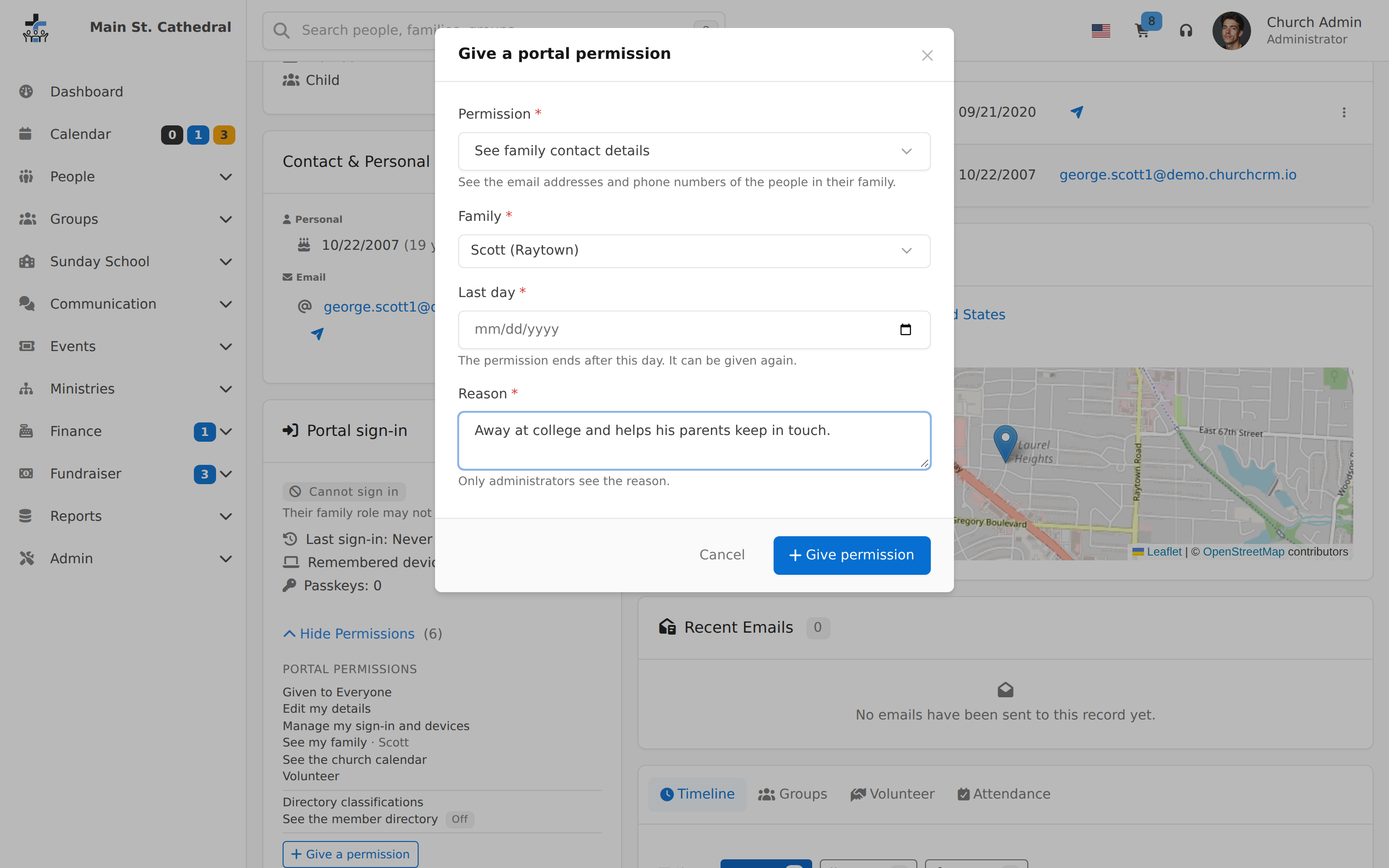
The card lists the person's permissions grouped by source, for example Given to Everyone, Adult of the Carter family, or each given permission with its reason. A given permission has a button to remove it. A given permission whose last day has passed, whose plugin is not installed, or whose family or team no longer exists moves to Given, but not in effect.
- A person who already holds a permission on the same thing, from any source, can't be given it again.
- Giving and removing a permission are in the audit.
- A person who holds a given permission can only have their email changed by an administrator (The sign-in email).
- A given Manage a team gives the person My Teams for that team in the portal, as being its named leader does.
- When a plugin is turned off, its permissions stop working but given ones stay stored, and work again when it is turned back on. Uninstalling the plugin deletes them.
Related documentation
- Member sign-in
- Member Portal administration
- Who can do what — the volunteer levels
- Adding Member Portal pages to a plugin
Can't find what you need? Ask in Discord, or open an issue on the ChurchCRM repository.