Users
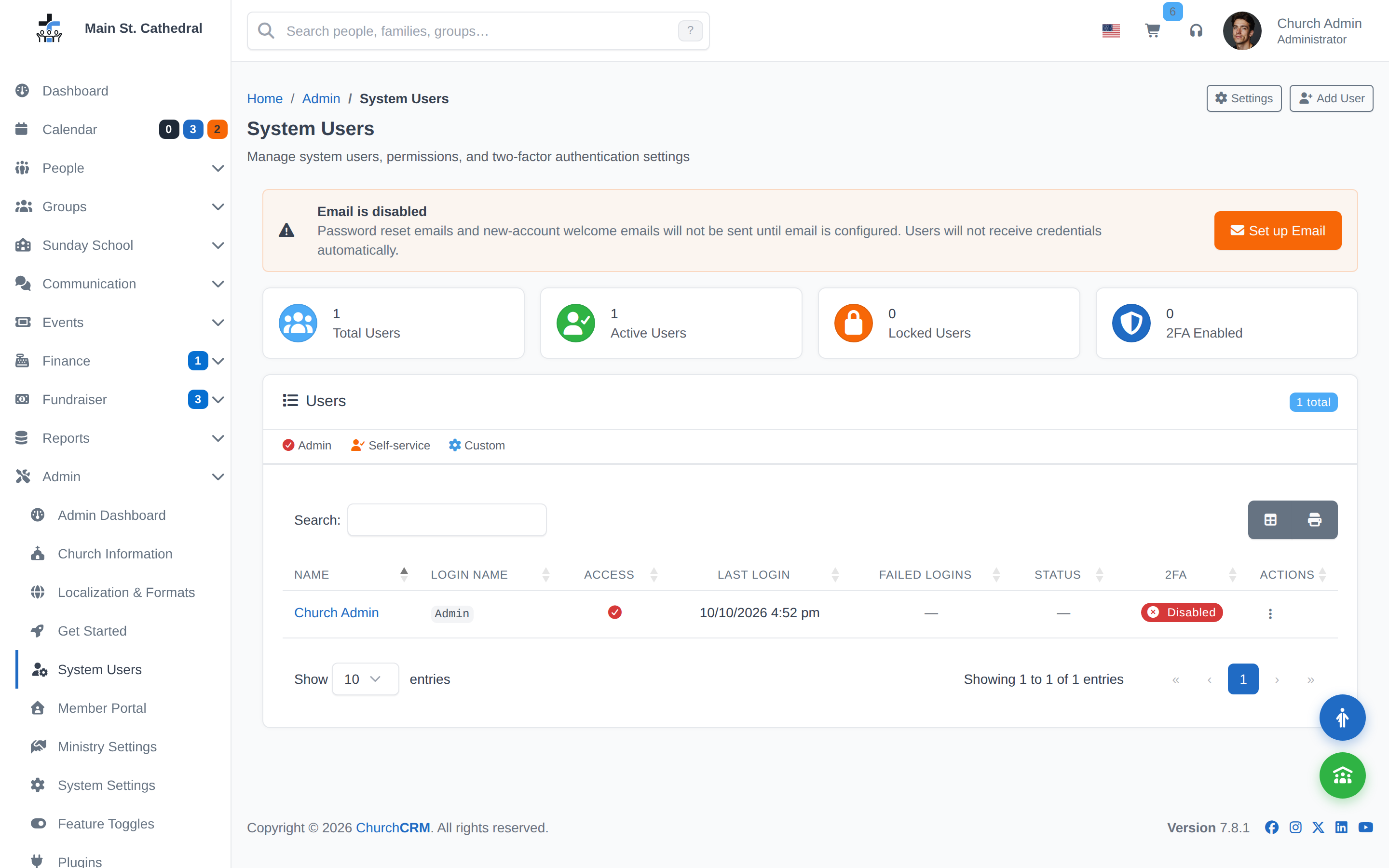
How do I add new Users?
- Open Admin → System Users and click Add User (
/admin/system/users/new). - A list of people who do not yet have a login appears. Select the person. You can also pre-select a person by appending
?personId=Nto the URL. - Set the user's rights and click Save.
What are the different rights available?
- Add Records — create new records.
- Edit Records — modify existing records. It also covers assigning properties to people and families, the Why Came editor on a person, and Verify People (the verify report and the email to families). It is also the permission required to approve entries on Self Registrations.
- Delete Records — delete person and family records. It does not cover other areas; each has its own permission.
- Manage Groups and Roles — add, edit, and delete groups and their roles, and assign properties to groups.
- Manage Donations and Finances — add, edit, and delete donations.
- Manage Fundraisers — grants access to the Fundraiser menu (create/edit fundraisers, manage items, buyers, and winners). This permission is only effective when the Enable Fundraiser menu setting is turned on in System Settings → Finance Settings; if that global toggle is off, the Fundraiser menu is hidden for everyone regardless of this per-user permission. Admins always have access when the feature is enabled.
- Manage Ministries — a global ministry manager for Volunteer Management (v2): every ministry — create, deactivate, delete, and grant coordinators and team leaders. Only effective while the volunteer experience on Admin → Ministry Settings is V2 or Both.
- Manage My Ministries — a ministry coordinator's permission: opens the Ministries heading, the Ministry Dashboard and the pages of the ministries the person has been made a coordinator of (on the ministry page), including creating those ministries' events without Add Events, and grants nothing over any other ministry. Like Manage Ministries, it is only effective while the volunteer experience is V2 or Both, and never on a self-service login. See Who can do what.
- View, Add, and Edit Notes — manage notes on person and family records.
- Edit Self — lets a user maintain only their own person record and their own family members. Useful for members who update their own contact info.
- Admin — grants all of the above. Only an administrator can define properties, property types and classifications.
Every staff user, whatever their permissions, can read people and families, run reports, and print letters and mailing labels.
How do I edit Users?
- Open Admin → System Users.
- Open the row menu for that person. The actions are:
- Edit User —
/admin/system/users/{personId}/edit, where you change rights. Mailto links are the per-user User Config row bEmailMailto. There is nosMailtoDelimiter. - Change Password — you set the password. The user is not forced to change it again unless you use a reset.
- Reset Password via Email — emails a new password. The user must change it at the next login. This action is shown only when email is configured and the person has an email address.
- Disable 2FA — shown when that user has two-factor authentication turned on.
- Delete User — removes the login. The person record remains.
- Edit User —
Which rights should each person get?
Give each person the least they need for their job. These are starting points; adjust them to how your church works. A person can hold more than one job, so combine rows when you need to.
| Person | Rights to grant | Why, and what to check |
|---|---|---|
| Pastor | Edit Records, Manage Groups and Roles, View, Add, and Edit Notes | Notes hold pastoral care details. Check who else has the Notes right before you add it for anyone. |
| Church secretary or office administrator | Add Records, Edit Records, Manage Groups and Roles | Keep Delete Records for one or two people. Deleting a person or family cannot be undone. |
| Treasurer | Manage Donations and Finances | Giving stays apart from pastoral and membership records. |
| Helper who enters donations | Manage Donations and Finances | There is no entry-only right. This grants all of finance, so give it to few people and review it each year. |
| Ministry coordinator | Manage My Ministries | Covers only the ministries they coordinate. Manage Groups and Roles covers every group, so use it for staff, not for volunteers. |
| Volunteer coordinator | Manage Ministries | Covers every ministry. Works only while the volunteer experience is V2 or Both. |
| Event helper | Add Events | Nothing else. |
| Board member | No staff rights | Board membership is a group, not a permission. Grant rights for the job the person does, not for the seat. |
| Member who updates their own details | Edit Self only | They sign in to the Member Portal and do not see staff pages. |
| Read-only staff | No extra rights | They read people and families and run reports. They cannot change anything. |
| Church administrator or IT volunteer | Admin | Only administrators define properties, property types and classifications, and manage users and settings. Keep this to two or three trusted people, and give each their own login. |
Before you save a new user, check three things:
- Does this person need to change data, or only read it? If they only read, grant no extra rights.
- Would they notice if a right were missing? If not, they do not need it.
- Who covers this job when they step down? Remove their rights on the day they leave.
See Security for what each right allows.
What is the default password assigned to new Users?
ChurchCRM creates the account with a random password and does not show that password on screen. If email is already configured, the person gets a welcome email with the username and password, and must change it at first login. If email is off, set a password yourself with Change Password on System Users.
Password change behavior
- Users must change their password at first login when the account was created with the random password.
- Users must change their password after Reset Password via Email.
- Users are not forced to change their password when an administrator uses Change Password.
Minimum password length, the failed-login lockout, and whether 2FA is required are under System Users → Settings → Quick Settings.
Change Settings
Open the user menu (your name, top right) and click Change Settings. An administrator can open the same page from the person's name on System Users.
| Section | What you can do |
|---|---|
| Account | Name, email, photo, and security status. Change Password is on this section. |
| Appearance | Dark mode and the accent color |
| Localization | This user's language and formats |
| API Access | The account's API key. Regenerate replaces it. |
| Permissions | What this account can do (read-only on this page). Change them with Edit User. |
There is no Permission Groups screen and no Security & Permissions menu.
Two-factor authentication
Enrollment is Manage Two-Factor Authentication in the user menu, not a section of Change Settings.
- Open the user menu and click Manage Two-Factor Authentication.
- Scan the QR code with an authenticator app (Google Authenticator, Authy, 1Password, etc.).
- Enter the generated six-digit code to confirm enrollment.
- Save the recovery codes somewhere safe.
Administrators turn the requirement on under System Users → Settings → Quick Settings. To clear 2FA for one person, use Disable 2FA on System Users.
Can't find what you need? Ask in Discord, or open an issue on the ChurchCRM repository.