Member Portal administration
The Member Portal is the member-facing half of ChurchCRM. It is not a feature a church switches on: after the upgrade that carries it, it is simply there, and a member account lands in it instead of on the old limited-access page. Everything an administrator can change about it lives on one page, Admin → Member Portal.
A self-service account — a user whose only permission is Edit Self — reaches the portal and nothing else. Every other login keeps the office side of ChurchCRM exactly as before and can open the portal from its user menu. There is no new permission to grant.
Admin → Member Portal
Admin → Member Portal is for administrators only. It has four tabs: Settings, Themes, Statistics and Calendars. The Open the Member Portal button at the top right opens the portal as yourself.
Settings
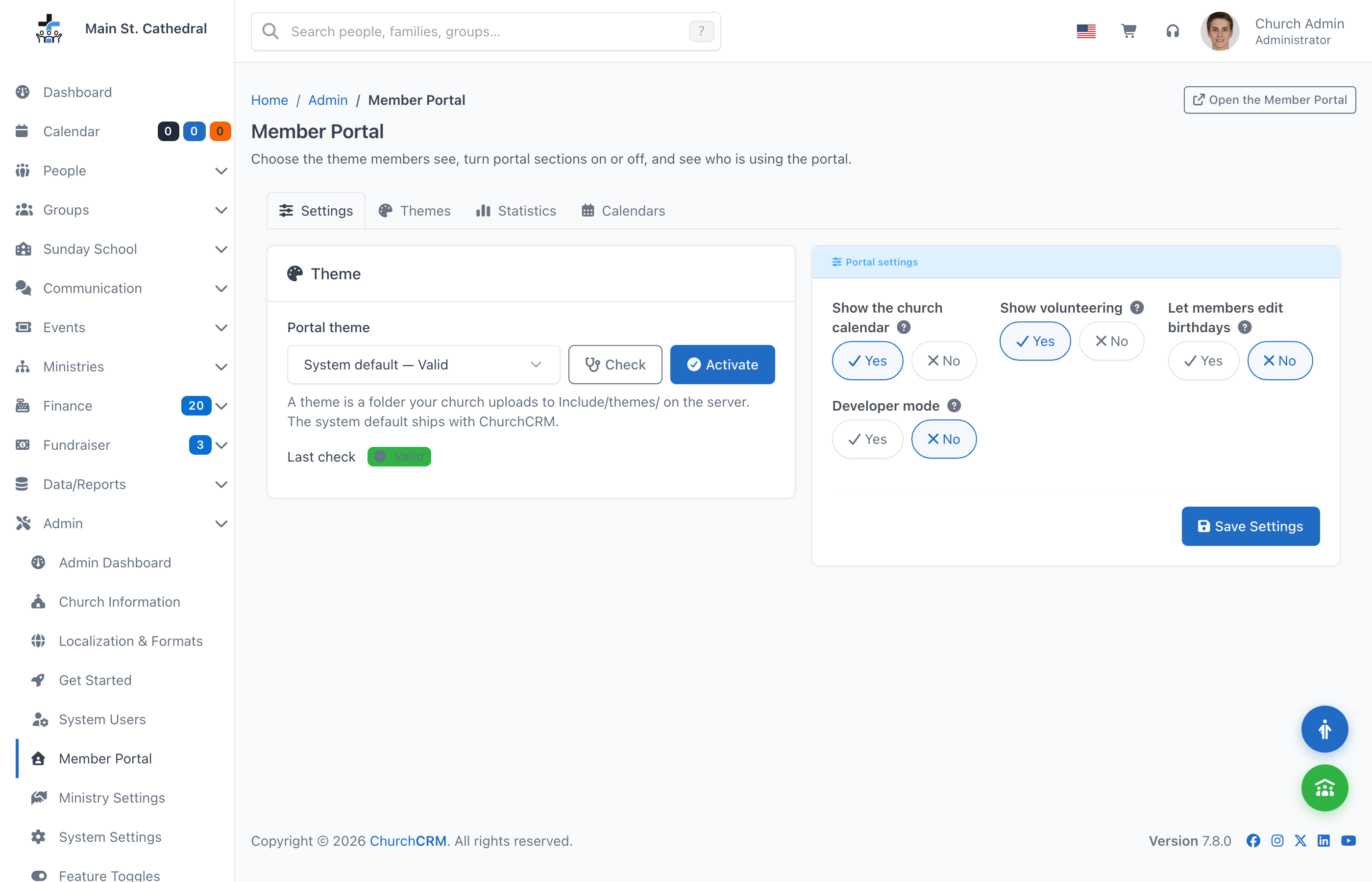
Portal theme lists every theme folder on the server, the system default first, each with the result of its last check (Valid, Warnings or Errors).
- Check runs the theme validator against the selected theme and lists what it found — file, line and message — without changing anything. Use it after uploading a change and before making it live.
- Activate makes the selected theme the one members see from their next page load. Activation validates first: a theme with errors is refused, the findings are listed, and members keep the theme they already had. Warnings are shown but do not block.
The Portal settings panel holds the switches, saved with Save Settings:
| Setting | What it does | Default |
|---|---|---|
| Show the church calendar | Whether members get the Calendar page and the home-page calendar card. | On |
| Show volunteering | Whether members get Volunteering and My Teams. Only has an effect when your church uses Volunteer Management v2. | On |
| Let members edit birthdays | Whether a member can see and change their own birthday on Profile. Off, the field is neither shown nor accepted. | Off |
| Developer mode | For whoever is writing a church theme: turns the template cache off and prints the name of the template behind every portal page into its HTML. Leave it off in normal use — every page recompiles on every request while it is on. | Off |
Switching a section off hides it: its navigation entry and home card disappear and its pages are no longer reachable. Nothing is deleted, and switching it back on brings everything back.
Themes
A table of every theme folder found on the server: its display name and description, the Folder it lives in, its Author, how many Overridden templates it has, and its last Validation result — expand Findings to read the individual messages. Each row's action menu offers Check and Activate, exactly as on the Settings tab.
The tab carries the notice "Themes are provided by your church, not by ChurchCRM, and are not verified by the ChurchCRM project." and a link to the theme authoring guide. See Church themes.
If the folder of the active theme has been removed from the server, the page opens with a red The active theme folder is missing warning: members are seeing an error page until you pick a theme that exists.
Statistics
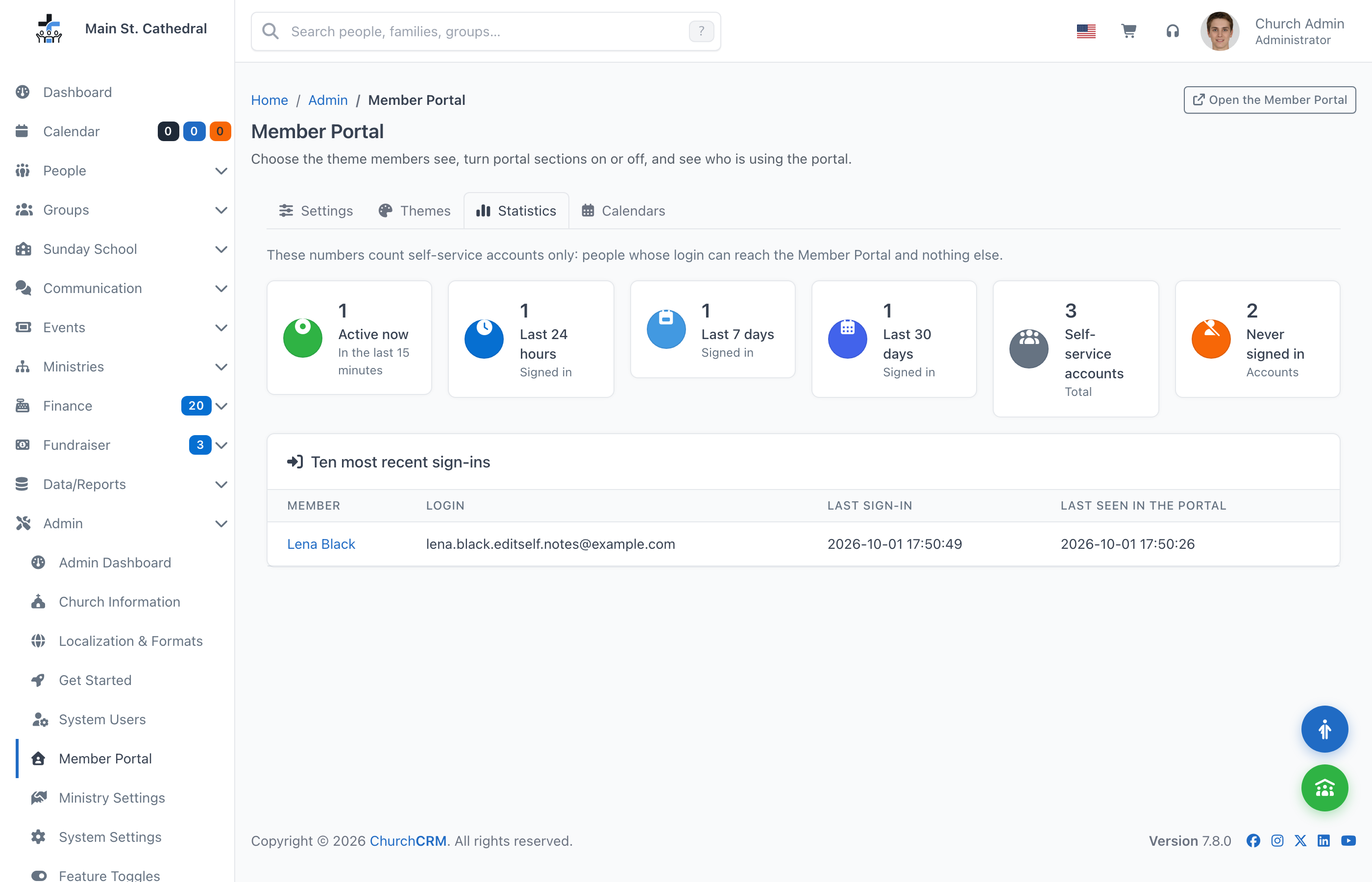
How much the portal is being used. As the tab says, these numbers count self-service accounts only: people whose login can reach the Member Portal and nothing else — staff and administrators who open the portal are not counted.
| Number | Meaning |
|---|---|
| Active now | Members who opened a portal page in the last 15 minutes |
| Last 24 hours / Last 7 days / Last 30 days | Members who signed in within that period |
| Self-service accounts | Every account that reaches the portal |
| Never signed in | Accounts that have never been used |
Ten most recent sign-ins lists the newest sign-ins with the member's name (linked to their record), login, last sign-in and when they were last seen in the portal. Before anyone has used it the table reads "No member has signed in to the Member Portal yet."
Calendars
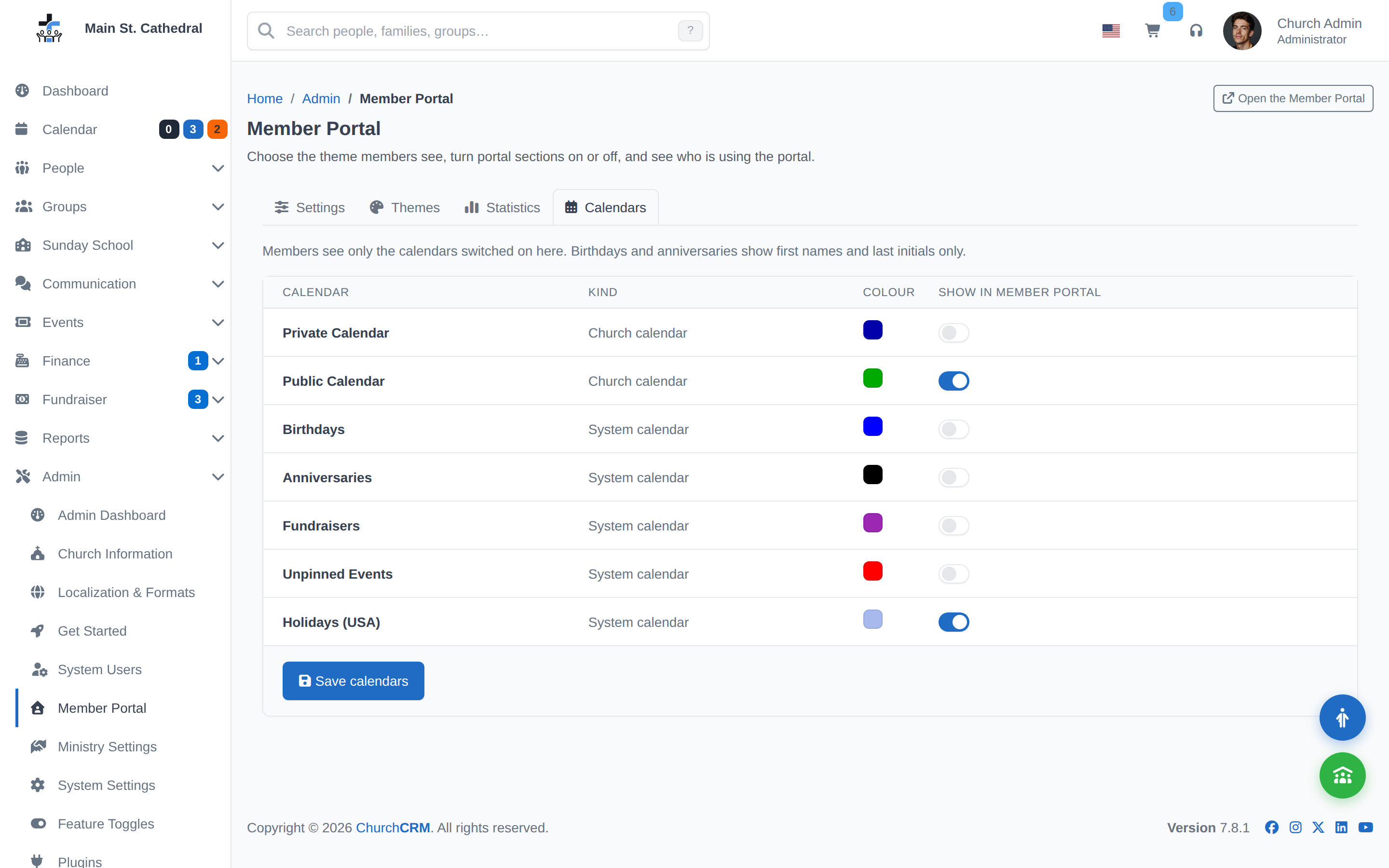
Which calendars members see. Every calendar on the installation is listed with its Kind — Church calendar, Ministry calendar (a calendar that belongs to a volunteer ministry) or System calendar (Birthdays, Anniversaries, Fundraisers, Unpinned Events, and any calendar a plugin adds, such as the Holidays plugin's) — its Colour, and a Show in Member Portal switch. Press Save calendars to apply.
The tab's own rule is the one to remember: Members see only the calendars switched on here. Birthdays and anniversaries show first names and last initials only. A member never sees an age or a full surname from a shared birthday or anniversary calendar — but sharing those calendars is still a decision about members' personal information, and it is yours to make.
- After an upgrade, no calendar is shared. Members see "No calendar has been shared with members yet." until you switch one on.
- On a new installation, the Public Calendar is shared from the start.
- The switches also decide what a member can put in the calendar subscription they add to their own calendar app.
- Members can hide any shared calendar from the legend of their own Calendar page. That changes only what their browser shows, not what you share here.
What changed elsewhere
The portal adds a module; it does not alter the office side of ChurchCRM. A few things around it did move:
- Volunteering for members lives only in the portal. The admin sidebar has no Volunteer heading any more; coordinators work under Ministries, and members accept, decline, swap and sign up on the portal's Volunteering page. See Volunteers.
- A team leader can hold an ordinary member login. Granting a team scope to a self-service account gives that person My Teams in the portal — positions, volunteers, schedules and dates for their own team — and nothing at all in the admin area. A church can hand a team to a volunteer without giving them a staff account.
- Every ministry has its own calendar, created with the ministry, renamed when it is renamed and deleted with it. The admin calendar page lists these under Ministry Calendars, and the heading that used to say My Calendars now reads Church Calendars. Ministry calendars are off in the portal until you switch them on.
- The old limited-access page is retired.
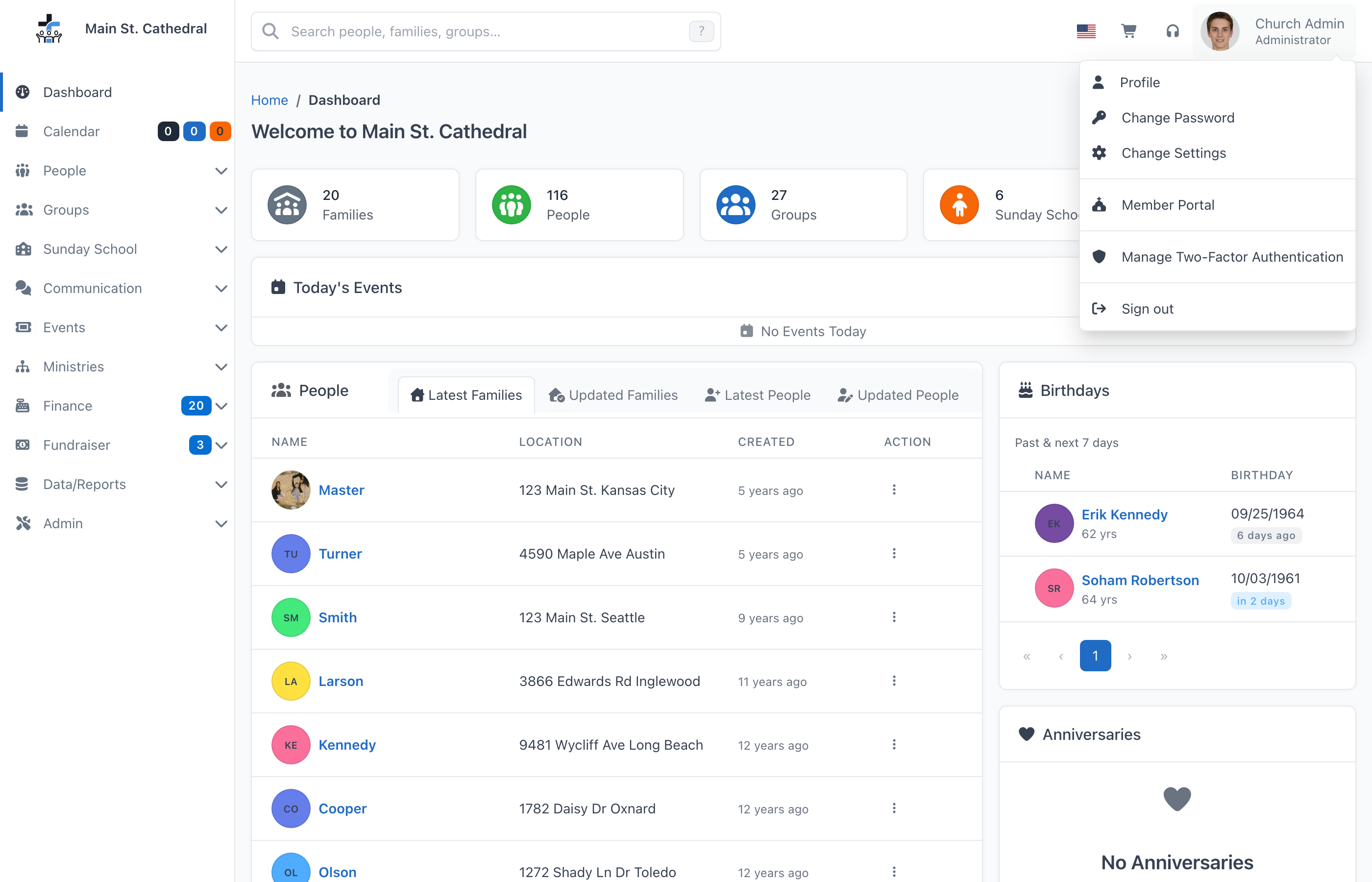
/external/limited-accessnow redirects to the portal. - Staff and administrators open the portal from their user menu (Member Portal), and get back through the portal's account menu (Admin Console).
- Member photos in the portal are served through the portal itself, scoped to the member and their family. Nothing for an administrator to configure.
- A family member proposed in the portal waits on People → Self Registrations. When an adult of a household uses Add a family member, the new person is saved in that family and marked for review; the household sees them on My Family with a Waiting for review badge until you approve them. The dashboard lists them as a Family Member row with the family's name and counts them as pending. Approve them on their own from the row menu (Approve), or with others using Approve selected.
- The portal footer comes from Admin → Church Information: the church's name, phone and email, a Church website link and the church's social media links. A website or social media address is only shown when it is a web address starting with
http://orhttps://.
For administrators upgrading
What you will notice after upgrading to a release that carries the Member Portal:
- Member logins land in the portal. A user whose only permission is Edit Self used to land on a page with two buttons; they now land on the portal home page with their profile, their household and the calendar. This is the one change worth a line in your own announcement to members.
- Those members cannot reach the admin area. They never could, but the address they are sent back to is now the portal home.
- Every other login is unchanged. Staff and administrators see a new Member Portal entry in their user menu and nothing else different.
- No calendar is shared until you switch one on. Visit Admin → Member Portal → Calendars and choose. Birthdays and anniversaries stay off unless you share them.
- Birthday editing is off until you switch it on.
- There is no feature flag. The portal cannot be turned off as a whole; the section switches above are what you have.
- A church theme must survive deployment. Themes live under
Include/themes/on the server, the one folder ChurchCRM never overwrites. If you deploy with a script that mirrors the release over the installation and deletes what it does not know (for examplersync --delete), exclude that folder, or members will see "The Member Portal is temporarily unavailable" until you pick a theme that still exists. See Church themes.
The release that carries the portal also adds database columns on first page load, as every upgrade does. Take a backup before upgrading — see the Upgrade Guide.
Related documentation
- Member Portal — for members
- Church themes
- User Management — creating member accounts
- Upgrade Guide
Can't find what you need? Ask in Discord, or open an issue on the ChurchCRM repository.